Docker Image vs Docker Container
A beginner‑friendly, production‑minded deep dive into what images and containers actually are, how they work under the hood, and how to use them well in real systems.
Introduction & History
If you have spent any time around backend engineering, you have heard someone say “just build the image and spin up a container.” Those two words — image and container — get used so casually that many developers use them interchangeably for years without ever being forced to explain the difference. This guide exists to fix that, permanently, by building the concept up from first principles instead of just handing you a one‑line definition to memorize.
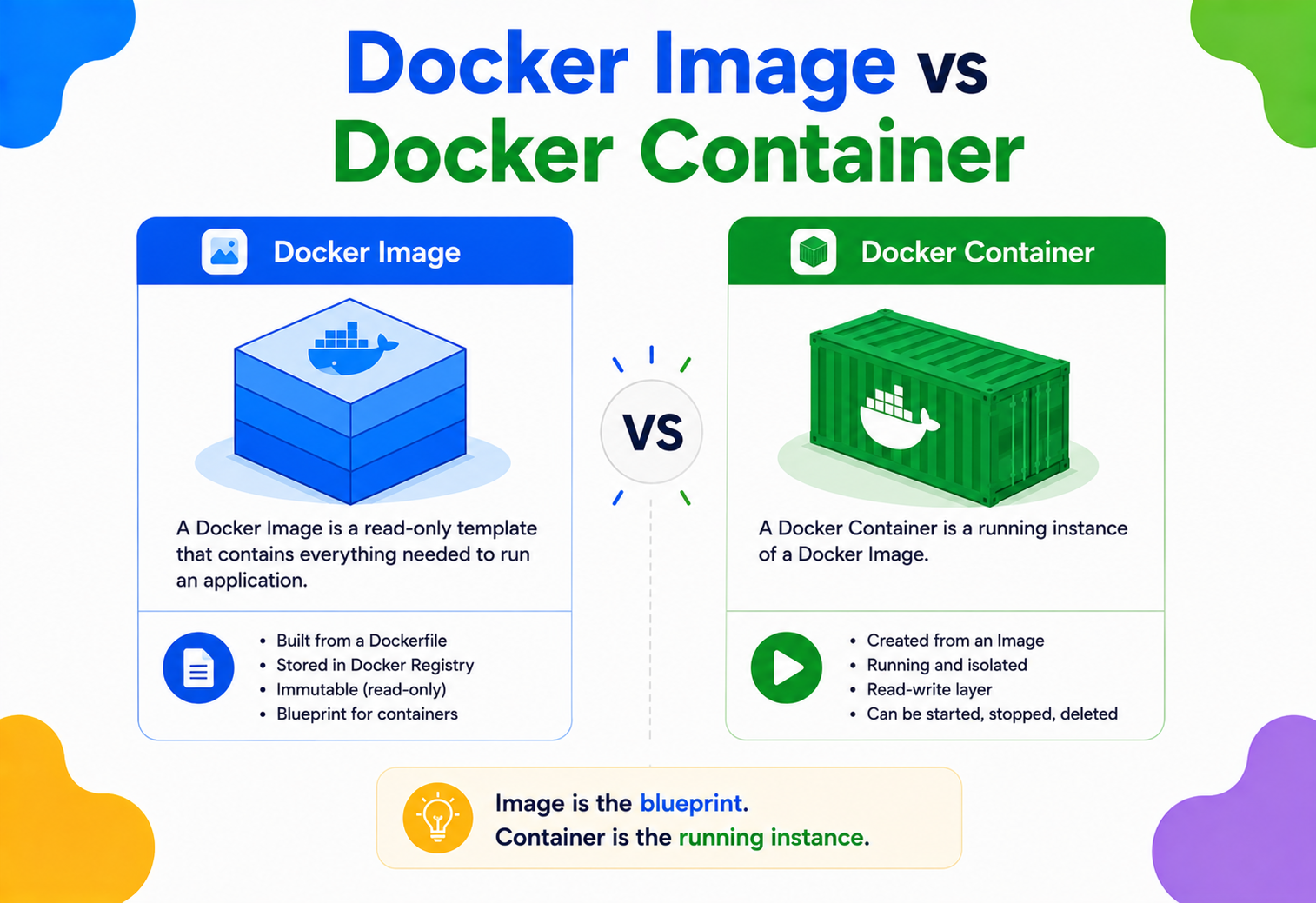
Here’s the one‑line definition anyway, because you’ll want it early: a Docker image is a read‑only blueprint — a packaged snapshot of an application and everything it needs to run. A Docker container is a running (or stopped) instance created from that image — a live, isolated process with its own filesystem, network, and resource limits. An image is like a recipe; a container is like the meal you cooked from it. You can cook the same recipe a hundred times and get a hundred separate meals. You can run the same image a hundred times and get a hundred separate containers.
A Short History
To understand why Docker split things this way, it helps to know where containers came from. Long before Docker existed (2013), Linux already had the low‑level building blocks: chroot (1979) let a process see a restricted view of the filesystem; cgroups (control groups, added to the Linux kernel around 2007 by Google engineers) let the kernel limit how much CPU, memory, and I/O a group of processes could use; and namespaces (added gradually through the 2000s) let the kernel give a process its own private view of things like process IDs, network interfaces, and mount points.
Projects like LXC (Linux Containers) combined these primitives into a usable toolset well before Docker arrived. What Docker did — and this is the actual historical contribution — was wrap those primitives in a simple, standardized, shareable packaging format (the image) and a friendly command‑line workflow (docker build, docker run, docker push). Docker didn’t invent containers; it made them portable and easy enough that every developer could use them, the same way USB didn’t invent the idea of a cable but made every cable interchangeable.
chroot
The oldest ancestor of the container idea. Gives a process a restricted view of the filesystem — it can only see what’s under a chosen directory.
cgroups land in Linux
Google engineers add control groups to the kernel, letting a group of processes be capped on CPU, memory, and I/O. This is the missing “resource fence” piece.
Namespaces mature
Kernel namespaces (PID, NET, MNT, UTS, IPC, USER) let a process see its own private version of process trees, network interfaces, mount points, and hostnames.
LXC (Linux Containers)
The first widely used toolset that stitches cgroups + namespaces together into a usable “container” abstraction — but still hard for everyday developers.
Docker appears
Solomon Hykes releases Docker at PyCon. Its real contribution is not the isolation tech — it’s the standardized image format and the friendly workflow (build, run, push, pull).
OCI, containerd, runc, Kubernetes
The ecosystem standardizes: the Open Container Initiative (OCI) defines the image and runtime specs; containerd and runc become the reference runtime; Kubernetes becomes the default orchestrator for running containers at scale.
Think of a Docker image as a class in object‑oriented programming, and a Docker container as an object (instance) created from that class. You define the class once. You can create as many objects from it as you want, and each object has its own state, even though they were all built from the same blueprint.
The Problem & Motivation
Before containers, deploying software reliably was genuinely painful, and the pain had a name every experienced engineer has heard: “it works on my machine.” A developer would write code that ran perfectly on their laptop, hand it off, and it would break in staging or production because of subtle differences — a different version of Java, a missing environment variable, a library installed in a different location, a different operating system patch level.
Virtual machines (VMs) were the earlier attempt to solve this. A VM packages an entire operating system — kernel included — on top of a hypervisor, so you get full isolation. But that completeness is also the weakness: each VM might be gigabytes in size and take minutes to boot, because it’s booting an entire OS, not just starting your app.
Life before containers
- Dependency mismatches between dev, staging, and prod.
- VMs are heavy: full OS per instance, slow boot, high memory overhead.
- Manually installing dependencies on every server.
- Hard to run many isolated services on one host efficiently.
What Docker images/containers fixed
- Package the app + dependencies together, once, as an image.
- Containers share the host kernel — lightweight, fast to start.
- Same image runs identically on laptop, CI, and production.
- Many containers can run densely on a single host.
The core insight was: most of the isolation guarantees people wanted from a VM didn’t actually require a separate kernel. If the host Linux kernel could just fence off what a process could see and use (namespaces + cgroups), you could get “VM‑like” isolation at a fraction of the size and startup time. Docker images and containers are the direct product of that insight — the image is the “what to run,” and the container is “the kernel‑isolated process actually running it.”
Core Concepts
Let’s define every term precisely, in plain English, before going further.
Docker Image
A Docker image is an immutable, read‑only template made up of layered filesystem snapshots plus metadata (like the default command to run, exposed ports, and environment variables). “Immutable” means once built, an image doesn’t change — if you need a new version, you build a new image with a new ID or tag. Images are stored as a stack of layers, where each layer represents one filesystem change (e.g., “installed Python,” “copied application code”).
Docker Container
A Docker container is a running instance of an image. When you run a container, Docker takes the image’s read‑only layers and adds one thin, writable layer on top. All the changes that happen while the container runs — new files, modified files, logs — are written to that writable layer. The container also gets its own isolated process tree, network stack, and filesystem view via Linux namespaces, and its resource usage is capped using cgroups.
Image = Class
A static definition. Exists once. Doesn’t do anything by itself. Versioned and tagged (e.g., myapp:1.4).
Container = Object
A live instance with runtime state — memory, a process ID, a network address. Can be started, stopped, and deleted.
Dockerfile = Recipe / Source Code
The human‑written instructions (FROM, RUN, COPY…) that docker build compiles into an image.
Registry = Library / App Store
A server (like Docker Hub) that stores and distributes images so others can docker pull them.
Key vocabulary, explained simply
- Layer — one saved “diff” of filesystem changes. Images are built from many layers stacked on top of each other, like transparent sheets stacked to form one picture.
- Namespace — a Linux kernel feature that gives a process its own private view of something (process list, network devices, hostname, mounted filesystems) so it can’t see or interfere with other processes’ versions of that thing.
- cgroup (control group) — a Linux kernel feature that limits and measures how much CPU, memory, disk I/O, and network bandwidth a group of processes can use.
- Union filesystem (e.g., OverlayFS) — a filesystem technique that transparently overlays multiple directories (layers) so they appear to applications as one single merged directory.
- Container runtime — the software that actually creates and manages the isolated process (namespaces, cgroups, filesystem mount) — e.g.,
containerdandrunc. - Tag — a human‑readable label pointing at a specific image version, like
node:20-alpine.
People often say “I’m updating my container” when they mean “I built a new image and replaced the old container with one from the new image.” Containers themselves are not usually “updated” in place — you build a new image and recreate the container from it. This distinction matters a lot once you’re managing production deployments.
Architecture & Components
Docker isn’t one monolithic program. It’s a small stack of cooperating components, each with a narrow job. Understanding this stack is what makes the image/container distinction click, because each component operates on a different one of the two.
docker CLI talks to dockerd over a REST API. dockerd owns the image store and delegates container lifecycle to containerd, which uses runc to call Linux kernel primitives (namespaces, cgroups, OverlayFS). Only at the very bottom does an actual isolated process — the container — come into existence.Docker CLI
The docker command you type. Sends requests to the daemon over its REST API.
dockerd (daemon)
Background service that manages images, networks, volumes, and orchestrates builds.
containerd
A separate, higher‑level daemon (donated to the CNCF) responsible for container lifecycle management: pulling images, managing storage, and supervising running containers.
runc
The low‑level OCI‑compliant runtime that actually calls into the Linux kernel to set up namespaces, cgroups, and start the process — this is the last mile before your app’s code executes.
Notice where images and containers sit in this diagram: images live in the image store, a passive, on‑disk collection of layers with no running process attached. Containers exist only once runc has actually asked the kernel to create an isolated process — they are the dynamic, “alive” part of the stack.
Internal Working: Layers, Copy‑on‑Write, and Isolation
How Image Layers Work
Every instruction in a Dockerfile that changes the filesystem (RUN, COPY, ADD) produces a new, immutable layer, identified by a content hash. Docker caches these layers, which is why rebuilding an image after a small code change is fast — only the layers after the change need to be rebuilt; earlier, unchanged layers are reused straight from cache.
Copy‑on‑Write (CoW)
When a container writes to a file that exists in a read‑only image layer below it, the container’s storage driver (commonly OverlayFS) copies that file up into the container’s writable layer first, then applies the change there. The original layer in the image is never touched — it stays exactly as it was, which is what allows dozens of containers to share the same underlying image layers safely and cheaply. This is precisely why containers start in milliseconds: there’s no need to copy gigabytes of files at startup, just create a new thin writable layer pointing at shared read‑only layers.
Isolation Mechanics
| Linux Namespace | What it isolates |
|---|---|
PID | Process IDs — container sees only its own process tree, starting at PID 1. |
NET | Network interfaces, IP addresses, routing tables, ports. |
MNT | Mount points — container has its own filesystem view. |
UTS | Hostname and domain name. |
IPC | Inter‑process communication resources (shared memory, semaphores). |
USER | User and group IDs — container root can map to an unprivileged host user. |
cgroups then wrap around that isolated process to cap what it’s allowed to consume — for example, “this container may use at most 512MB of RAM and 0.5 CPU cores.” If it tries to exceed the memory limit, the kernel’s OOM killer terminates it, exactly the way it would kill any runaway process — containers don’t get special mercy from the kernel.
Data Flow & Lifecycle
Let’s trace the full journey from source code to a running process, since this is where the image/container split becomes concrete rather than abstract.
Write a Dockerfile
You declare a base image, dependencies, app code, and startup command.
docker build
The daemon executes each instruction, producing one immutable layer per step, and tags the final result as an image (e.g. myapp:1.0).
docker push (optional)
The image’s layers are uploaded to a registry (Docker Hub, ECR, GCR, private registry) so other machines can pull it.
docker pull
A target host downloads any layers it doesn’t already have cached locally.
docker run
containerd + runc create namespaces and cgroups, mount the image’s layers read‑only plus a new writable layer, and start the entrypoint process. This is the exact moment a container is born.
Container runs
The process executes, writes logs, reads/writes files (via CoW), and communicates over its network namespace.
docker stop / docker rm
The process is signaled to exit; the container’s writable layer and metadata are removed (unless you keep the container, or use volumes for persistence). The image itself is untouched and can spawn new containers again.
Steps 1—4 are entirely about the image — nothing is running. Only step 5 onward involves a container. If you never run docker run (or equivalent), you will only ever have images sitting on disk, never a container.
Advantages, Disadvantages & Trade‑offs
Advantages
- Images give reproducible, versioned, portable builds.
- Containers start in milliseconds thanks to CoW and shared layers.
- High density: many containers per host vs. few VMs.
- Clean separation of “what to run” (image) from “is it running” (container) simplifies rollbacks — just run a container from an older image tag.
Disadvantages / Trade‑offs
- Weaker isolation than VMs — containers share the host kernel, so a kernel‑level exploit can affect all containers on that host.
- Stateful data in a container’s writable layer is lost when the container is removed unless you explicitly use volumes.
- Image bloat is easy to accumulate if Dockerfiles aren’t written carefully (unnecessary layers, cached packages).
- Debugging “which layer changed what” can be non‑obvious for large, poorly structured Dockerfiles.
The trade‑off in one sentence: you’re exchanging some isolation strength (compared to a full VM) for massive gains in speed, density, and portability — and for most application workloads, that trade is worth it.
Performance & Scalability
Because containers reuse shared, cached image layers via copy‑on‑write, spinning up a new container typically takes well under a second, compared to VM boot times measured in tens of seconds to minutes. This matters enormously for autoscaling: when traffic spikes, an orchestrator like Kubernetes can launch dozens of new containers from the same image almost instantly to absorb load.
Scaling Images vs. Scaling Containers
You don’t “scale an image” — an image is static. What you scale is the number of containers instantiated from a given image, typically managed by an orchestrator that watches CPU/memory metrics and creates or destroys containers to match demand. Keeping images small (fewer, smaller layers, minimal base images like alpine) directly improves scaling speed, because a smaller image pulls faster onto new nodes that don’t yet have it cached.
High Availability & Reliability
Because a container is disposable and reproducible from its image, the standard reliability pattern in container‑based systems is: don’t try to heal a broken container — kill it and start a fresh one from the same image. This is often called treating containers as “cattle, not pets.” Orchestrators like Kubernetes constantly run health checks; if a container fails a liveness probe, it’s terminated and a new one is created from the same image automatically.
Because the image is immutable and contains everything the app needs, recreating a container from it produces a byte‑for‑byte‑consistent starting state every time — no configuration drift, no “well it worked yesterday.” That determinism is the foundation of container‑based high availability.
For true HA, images are usually pushed to a highly available registry (often replicated across regions), and containers are spread across multiple hosts/availability zones so that the failure of one host doesn’t take the whole service down.
Security
Image scanning
Tools like Trivy or Docker Scout scan image layers for known vulnerable packages before deployment.
Minimal base images
Smaller images (e.g. distroless, alpine) have a smaller attack surface — fewer installed packages to exploit.
Non‑root containers
Run processes as an unprivileged user inside the container via USER in the Dockerfile to limit blast radius if compromised.
Read‑only containers
Run with --read-only so the writable layer can’t be tampered with at runtime, except explicitly mounted paths.
Because containers share the host kernel, a container is not a full security boundary the way a VM is. Never treat “it’s in a container” as equivalent to “it’s fully sandboxed” for untrusted, adversarial workloads — for that, look at gVisor, Kata Containers, or actual VM‑based isolation.
Monitoring, Logging & Metrics
Images are static, so there’s nothing to “monitor” about an image beyond scanning it for vulnerabilities and tracking its size over time. Containers, by contrast, are live processes and are what you actually monitor in production: CPU/memory usage (from cgroup metrics), restart counts, and log output (typically captured from the container’s stdout/stderr by a log driver and shipped to tools like the ELK stack, Loki, or CloudWatch).
docker stats                 # live CPU/mem/network usage per container
docker logs -f my-container  # stream a container's stdout/stderr
docker inspect my-container # full container metadata & stateDeployment & Cloud
In practice, the deployment pipeline is exactly the lifecycle from Section 6, automated: CI builds an image on every commit, tags it (often with the git SHA), pushes it to a registry (Docker Hub, AWS ECR, Google Artifact Registry, Azure ACR), and an orchestrator (Kubernetes, ECS, Docker Swarm) pulls that image and creates containers from it across a cluster of machines.
# Minimal Dockerfile for a Java service
FROM eclipse-temurin:21-jre-alpine
WORKDIR /app
COPY target/app.jar app.jar
EXPOSE 8080
ENTRYPOINT ["java", "-jar", "app.jar"]docker build -t myregistry/orders-service:1.4.0 .
docker push myregistry/orders-service:1.4.0
docker run -d -p 8080:8080 --name orders myregistry/orders-service:1.4.0Storage & Networking
Because a container’s writable layer is deleted along with the container, anything that needs to survive a restart (databases, uploaded files) must live in a volume — a storage location managed by Docker outside the container’s writable layer, which persists independently of any single container’s lifecycle.
docker volume create pgdata
docker run -d --name db -v pgdata:/var/lib/postgresql/data postgres:16
On the networking side, each container gets its own network namespace by default. Docker sets up virtual bridges so containers on the same host can talk to each other by container name, and port mapping (-p 8080:8080) exposes a container’s internal port to the host.
APIs & Microservices
Microservice architectures lean heavily on the image/container split: each service (orders, inventory, payments) has its own Dockerfile and its own image, versioned independently. In production, each service typically runs as multiple containers behind a load balancer for both scalability and fault tolerance — if one container crashes, traffic routes to the healthy ones while the orchestrator replaces it.
Design Patterns & Anti‑patterns
Multi‑stage builds
Use a heavier “builder” stage to compile the app, then copy only the final artifact into a lean runtime image — keeps final images small.
Immutable tags
Tag images with a unique version or git SHA rather than reusing latest, so a running container’s origin is always traceable.
Anti‑pattern · storing state in a container
Writing important data only to the container’s writable layer means it vanishes on removal — use volumes instead.
Anti‑pattern · one giant image for everything
Bundling multiple unrelated services into a single image/container defeats independent scaling and deployment.
# Multi-stage Dockerfile example (Java)
FROM maven:3.9-eclipse-temurin-21 AS build
WORKDIR /src
COPY . .
RUN mvn -q package -DskipTests

FROM eclipse-temurin:21-jre-alpine
WORKDIR /app
COPY --from=build /src/target/app.jar app.jar
ENTRYPOINT ["java", "-jar", "app.jar"]Best Practices & Common Mistakes
Best Practices
- Keep images small and minimal — fewer layers, smaller base images.
- Use
.dockerignoreto avoid copying junk into build context. - Pin base image versions instead of floating tags like
latest. - Treat containers as disposable; persist real data in volumes.
Common Mistakes
- Confusing “rebuilding an image” with “updating a running container.”
- Running processes as root inside containers unnecessarily.
- Storing secrets baked into image layers (they persist in image history!).
- Not cleaning up unused images/containers, leading to disk exhaustion.
Real‑world Examples
Netflix
Uses containerized microservices extensively across its streaming backend, building thousands of service images and running many replicas via container orchestration to handle massive, elastic traffic.
Uber
Migrated much of its backend to a containerized microservices architecture to let hundreds of independent teams ship service images without coordinating deployments on shared servers.
Whose internal Borg system inspired Kubernetes, has run essentially everything in containers internally for well over a decade — billions of containers started per week at Google’s scale is a commonly cited figure.
The common thread
All of these companies rely on exactly the same core mechanism this article describes: build once as an image, run many times as disposable, identical containers.
FAQ
Can one image produce multiple containers at once?
Yes — this is the whole point. You can run docker run myapp:1.0 as many times as you like; each invocation creates a fully independent container, all sharing the same underlying read‑only image layers.
If I change a file inside a running container, does the image change?
No. Your change goes into that container’s private writable layer only. The image on disk is untouched, and any new container started from that image starts fresh, without your change.
What happens to my data when I remove a container?
Anything only in the writable layer is deleted permanently. Anything stored in a mounted volume survives, because volumes exist independently of any container.
Is a container basically a lightweight VM?
Conceptually similar (isolated environment for an app) but mechanically very different — a container shares the host’s kernel, while a VM runs its own full kernel on top of a hypervisor. That’s why containers are lighter and faster, but offer weaker isolation.
Summary & Key Takeaways
Docker’s split between the immutable image and the disposable container is the single most important abstraction in modern application delivery. Once you internalise that images are static blueprints and containers are their live, per‑instance runtime, every other piece of Docker — layers, copy‑on‑write, namespaces, cgroups, volumes, registries, orchestration — slots naturally into place.
The core distinction, one more time
- An image is a static, immutable, versioned blueprint built from layered filesystem snapshots.
- A container is a live, running instance of an image, with its own writable layer and kernel‑enforced isolation (namespaces + cgroups).
- Copy‑on‑write lets many containers share one image’s layers cheaply, which is why containers start almost instantly.
- Containers are disposable by design — persistent data belongs in volumes, not in the container’s writable layer.
- Production systems build an image once per version and run many containers from it, scaling and healing by creating/destroying containers, never by mutating them.