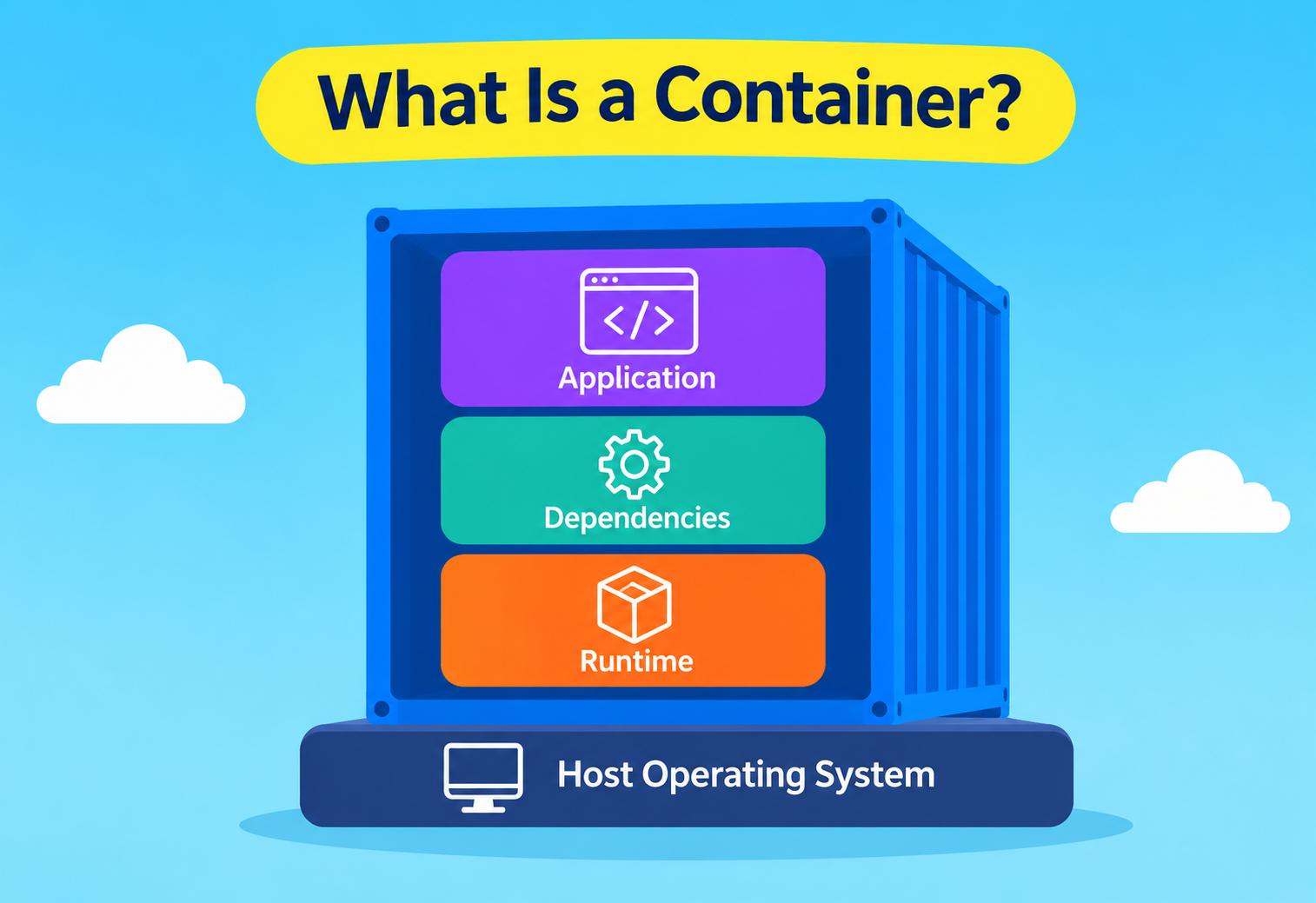
What Is a Container?
A no‑jargon walkthrough of one of the most important ideas in modern software — from “why does this even exist” all the way to how Netflix, Google, and Uber run containers at massive scale. Forty minutes end to end, with Java code, eight rebuilt diagrams, and every trade-off spelled out plainly.
Introduction & History
Containers exist to solve a very old, very stubborn problem: software that works in one place, and mysteriously refuses to work in another. Everything that follows in this manual is really an explanation of how, and why, that problem was solved.
Imagine you build a toy car at home, and it works perfectly on your table. You take it to your friend’s house to show off, but the moment you put it on their table, it falls apart. Why? Maybe their table is a different height, or maybe you forgot to bring one of the wheels. Your friend says, “It worked on your table, why doesn’t it work on mine?”
This exact problem has haunted software engineers since the beginning of programming. A program works perfectly on the developer’s laptop, but the moment it moves to a testing machine, or a production server, or a teammate’s computer, something breaks. Maybe a library is missing. Maybe the operating system version is different. Maybe an environment variable was never set. This single, incredibly common problem has a famous nickname in the software industry.
The famous phrase
Developers have a saying for this exact frustration: “But it works on my machine!” A container is, at its heart, an engineering solution built to make that sentence obsolete.
A container is a lightweight, standalone, executable package of software that bundles everything needed to run an application: the code itself, the programming language runtime, system tools, system libraries, and settings. Once your application is packaged into a container, it behaves the same way no matter where you run it — your laptop, your teammate’s laptop, a testing server, or a giant data center run by Amazon or Google.
Simple analogy
Think of a container like a lunchbox. When a parent packs a child’s lunch in a sealed lunchbox, everything the child needs — the sandwich, the fruit, the napkin, the little fork — travels together as one unit. It does not matter if the lunchbox is opened at school, at a park, or in a car. The food inside stays exactly the way it was packed. A software container does the same thing for an application: it packs the app and everything the app needs into one sealed, portable box.
1.1 A short history: how we got here
Containers feel like a modern invention, but the core idea is decades old. Understanding this history helps you understand why containers were designed the way they were.
| Year | Milestone | Why it mattered |
|---|---|---|
| 1979 | chroot introduced in Unix | The first idea of “changing the root directory” so a program sees a different, isolated file system — an early ancestor of container isolation. |
| 2000 | FreeBSD Jails | Extended chroot into a fuller isolation model: separate processes, users, and networking per “jail.” |
| 2001 | Linux VServer | Brought jail‑like isolation to Linux, letting one physical server pretend to be many smaller servers. |
| 2006 | Google “process containers” (later cgroups) | Google engineers needed to limit how much CPU and memory a process could use — this became the Linux kernel feature called cgroups, a foundational building block of containers today. |
| 2008 | LXC (Linux Containers) | Combined cgroups and namespaces into a usable toolset — the first practical, general‑purpose Linux container system. |
| 2013 | Docker launched | Docker did not invent containers, but it made them radically easy to use, share, and build with a simple command‑line tool and shareable images. This is the moment containers became mainstream. |
| 2014–2015 | Kubernetes released by Google | As companies started running hundreds or thousands of containers, they needed a system to automatically manage them — Kubernetes became the industry‑standard container orchestrator. |
| 2015 | Open Container Initiative (OCI) formed | Docker, Google, and others agreed on a shared, vendor‑neutral standard for what a container image and container runtime should look like, so tools from different vendors could work together. |
| 2016–today | Cloud‑native explosion | Every major cloud provider (AWS, Google Cloud, Microsoft Azure) built managed container services. Containers became the default way to package and deploy modern applications. |
So containers were not invented in one single moment. They are the result of forty‑plus years of operating system engineers slowly solving the same problem: how do you let many programs share one computer, safely and predictably, without the programs interfering with each other?
The Problem Containers Solve
Before containers became common, companies mostly deployed software in one of two ways. Understanding both helps you see exactly what gap containers filled.
2.1 Approach 1: everything on one big physical server
In the old days, a company would buy a large, expensive physical server and install multiple applications directly on it. All these applications shared the exact same operating system.
The core problem
If Application A needs Python 2 and Application B needs Python 3, installing both on the same machine becomes a nightmare of conflicting versions, conflicting libraries, and conflicting configuration files. One app crashing or consuming too much memory could bring down every other app on that same server, because there was no wall separating them.
2.2 Approach 2: virtual machines (VMs)
The next big innovation was virtualization. A special piece of software called a hypervisor lets one physical server pretend to be many separate, independent computers. Each of these “pretend computers” is called a virtual machine, and each one runs its own complete, full‑sized operating system.
This solved the isolation problem: if Application A crashes inside its VM, Application B in a different VM is untouched. But it introduced a new problem — waste.
Beginner example
Imagine you live in an apartment building. A virtual machine is like giving every single tenant their own separate house, complete with a full kitchen, a full bathroom, and a full electricity system, even if that tenant is only going to use one small room. It works, but it is enormously wasteful of land, materials, and cost. A container is like an apartment: everyone shares the building’s foundation, water pipes, and electrical wiring (the operating system kernel), but each tenant still has their own locked, private apartment (their own isolated space to live in).
Each virtual machine needs its own full copy of an operating system — its own kernel, its own drivers, its own system files — which can be gigabytes in size and take minutes to boot up. If you wanted to run 50 small applications, you might need 50 full operating systems running simultaneously, even though 90% of those operating systems’ files are identical copies of each other.
2.3 The container solution
Containers took a different approach. Instead of virtualizing an entire computer, containers virtualize only at the operating system level. All containers on a machine share the same underlying operating system kernel, but each container still gets its own isolated view of the file system, its own processes, its own network settings, and its own resource limits.
This one architectural difference — sharing the kernel instead of duplicating it — is why containers are dramatically smaller, faster to start, and cheaper to run at scale than virtual machines, while still keeping applications safely isolated from one another.
Core Concepts
Before going deeper, let’s build a solid vocabulary. Every term below is something you will hear constantly in real engineering teams.
Container image
A container image is a read‑only template — a snapshot — that contains your application code, a runtime (like Java or Python), libraries, environment variables, and configuration files. It is the “recipe” or “blueprint.” An image by itself does nothing; it just sits in storage, waiting to be used.
Simple analogy
An image is like a recipe card for a cake. The recipe describes exactly what ingredients you need and the exact steps to combine them. The recipe itself is not a cake — it is instructions for making one, over and over, identically every time.
Container
A container is a running instance of an image. If the image is the recipe, the container is the actual baked cake sitting on your table, ready to eat. You can create many containers from the exact same image, just like you can bake many identical cakes from the same recipe card.
Container registry
A registry is a storage and distribution service for container images — think of it as an app store, but for images instead of apps. Docker Hub, Amazon’s ECR, and Google’s Artifact Registry are common examples. You push an image up to a registry to share it, and you pull an image down to run it somewhere else.
Container engine / runtime
This is the software installed on a machine that actually knows how to take an image and turn it into a running container. Docker Engine is the most famous example, but under the hood most modern systems use a lower‑level runtime called containerd or runc, which follows the OCI (Open Container Initiative) standard.
Dockerfile
A Dockerfile is a plain text file containing step‑by‑step instructions for building a container image. It is the “recipe writing instructions,” not the recipe card itself — you write a Dockerfile once, and building it produces the image.
A first, tiny Dockerfile example
This example packages a simple Java application into a container image.
# Start from a small, official base image that already has Java installed
FROM eclipse-temurin:21-jre-alpine

# Set the working folder inside the container
WORKDIR /app

# Copy our compiled application into the image
COPY target/hello-service.jar app.jar

# Document which network port this container listens on
EXPOSE 8080

# The command that runs when the container starts
ENTRYPOINT ["java", "-jar", "app.jar"]
Every line here is a layer that gets stacked on top of the previous one — a concept we will explain in detail in the next section.
Namespaces and cgroups (a first look)
These two Linux kernel features are the actual engine that makes container isolation possible. We will explore them thoroughly in the “Internal Working” section, but here is the one‑sentence version: namespaces control what a container can see (its own processes, its own network, its own file system), while cgroups (control groups) control how much a container can use (how much CPU, memory, and disk it is allowed to consume).
Orchestrator
Once you have more than a handful of containers, running and monitoring them by hand becomes impossible. An orchestrator — the most famous being Kubernetes — automatically decides which physical machines containers run on, restarts them when they crash, and scales the number of running containers up or down based on demand.
Architecture & Components
Let’s zoom out and look at all the moving parts that cooperate when you type docker run my-app on your laptop.
Let’s break each of these components down in plain English.
Docker CLI
The command‑line tool you type commands into, like docker build or docker run. It simply sends requests to the daemon.
Docker Daemon (dockerd)
A background process that receives your commands and does the actual work: building images, managing networks, and creating containers.
containerd
A lower‑level component that manages the full lifecycle of containers on a machine — starting, stopping, and monitoring them.
runc
The actual tool that talks directly to the Linux kernel to create the isolated namespaces and cgroups for a single container.
Registry
A remote server that stores container images so teams can share and reuse them, similar to how GitHub stores code.
Image layers
Images are built from stacked, read‑only layers, each representing one instruction from the Dockerfile.
4.1 Image layers explained
One of the cleverest parts of container design is how images are built using layers. Each instruction in a Dockerfile (like FROM, COPY, or RUN) creates a new, separate, read‑only layer. These layers stack on top of each other, and Docker uses a special file system technology (called a union file system, with OverlayFS being the most common implementation today) to make all these separate layers look like one single, unified file system to the application running inside.
Simple analogy
Think of layers like a stack of transparent sheets on an overhead projector. Each sheet has some drawings on it. When you stack five sheets together and shine light through them, you see one combined picture — but each individual sheet is still separate and can be reused in a different stack for a different picture.
This layering system gives two huge practical benefits:
- Caching — if you change only your application code but not your dependencies, Docker can reuse the earlier, unchanged layers and only rebuild the layer that changed, making builds much faster.
- Sharing — if ten different images all start with the same base layer (say, the same Java runtime), your machine only needs to store that base layer once on disk, even though ten images reference it.
How Containers Work Internally
This is the section where we go under the hood. Understanding this deeply is what separates someone who can use containers from someone who truly understands them — and it is a favorite area of focus in senior engineering discussions.
5.1 Namespaces: controlling what a process can see
A namespace is a Linux kernel feature that wraps a set of system resources and makes them appear, to one process, as if they are the only resources that exist — even though other processes with different namespaces exist on the very same machine. Each container typically gets its own set of these namespaces:
| Namespace | What it isolates | Real‑world effect |
|---|---|---|
| PID | Process IDs | A process inside the container can appear as PID 1, even though it’s actually PID 4821 on the host — the container thinks it’s the very first process ever started. |
| NET | Network interfaces | Each container gets its own IP address, its own routing table, and its own ports — two containers can both use port 8080 without conflict. |
| MNT | Mount points / file system | Each container sees its own root file system, hiding the host’s actual files completely. |
| UTS | Hostname & domain name | Each container can have its own unique hostname, separate from the host machine’s hostname. |
| IPC | Inter‑process communication | Prevents processes in one container from directly messaging processes in another via shared memory queues. |
| USER | User & group IDs | A process can be “root” inside the container while being an unprivileged, low‑permission user on the actual host — a key security feature. |
Simple analogy for namespaces
Imagine a hotel with one‑way mirrors installed in every room. Each guest looks around their room and honestly believes they are the only person in the entire building — they cannot see or sense any other guest. In reality, there are 40 other rooms with 40 other guests on the same floor, but the mirrors (namespaces) make each guest’s view completely private, even though the building (the kernel) is shared by everyone.
5.2 cgroups: controlling how much a process can use
Namespaces control visibility, but they don’t stop one greedy container from consuming 100% of the machine’s CPU or memory and starving every other container. That job belongs to cgroups, short for control groups. A cgroup lets the kernel place hard limits on how much CPU time, memory, disk I/O, and network bandwidth a group of processes is allowed to use.
Simple analogy for cgroups
Picture a school cafeteria with a strict rule: each student gets exactly one tray, and the tray can hold only a fixed amount of food. No matter how hungry a student is, they physically cannot pile on more food than their tray allows. cgroups act as that tray for a container — no matter how much a program tries to use, it is capped at the limit set for it.
# Limit this container to at most 0.5 CPU cores and 256 MB of memory
docker run --cpus="0.5" --memory="256m" my-app:latest
5.3 Union file systems: sharing layers efficiently
As covered in the previous section, containers use a union file system (commonly OverlayFS on Linux) to stack multiple read‑only layers and present them as one merged file system. When a running container writes a new file or modifies an existing one, that change is captured in a special top layer using a technique called copy‑on‑write: the original layer is never touched; instead, a copy of the changed file is placed in the writable top layer. This is why deleting a container simply discards that thin top layer, leaving the original image completely untouched and reusable.
5.4 Putting it all together
When you run docker run my-app, here is the real sequence of events happening at the operating system level:
1. Image resolution
The Docker daemon checks if the image exists locally; if not, it pulls it from a registry.
2. Delegate to containerd
containerd asks runc to create a new container.
3. Create namespaces
runc calls Linux kernel system calls (like
clone()with special flags) to create new namespaces for this process.4. Configure cgroups
runc configures cgroups to cap CPU, memory, and I/O usage.
5. Set up the root file system
runc sets up the root file system using the image’s stacked layers via OverlayFS.
6. Execute your entrypoint
Finally, runc executes your application’s entrypoint process inside this newly isolated environment.
Notice something important: at no point was a new operating system booted. The container’s application is, at the kernel level, just a regular Linux process — but one wrapped in namespaces (so it can’t see anything outside its box) and cgroups (so it can’t use more resources than it’s allowed). This is precisely why containers start in milliseconds, while virtual machines take entire minutes: containers skip the boot process of a whole operating system entirely.
Data Flow & Lifecycle
A container moves through a well‑defined set of states from the moment its image is built to the moment it is deleted. Understanding this lifecycle is essential for debugging real production issues.
1. Build
A developer writes a Dockerfile and runs
docker build. Docker executes each instruction, creating one layer per instruction, and produces a final, tagged image (for example,my-app:1.4.0).2. Push
The image is uploaded (“pushed”) to a registry so other machines — testing servers, teammates, or production clusters — can download it.
3. Pull
On a target machine,
docker pulldownloads the image’s layers. If some layers already exist locally (shared with another image), only the missing layers are downloaded, saving bandwidth and time.4. Create & Start
docker runis really shorthand for two steps:create(allocate the writable layer, set up namespaces and cgroups, but don’t start the process yet) andstart(actually launch the entrypoint process inside).5. Running
The container’s main process is actively executing. Data flows in and out through configured network ports, and any files written go into the thin writable top layer, or into an attached volume if one is configured.
6. Stop
Docker sends a polite shutdown signal (
SIGTERM) to the main process, giving it a chance to finish current work and close connections cleanly. If the process doesn’t exit within a grace period (10 seconds by default), Docker forcefully kills it (SIGKILL).7. Remove
The container’s metadata and its writable layer are deleted from disk. The original, underlying image remains untouched and can be used to start a brand new container at any time.

An important truth about container storage
By default, a container’s writable layer is ephemeral — temporary. If the container is deleted, any data written inside it disappears forever. This is why real applications that need to keep data (like databases) attach a volume: a piece of storage that lives outside the container’s lifecycle and survives even if the container is destroyed and recreated.
Advantages, Disadvantages & Trade‑offs
Neither containers nor virtual machines are universally “better.” The interesting question is always: which trade‑off do you want to make for this specific workload?
7.1 Advantages
Same everywhere
The exact same image runs identically on a laptop, a test server, and production — eliminating “works on my machine” bugs.
Fast startup
Containers start in milliseconds to a few seconds, since there is no operating system to boot.
Efficient resource use
You can run far more containers than VMs on the same hardware, because the OS kernel isn’t duplicated.
Cloud‑agnostic
The same image can run on AWS, Google Cloud, Azure, or a personal laptop with no changes.
Fault containment
A crash or memory leak in one container doesn’t directly bring down another container on the same host.
Reproducible builds
Every image has a tag or digest, so you can always know precisely which version of code and dependencies is running.
7.2 Disadvantages & limitations
Weaker isolation than VMs
Because containers share the host kernel, a serious kernel‑level vulnerability can theoretically allow a process to escape a container, which is not possible in the same way with a hardware‑virtualized VM.
Kernel must match
A Linux container needs a Linux kernel underneath. You cannot run a native Linux container directly on a Windows kernel without an extra virtualization layer.
Not ideal for state
Containers are designed to be disposable, so running stateful systems (like databases) inside them requires careful, deliberate storage design.
Orchestration overhead
Running a handful of containers is simple; running thousands reliably requires learning a whole new ecosystem, like Kubernetes.
7.3 Containers vs. virtual machines: the full comparison
| Aspect | Virtual Machine | Container |
|---|---|---|
| Isolation boundary | Hardware‑level (hypervisor) | OS‑level (kernel namespaces / cgroups) |
| Operating system | Full OS per VM | Shared host OS kernel |
| Startup time | Minutes | Milliseconds to seconds |
| Typical size | Gigabytes | Megabytes |
| Density per host | Tens of VMs | Hundreds to thousands of containers |
| Security isolation strength | Very strong | Good, but weaker than VMs |
| Best for | Running fully different OS types, strict multi‑tenant isolation | Microservices, fast CI/CD, cloud‑native apps |
Production reality
Most large companies today don’t choose “containers OR VMs” — they use both together. A cloud provider like AWS often runs a lightweight virtual machine as the outer security boundary, and then runs containers inside that VM for speed and density. AWS Fargate and Google’s gVisor are examples of this hybrid approach, designed to combine the strong isolation of VMs with the speed and efficiency of containers.
Performance & Scalability
Where containers really pull ahead is not raw compute speed — it is how quickly and how densely you can create, move, and destroy them.
8.1 Why containers scale so well
Because a container is just an isolated process, starting a new one doesn’t require booting an operating system — it only requires the kernel to set up namespaces, apply cgroup limits, and start a process. This is why systems can scale from 2 containers to 200 containers in seconds when traffic suddenly spikes.
8.2 Horizontal scaling
The standard scaling strategy for containerized applications is horizontal scaling: instead of making one container bigger (more CPU, more memory — called vertical scaling), you run more identical copies of the same container and spread incoming traffic across them using a load balancer.
Simple analogy
Imagine a busy sandwich shop with one very fast chef. If more customers show up than one chef can serve, you have two choices: train that one chef to work impossibly faster (vertical scaling — hard, has limits), or simply hire three more chefs who each know the same recipe (horizontal scaling — easy, and you can keep adding more chefs as the crowd grows).
8.3 Autoscaling in practice
Orchestrators like Kubernetes offer a Horizontal Pod Autoscaler, which watches metrics such as CPU usage or request latency and automatically increases or decreases the number of running container copies to match demand — meaning your application can absorb a sudden traffic spike (say, during a sale event) without a human manually intervening at 2 a.m.
8.4 Right‑sizing resource requests
Every container should declare a request (the minimum resources it needs guaranteed) and a limit (the maximum it’s allowed to consume). Setting these values well is one of the most important, and most commonly mishandled, performance tasks in real production systems.
resources:
  requests:
    cpu: "250m"      # guaranteed 0.25 of a CPU core
    memory: "256Mi"  # guaranteed 256 mebibytes
  limits:
    cpu: "500m"      # can burst up to 0.5 of a CPU core
    memory: "512Mi"  # hard ceiling before it gets killed
Common mistake
Setting memory limits too low causes the kernel’s out‑of‑memory killer to terminate your container unexpectedly (visible as an OOMKilled status in Kubernetes). Setting limits too high wastes money, since cloud providers bill for reserved resources. Good engineers monitor real usage and adjust these numbers based on evidence, not guesses.
High Availability & Reliability
High availability means your application keeps working even when individual pieces fail — a server crashes, a network cable is unplugged, or a data center loses power. Containers, combined with an orchestrator, make building highly available systems much easier than in the past.
9.1 Health checks
An orchestrator needs to know whether a container is actually healthy, not just “running.” Two common types of checks are used:
- Liveness probe — Answers “is this container still alive, or should it be restarted?” If a liveness check fails repeatedly, the orchestrator kills and restarts the container.
- Readiness probe — Answers “is this container ready to accept traffic right now?” A container might be alive but temporarily busy (say, still loading a large cache) — in that case it should not receive traffic yet, even though it shouldn’t be restarted either.
livenessProbe:
  httpGet:
    path: /health
    port: 8080
  initialDelaySeconds: 10
  periodSeconds: 15

readinessProbe:
  httpGet:
    path: /ready
    port: 8080
  periodSeconds: 5
9.2 Self‑healing
If a container crashes, the orchestrator notices (usually within seconds) and automatically starts a fresh replacement, without any human being paged at night. This is called self‑healing, and it is one of the biggest reliability wins containers unlocked compared to older manual deployment styles.
9.3 Spreading across failure domains
A well‑designed system doesn’t just run five copies of a container — it spreads those copies across different physical machines, different racks, and ideally different availability zones (physically separate data centers within a cloud region). This way, one machine failing, or even one entire data center losing power, still leaves healthy copies serving traffic elsewhere.
Production reality: Chaos Monkey
Netflix famously built and open‑sourced a tool called Chaos Monkey, which randomly and intentionally kills production containers and virtual machines during business hours. The idea is simple but powerful: if your system can survive random failures caused on purpose, in a controlled way, you can trust it to survive real, unplanned failures too.
9.4 Rolling updates and zero downtime
When deploying a new version of an application, orchestrators support rolling updates: new containers running the new version are started gradually, and old containers are shut down only after the new ones pass their readiness checks. Users never experience downtime, because there is always a sufficient number of healthy containers serving requests at every moment during the transition.
9.5 Consensus, replication, and the CAP theorem behind the scenes
High availability in a container cluster is not magic — it rests on well‑known distributed systems theory. It helps to understand a few of the underlying ideas, because they explain why orchestrators behave the way they do.
Why the control plane needs consensus
Recall that Kubernetes stores all cluster state — which containers should exist, which nodes are healthy, current configuration — inside etcd. In a serious production cluster, etcd doesn’t run as a single copy; it runs as a small group of replicas (commonly three or five) spread across different machines, so that losing one machine doesn’t lose the cluster’s memory. But this raises a hard question: if three copies of etcd exist, and a write happens, how do all three agree on the exact same value, especially if a network hiccup happens in the middle?
This is solved using a consensus algorithm called Raft. In simple terms, Raft elects one replica as a temporary “leader.” All writes go through the leader, and the leader only confirms a write as successful once a majority of replicas (for three nodes, that means at least two) have safely stored it. If the leader itself fails, the remaining replicas hold a new election and pick a fresh leader within a few seconds, and the cluster keeps functioning.
Simple analogy for Raft
Imagine three friends trying to agree on where to eat dinner over a group text message, where messages sometimes arrive late or out of order. Instead of chaos, they agree on a rule: one friend is temporarily “in charge” of making the final call, but only after hearing back from at least one other friend confirming they got the message. If the friend in charge suddenly stops responding, perhaps their phone died, the other two quickly agree on a new friend to take charge. This is essentially what Raft does for machines instead of friends.
The CAP theorem, in plain terms
The CAP theorem states that a distributed system can only fully guarantee two out of three properties at the same time, during a network failure: Consistency (every read sees the latest write), Availability (every request gets a response, even if it might be slightly outdated), and Partition tolerance (the system keeps working even if some machines can’t talk to others over the network).
Because real networks do occasionally split or drop messages, partition tolerance is treated as mandatory in any distributed system worth building — which means the real everyday trade‑off engineers make is between consistency and availability. etcd, and therefore Kubernetes’ control plane, deliberately chooses consistency over availability: if a majority of etcd replicas cannot be reached, the cluster will refuse new writes rather than risk two different parts of the system disagreeing about the truth. This is exactly why losing a majority of control plane nodes is treated as a serious incident — the cluster intentionally freezes rather than making unsafe guesses.
Practical example
If a five‑node etcd cluster loses three nodes at once, only two remain — no longer a majority. At that point, the Kubernetes control plane stops accepting new scheduling decisions, even though the two surviving nodes are technically still running, because it cannot safely guarantee consistency without a majority to confirm each write. Meanwhile, containers that were already running keep serving user traffic normally, since the data plane and control plane are separate concerns.
Partitioning and replication for your own workloads
These same ideas apply directly to any stateful service you run in containers, such as a distributed database. Partitioning, also called sharding, splits data across multiple containers so no single one has to hold or process the entire dataset alone, improving scalability. Replication keeps multiple copies of the same data across different containers or nodes, improving both availability, since a copy survives even if one node dies, and read performance, since reads can be spread across replicas. Together, partitioning and replication are the two main tools engineers reach for whenever a stateful, containerized system needs to scale beyond what a single instance can handle, and both require the same kind of careful consistency trade‑offs described by the CAP theorem.
Failure recovery in practice
When a node hosting several containers disappears entirely due to hardware failure, a network partition, or a cloud provider zone outage, the orchestrator detects the missing heartbeat within a configured timeout window, marks the node as unreachable, and reschedules its containers onto healthy nodes elsewhere in the cluster automatically. Combined with the replication and consensus mechanisms described above, this is what allows large container platforms to survive individual machine failures, and even entire data center outages, without a human being woken up to fix it manually.
Concurrency inside a single container
It’s worth remembering that isolation between containers doesn’t remove the need for good concurrency practices inside one. A Java application inside a container still needs a properly sized thread pool, careful use of locks to avoid race conditions, and awareness that the cgroup CPU limit applies to the total work of all threads combined — a container capped at one CPU core will not run four threads any faster than it runs one, since the limit is enforced at the process group level regardless of how many threads are inside it.

Security
Containers share the host’s kernel, which makes container security fundamentally different from virtual machine security. Understanding the main risk areas is essential for any engineer working with containers in production.
10.1 Don’t run as root inside the container
By default, many container images run processes as the root user. If an attacker manages to break out of application‑level restrictions, running as root inside the container makes it far more dangerous, especially if any kernel‑level escape vulnerability is combined with it.
FROM eclipse-temurin:21-jre-alpine

# Create a dedicated, low-privilege user
RUN addgroup -S appgroup && adduser -S appuser -G appgroup
USER appuser

WORKDIR /app
COPY --chown=appuser:appgroup target/hello-service.jar app.jar
ENTRYPOINT ["java", "-jar", "app.jar"]
10.2 Scan images for known vulnerabilities
Every image is built from a base layer (like an operating system distribution) plus your dependencies. Any of these can contain known security vulnerabilities (tracked as CVEs). Tools like Trivy, Grype, or built‑in cloud scanners automatically check every image against public vulnerability databases before it’s allowed to deploy.
10.3 Use minimal base images
A smaller base image has a smaller “attack surface” — fewer installed tools an attacker could misuse if they got in. This is why production teams favor slim or “distroless” base images (containing only the bare minimum needed to run the application) instead of full general‑purpose Linux distributions.
10.4 Keep the root file system read‑only
If your application doesn’t need to write to its own file system at runtime, mounting it as read‑only prevents an attacker from planting malicious files inside a running container, even if they gain code execution.
10.5 Limit Linux capabilities
Linux breaks down “root power” into fine‑grained pieces called capabilities (like the ability to bind to low‑numbered network ports, or the ability to change file ownership). Best practice is to drop all capabilities by default and add back only the few your application genuinely needs.
10.6 Secrets management
Passwords, API keys, and certificates should never be baked directly into an image or written into a Dockerfile — anyone who obtains the image can read them. Instead, use a dedicated secrets manager (like HashiCorp Vault, AWS Secrets Manager, or Kubernetes Secrets) that injects sensitive values at runtime.
Common mistake
A surprisingly frequent real‑world security failure is committing an .env file with real credentials into a Dockerfile’s build context, or hardcoding a database password directly as an environment variable inside a Dockerfile. Both leave secrets permanently baked into every layer of the image, visible to anyone who can pull it.
10.7 Network policies
In a cluster running many containers, it’s important to explicitly define which containers are allowed to talk to which other containers, instead of assuming everything can freely communicate with everything else. This principle is often called “zero trust” networking, and it dramatically limits how far an attacker can move if they compromise one single container.
Monitoring, Logging & Metrics
Running containers in production without visibility into their behavior is like flying a plane with the cockpit windows painted black. Good observability has three pillars.
11.1 Logs
Containers are designed to be disposable — they can be killed and replaced at any time. This means logs must never be stored only inside the container itself, or they’ll vanish the moment the container is removed. The standard practice is for containers to write logs to standard output (stdout/stderr), and a separate log collection agent (like Fluentd, Logstash, or a cloud‑native equivalent) ships those logs to a central, durable system like Elasticsearch or a cloud logging service.
11.2 Metrics
Metrics are numeric measurements over time — CPU usage, memory usage, request count, error rate, response latency. Tools like Prometheus periodically “scrape” (pull) these numbers from every running container and store them, while Grafana turns them into readable dashboards.
11.3 Distributed tracing
In a microservices architecture, a single user request might pass through 8 or 10 different containers before a response is returned. Distributed tracing tools (like Jaeger or Zipkin) attach a unique ID to each request and follow it across every container it touches, so engineers can see exactly which service in the chain caused a slowdown or an error.
11.4 Container‑level metrics that matter most
- Restart count — a container restarting repeatedly usually signals a crash loop worth investigating.
- CPU throttling — if a container is frequently hitting its CPU limit, requests may be slowing down even though the app “looks fine.”
- Memory usage vs. limit — approaching the memory limit risks an
OOMKilled. - Request latency percentiles (p50, p95, p99) — averages hide the worst experiences; percentiles reveal them.
Deployment & Cloud
From one container to a fleet — this section is about the tooling and cloud services that turn a single running container into a resilient, self‑managing platform.
12.1 From one container to a fleet: why orchestration exists
Running one container by hand is easy. But real production systems need to answer much harder questions automatically: Which of my 40 machines has free capacity for this container? What happens if that machine dies at 3 a.m.? How do I roll out a new version to 200 containers without downtime? This is exactly the job of an orchestrator.
12.2 Kubernetes architecture, briefly
A brief glossary of the pieces above:
- API Server — the front door; every command (kubectl, dashboards, CI/CD pipelines) talks to the cluster through here.
- Scheduler — decides which worker node has enough free resources to place a new container.
- Controller Manager — constantly compares “what should be running” against “what is actually running” and fixes any drift (like restarting a crashed container).
- etcd — a reliable, distributed database storing the entire cluster’s configuration and current state.
- kubelet — an agent on every worker node that actually talks to the container runtime to start and stop containers.
- Pod — Kubernetes’ smallest deployable unit; usually wraps one container (sometimes a couple of tightly coupled ones).
12.3 Cloud‑managed container services
You rarely need to install and manage Kubernetes yourself from scratch. Every major cloud provider offers a managed option:
| Provider | Managed Kubernetes | Serverless container option |
|---|---|---|
| AWS | EKS (Elastic Kubernetes Service) | Fargate, App Runner |
| Google Cloud | GKE (Google Kubernetes Engine) | Cloud Run |
| Microsoft Azure | AKS (Azure Kubernetes Service) | Azure Container Apps |
“Serverless container” options like AWS Fargate or Google Cloud Run let you hand over a container image and simply say “run this,” without ever managing the underlying servers yourself — the cloud provider handles all the machine‑level details.
12.4 CI/CD: how containers move from code to production
A typical modern deployment pipeline looks like this: a developer pushes code → an automated pipeline builds a new container image → automated tests run inside a throwaway container → if tests pass, the image is pushed to a registry → the orchestrator performs a rolling update, replacing old containers with new ones gradually. This entire chain, from code commit to running in production, often takes just minutes and requires zero manual server access.

APIs & Microservices
Containers and microservices grew up together, almost like siblings. A microservices architecture breaks one large application into many small, independently deployable services, each responsible for one specific business capability (like “orders,” “payments,” or “inventory”). Containers turned out to be the perfect packaging format for this style of architecture.
Simple analogy
An older, “monolithic” application is like one giant Swiss Army knife: every tool is fused into a single object, so if the corkscrew breaks, you might have to send the whole knife back for repair. Microservices are like a toolbox full of separate individual tools: if the screwdriver breaks, you replace only the screwdriver — everything else keeps working.
13.1 Why containers fit microservices so well
- Each microservice can be packaged, versioned, and deployed independently, without waiting for other teams.
- Different microservices can use completely different technology stacks (one in Java, another in Python, another in Node.js) since each container carries its own runtime.
- Each microservice can be scaled independently — if the “search” service gets ten times more traffic than “billing,” you can run more copies of just that one container.
13.2 A minimal Java REST API example
Here is a tiny Spring Boot service that could realistically become a single microservice, ready to be containerized.
@RestController
@RequestMapping("/orders")
public class OrderController {

    private final OrderService orderService;

    public OrderController(OrderService orderService) {
        this.orderService = orderService;
    }

    // Returns the health of this service so Kubernetes readiness checks can call it
    @GetMapping("/ready")
    public ResponseEntity<String> ready() {
        return ResponseEntity.ok("OK");
    }

    @GetMapping("/{orderId}")
    public ResponseEntity<Order> getOrder(@PathVariable String orderId) {
        Order order = orderService.findById(orderId);
        return ResponseEntity.ok(order);
    }

    @PostMapping
    public ResponseEntity<Order> createOrder(@RequestBody OrderRequest request) {
        Order created = orderService.create(request);
        return ResponseEntity.status(HttpStatus.CREATED).body(created);
    }
}
This exact service, once containerized with a Dockerfile similar to the earlier example, becomes one deployable unit that the “orders” team can build, test, and release independently of every other team in the company.
13.3 Service discovery and networking
In a system with many containerized microservices, one service needs a reliable way to find and call another — especially since containers can be destroyed and recreated with new network addresses at any time. Orchestrators solve this with service discovery: each microservice gets a stable, friendly name (like orders-service), and the platform automatically routes requests to whichever healthy containers are currently backing that name, no matter how many times the underlying containers have been replaced.
13.4 The sidecar pattern in microservices networking
A very common modern pattern is the service mesh, where a small helper container (a “sidecar,” covered in detail in the next section) is attached to every microservice container to handle networking concerns — retries, encryption, and traffic monitoring — without the application code needing to know anything about it.
Design Patterns & Anti‑patterns
A handful of small, reusable container arrangements show up over and over in real systems — and a handful of tempting shortcuts turn out to be traps.
14.1 Pattern: Sidecar
A sidecar is a second, helper container that runs alongside your main application container, sharing the same network and sometimes the same storage, but handling a separate concern — like logging, monitoring, or securing network traffic.
Simple analogy
Think of a motorcycle with a sidecar attached. The motorcycle (main container) does the primary job of driving, while the sidecar (helper container) rides along, handling something separate — maybe carrying luggage. They travel together, always as a pair, but each has a distinct job.
14.2 Pattern: Ambassador
An ambassador container acts as an outgoing proxy on behalf of your main application, simplifying network calls to external services — for example, handling retries, connection pooling, or protocol translation, so the main application code stays simple.
14.3 Pattern: Adapter
An adapter container standardizes output from your main application into a common format expected by external systems — for instance, transforming your application’s custom log format into the standard format your company’s monitoring system expects.
14.4 Pattern: Init container
An init container runs and finishes before the main application container starts, typically to perform one‑time setup work — like waiting for a database to become reachable, or downloading a configuration file — ensuring the main container never starts in a broken state.
14.5 Anti‑pattern: the “God container”
This happens when a single container is stuffed with an application server, a database, a caching layer, and a message queue, all running inside one box. It defeats the entire purpose of containers — independent scaling, independent deployment, and fault isolation — and turns your container into a mini‑monolith.
Why this is a trap
If the database inside a “God container” needs to scale independently of the application server, you’re stuck — you can’t scale just one part of a single container. The fix is always to split responsibilities into separate containers, each doing one job well.
14.6 Anti‑pattern: storing state in a stateless container
Writing important data directly to a container’s local writable layer, assuming it will persist, is a common and costly mistake. The moment that container is replaced (which happens routinely during deployments, scaling, or crashes), that data is gone. The correct approach is always to use external, durable storage (a managed database, or a properly configured persistent volume).
14.7 Anti‑pattern: giant, bloated images
Including unnecessary build tools, debugging utilities, and unused dependencies in a production image increases both the attack surface and the download / startup time. Multi‑stage builds (compiling in one throwaway image, then copying only the final artifact into a slim runtime image) solve this cleanly.
# Stage 1: build the application (this large image is discarded afterward)
FROM maven:3.9-eclipse-temurin-21 AS build
WORKDIR /src
COPY . .
RUN mvn clean package -DskipTests

# Stage 2: create a small final image with only the compiled result
FROM eclipse-temurin:21-jre-alpine
WORKDIR /app
COPY --from=build /src/target/hello-service.jar app.jar
ENTRYPOINT ["java", "-jar", "app.jar"]
The final image contains only a small Java runtime and one jar file — not the entire Maven build toolchain, which could be hundreds of megabytes by itself.
Best Practices & Common Mistakes
A short, opinionated checklist that catches the failure modes teams see most often in production.
15.1 Best practices
1. One process, one responsibility per container
Keep containers small and focused, so each can be scaled, updated, and debugged independently.
2. Use specific image tags, never
latest, in productionlatestis a moving target — the exact same tag can point to different code from one day to the next, making rollbacks and debugging unreliable.3. Set resource requests and limits
Declare CPU and memory on every container so the scheduler can make good placement decisions and no single container can starve its neighbors.
4. Handle shutdown signals gracefully
Applications should listen for
SIGTERMand finish in‑flight work cleanly, rather than being abruptly killed.5. Write logs to standard output
Never write to a local file inside the container, so log collection tools can capture them centrally.
6. Keep images small
Use multi‑stage builds and minimal base images to shrink download and startup time.
7. Never store secrets in the image
Inject them at runtime through a secrets manager or orchestrator‑native secret objects.
8. Add both liveness and readiness probes
So the platform can make good decisions about restarting and routing traffic.
9. Pin dependency versions
In your build files, so builds are reproducible, not accidentally different every time.
10. Automate image scanning
In your CI/CD pipeline, so vulnerable images never reach production unnoticed.

15.2 Common mistakes beginners make
| Mistake | Why it hurts | Fix |
|---|---|---|
| Running as root inside the container | Increases blast radius of any successful attack | Create and switch to a dedicated non‑root user |
Ignoring .dockerignore | Accidentally bakes in local secrets, build caches, or huge unnecessary files | Add a .dockerignore file, just like .gitignore |
| Hardcoding configuration (URLs, ports) | The exact same image can’t move between environments unmodified | Read configuration from environment variables at runtime |
| No health checks defined | Orchestrator can’t tell a genuinely broken container from a healthy one | Add liveness and readiness endpoints |
| Treating containers as pets, not cattle | Manually patching or fixing one specific running container leads to inconsistent, undocumented state | Rebuild and redeploy a new container from an updated image instead |
“Pets vs. cattle” — a favorite industry analogy
A pet has a name, gets individually cared for, and if it gets sick, you nurse it back to health. Cattle are numbered, treated as an interchangeable group, and if one gets sick, it’s simply replaced. Traditional servers were treated like pets — engineers would log in and manually fix them. Containers are meant to be treated like cattle: if something is wrong, you don’t repair the individual container, you simply destroy it and start a fresh, identical one from the image.
Real‑World & Industry Examples
Some of the largest platforms in the world use containers in production, and how they use them tells you a lot about which trade‑offs matter at scale.
Netflix
Netflix runs thousands of microservices, many deployed as containers, to handle recommendation engines, video encoding, and billing across a global streaming audience. Their Chaos Monkey tool, mentioned earlier, deliberately kills containers in production to continuously verify the system can survive real failures without any customer noticing.
Google has run internal workloads in containers since long before Docker existed, using an internal system called Borg. The lessons learned from operating Borg at massive scale for over a decade directly shaped the design of Kubernetes, which Google later open‑sourced.
Spotify
Spotify packages its backend services as containers to let hundreds of independent engineering teams deploy updates to their own services multiple times a day, without needing to coordinate with, or wait for, every other team in the company.
Uber
Uber’s core dispatch and pricing systems are built from many independently deployable, containerized microservices, letting the company scale specific pieces (like surge pricing calculation during a big event) independently of the rest of the platform.
Amazon
Amazon offers multiple container platforms (ECS, EKS, Fargate) as core products, and famously restructured its own internal engineering culture years ago around small, independent teams owning small, independently deployable services — a cultural shift that containers and microservices made technically practical at massive scale.
FAQ, Summary & Key Takeaways
Short answers to the questions engineers ask most often about containers, plus a compact summary of everything above.
17.1 FAQ
Q1: Is Docker the same thing as “containers”?
No. Docker is one popular tool that makes containers easy to build and run, but the underlying container technology (Linux namespaces, cgroups, and the OCI standard) is broader than any single tool. Other tools like Podman and containerd can also create and run standard OCI containers.
Q2: Can containers run on Windows?
Yes, in two ways: native Windows containers use Windows‑specific kernel isolation, while Linux containers run on Windows through a lightweight virtual machine layer (like WSL2), since a Linux container fundamentally needs a Linux kernel underneath it.
Q3: Do containers replace virtual machines completely?
Not usually. Many production systems run containers on top of virtual machines, gaining the strong security boundary of a VM along with the speed and density benefits of containers.
Q4: What’s the difference between a container and a Pod?
A container is a single isolated process package. A Pod is a Kubernetes concept — a group of one or more containers that are always scheduled together on the same machine and share the same network address.
Q5: Are containers secure enough for sensitive workloads?
With proper practices — non‑root users, image scanning, minimal base images, network policies — containers can be made very secure. For extremely sensitive multi‑tenant workloads, some organizations add an extra layer of hardware‑level virtualization (like AWS Fargate or gVisor) on top of standard container isolation.
Q6: Do I need Kubernetes to use containers?
No. A single developer or small project can run containers directly with Docker on one machine, with no orchestrator at all. Orchestration becomes valuable once you need automatic scaling, self‑healing, and reliable multi‑machine deployment.
17.2 Summary
A container is a lightweight, portable, isolated package that bundles an application with everything it needs to run consistently, anywhere. It solves the age‑old “works on my machine” problem by sharing the host operating system’s kernel while still giving each application its own private view of processes, files, and network — using two core Linux kernel features: namespaces (what a container can see) and cgroups (how much it can use). Containers are dramatically lighter and faster than virtual machines, which makes them the foundation of modern microservices architectures, cloud‑native deployment, and massive‑scale systems run by companies like Netflix, Google, Spotify, Uber, and Amazon.
17.3 Key takeaways
- A container image is a static blueprint; a container is a live, running instance of that blueprint.
- Containers achieve isolation through Linux namespaces and resource control through cgroups — without duplicating an entire operating system.
- Containers are ephemeral and disposable by design — treat them like replaceable “cattle,” never like a hand‑nursed “pet.”
- Real state (databases, files that must survive) belongs in external, durable storage — never in a container’s own writable layer.
- At scale, orchestrators like Kubernetes handle scheduling, self‑healing, scaling, and rolling updates automatically.
- Security requires deliberate effort: non‑root users, image scanning, minimal base images, and proper secrets management.
- Observability (logs, metrics, and traces) is essential, since containers can disappear at any moment, taking anything not externally captured with them.
- Containers virtualize the operating system; VMs virtualize the hardware — and in production most systems layer both, running containers inside VMs for defense in depth.
- Multi‑stage Dockerfiles keep production images small by discarding build tools before shipping.
- A container is not a lightweight VM — it is an isolated process sharing one kernel, and every trade‑off in this manual flows from that single design choice.