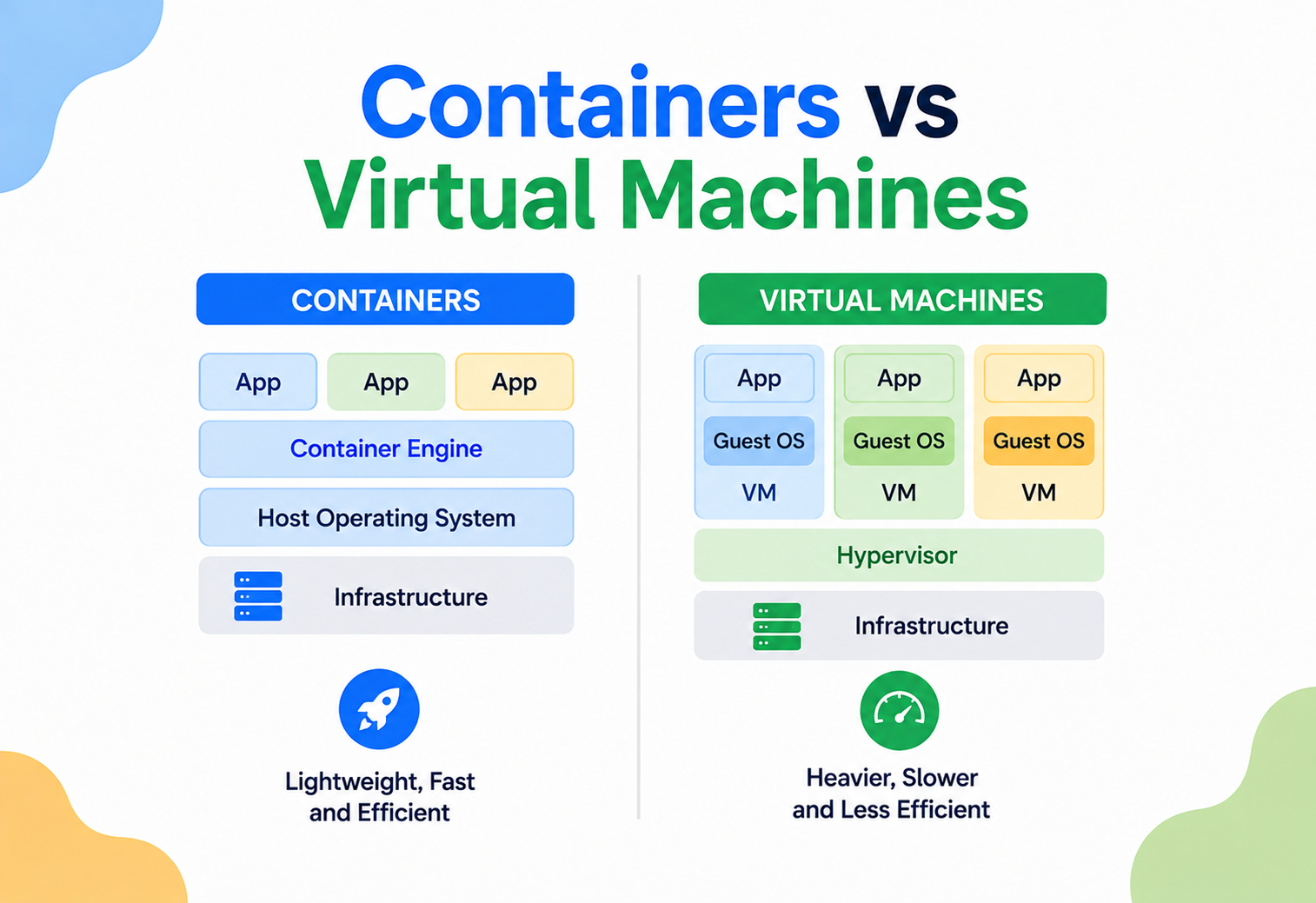
Containers vs Virtual Machines
Two ways to pack software so it can travel anywhere and run reliably. One packs a whole house onto a truck. The other packs just the furniture into a crate. This is the full story of how, why, and when to use each — a beginner‑to‑production walkthrough of the mechanics, the trade‑offs, and the patterns that keep modern systems running.
Introduction & History
Two ideas — the virtual machine and the container — solve the same broad problem of packing software so it can move between computers without breaking, but they solve it in very different ways.
Imagine you are moving to a new city. You have two ways to do it. You could hire a truck, load your entire house onto it — walls, plumbing, wiring, furniture, everything — and drive the whole house to the new plot of land. Or, you could just pack your belongings into a sturdy crate and ship the crate to a new house that is already built and waiting for you.
The first option is like a virtual machine. The second option is like a container. Both get your things to the new place safely. But one is far heavier, slower, and more expensive than the other.
This single idea — packing an application so it can move between computers without breaking — is one of the most important ideas in modern software engineering. It is the reason companies like Netflix can update their apps thousands of times a day, and the reason a program that works on a developer’s laptop also works, unchanged, on a server in a data center on the other side of the planet.
1.1 A Short History
In the 1960s and 1970s, computers were extremely expensive. A single mainframe computer might cost as much as a building. Companies could not afford to buy a separate physical computer for every task, so engineers at IBM invented a way to split one big computer into several pretend computers. This idea was called virtualization, and the pretend computers were the first virtual machines.
Virtual machines stayed the dominant way to share computers for decades. By the early 2000s, companies like VMware turned virtualization into a booming business, letting one physical server run dozens of virtual servers, each with its own operating system.
But there was a smaller, quieter idea growing alongside it. In 1979, Unix engineers built a feature called chroot, which could trick a program into thinking a small folder was the entire hard drive. Over the next 30 years, Linux slowly added more tricks like this — namespaces in 2002 and cgroups in 2007 — until, in 2013, a company called Docker combined all of these tricks into one easy‑to‑use tool. Docker did not invent containers, but it made them so simple that any developer could use them in minutes. That single moment changed how the entire software industry builds and ships code.
A virtual machine is like building a full replica house inside another house, complete with its own kitchen, its own plumbing, and its own front door. A container is like renting a furnished room in a house that already has a kitchen and plumbing — you only bring your own clothes and furniture, and you share the building’s water and electricity with everyone else.
Today, both technologies are alive and well, and most companies use both — often at the same time, with containers running inside virtual machines. Understanding the difference between them is one of the most commonly tested topics in software engineering interviews, and one of the most useful things to understand deeply if you want to design real production systems.
The Problem & Motivation
Before we can appreciate the solution, we need to feel the pain that came before it. Let’s walk through the problems that virtual machines solved, and then the problems that containers solved on top of that.
2.1 Problem 1: “One server, one application” wastes money
In the old days, companies followed a simple but wasteful rule: one physical server should run one application. If you had ten applications, you bought ten servers. Most of the time, each server used only 10–15% of its processing power. The rest sat idle, like buying ten cars but only ever driving each one a few minutes a day.
This is like renting an entire ten‑bedroom mansion just to store one suitcase. You are paying for space you never use.
Virtual machines solved this. A hypervisor could split one powerful physical server into many virtual servers, and each virtual server could run its own application. Instead of ten idle servers, a company could run ten virtual machines on just two or three physical servers, using the hardware far more efficiently.
2.2 Problem 2: “It works on my machine” — but not on yours
Even with virtual machines, a new problem showed up. A developer would write code on their laptop, it would work perfectly, and then it would completely break when moved to a testing server or a production server. Why? Because the laptop had a different version of Java, a different operating system patch, or a missing configuration file that nobody remembered to write down.
Containers solved this. A container packages the application together with everything it needs to run — its code, its libraries, its settings — into one single, portable unit called an image. If it runs correctly in the container on your laptop, it will run identically anywhere else, because you are not just shipping the code, you are shipping the entire environment around it.
2.3 Problem 3: Virtual machines are slow to start and heavy to carry
A full virtual machine can take one to five minutes to boot up, because it has to start an entire operating system from scratch, the same way your laptop takes time to boot when you press the power button. A virtual machine image (the file that stores it) is often several gigabytes in size, because it contains a full copy of an operating system.
Containers solved this too. A container does not carry its own operating system. It reuses the operating system that is already running on the host computer. This means a container can start in a fraction of a second — sometimes as fast as starting a normal program — and a container image is often just tens or a few hundred megabytes.
| Pain point | Fixed by virtual machines | Fixed by containers |
|---|---|---|
| Wasted hardware from one‑app‑per‑server | Yes | Yes (even more efficient) |
| “Works on my machine” bugs | Partially | Yes, fully |
| Slow startup time | No (minutes) | Yes (seconds or less) |
| Large image size | No (gigabytes) | Yes (megabytes) |
| Strong security isolation | Yes, very strong | Good, but weaker than a VM |
Notice the last row. Containers did not make virtual machines useless — they solved a different set of problems, and in doing so, they introduced a new trade‑off: less isolation in exchange for more speed. We will explore that trade‑off in depth later in this tutorial.
Core Concepts
To really understand containers and virtual machines, you need to know a handful of building‑block terms. Let’s go through each one slowly.
The manager of the machine
What it is: the main software that manages a computer’s hardware — its processor, memory, storage, and network — and lets other programs run on top of it. Examples are Windows, macOS, and Linux.
Why it exists: without an OS, every application would need to know how to directly talk to the hardware, which is extremely hard. The OS handles that once, for everyone.
Where it’s used: every computer, phone, and server needs one.
Simple analogy: the OS is like a hotel manager. Guests (applications) don’t need to know how the electricity or plumbing works — they just ask the manager, and the manager handles it.
Practical example: when you double‑click an app icon, it’s the operating system that finds the program on disk, loads it into memory, and gives it a slice of the processor’s time.
The referee underneath the OS
What it is: the core part of an operating system that directly controls the hardware — memory, CPU scheduling, files, and devices.
Why it exists: someone has to be the final authority that decides which program gets the CPU next, and who can access which piece of memory. That referee is the kernel.
Where it’s used: every running operating system has exactly one active kernel underneath it.
Simple analogy: if the OS is the hotel manager, the kernel is the building’s actual foundation, wiring, and pipes — the part that really does the physical work.
Practical example: the Linux kernel is the shared engine underneath Ubuntu, Debian, Red Hat, and hundreds of other Linux‑based operating systems.
The landlord who splits one machine
What it is: software that creates and manages virtual machines by splitting one physical computer’s hardware among several virtual computers.
Why it exists: to let one physical server safely pretend to be several independent servers, each with its own operating system.
Where it’s used: cloud platforms like AWS, Azure, and Google Cloud; on‑premises data centers; and desktop tools like VirtualBox or VMware Workstation.
Simple analogy: a hypervisor is like a landlord who divides one large plot of land into several separate houses, each with its own address, its own locked door, and its own utilities.
Practical example: VMware ESXi, Microsoft Hyper‑V, and the open‑source KVM (Kernel‑based Virtual Machine) are all hypervisors.
The landlord who splits one OS
What it is: software that creates and manages containers on a single operating system, using OS features to isolate processes from each other.
Why it exists: to let many isolated applications share one operating system safely and efficiently, without each one needing a full OS of its own.
Where it’s used: developer laptops, build servers, and production clusters running Kubernetes.
Simple analogy: if the hypervisor is a landlord who builds separate houses, the container engine is a landlord who builds separate furnished rooms inside one single house, each with a locked door but sharing the same water heater and electricity meter.
Practical example: Docker Engine and containerd are the two most widely used container engines today.
The sealed recipe box
What it is: a read‑only, packaged snapshot containing an application’s code, its dependencies, and instructions on how to run it.
Why it exists: so the exact same application environment can be recreated identically anywhere.
Where it’s used: stored in registries (like Docker Hub) and pulled down onto any machine that needs to run the application.
Simple analogy: an image is like a recipe card plus all the pre‑measured ingredients sealed in a bag — anyone who opens it can cook the exact same dish, every time.
Practical example: openjdk:21-slim is an image containing a minimal Linux filesystem with Java 21 installed, ready to run a Java application.
Private views into a shared kernel
What it is: a kernel feature that gives a group of processes their own private view of something — like their own list of running processes, their own network interfaces, or their own filesystem — even though they are really sharing the same kernel.
Why it exists: to make a process believe it is alone on the machine, when it is really sharing the machine with many other processes.
Where it’s used: this is the core Linux feature that makes containers possible.
Simple analogy: namespaces are like giving each guest in a shared office their own labeled folder in a filing cabinet, so each person only ever sees their own papers, even though it’s one physical cabinet.
Practical example: the PID namespace makes a container think its main process is “process number 1,” even though the host machine sees it as, say, process number 8432.
The resource meter and valve
What it is: a kernel feature that limits and measures how much CPU, memory, disk, and network a group of processes is allowed to use.
Why it exists: to stop one container from hogging all the resources on a shared machine and starving the others.
Where it’s used: every container engine uses cgroups to enforce resource limits (like “this container may use at most 512MB of memory”).
Simple analogy: cgroups are like a landlord installing a separate water meter and a flow‑limiting valve for each room, so one tenant cannot use all the hot water and leave none for everyone else.
Practical example: when you run docker run --memory=512m myapp, Docker configures a cgroup to kill the container’s process if it tries to use more than 512 megabytes of memory.
Country vs embassy
What it is: the host OS runs directly on the physical hardware. A guest OS is a full operating system running inside a virtual machine, on top of the host (or on top of the hypervisor).
Why it exists: virtual machines need a complete, independent operating system so they can run any software, regardless of what the host is running.
Where it’s used: a Windows Server VM running on a Linux host is a common real example — the Linux side is the host, Windows is the guest.
Simple analogy: the host OS is the actual country you live in; a guest OS is like a fully‑furnished embassy building for another country, standing on that land but running by its own rules inside.
Practical example: an AWS EC2 instance is really a guest OS running inside a virtual machine, which itself runs on a physical server managed by AWS’s hypervisor.
Architecture & Components
Now let’s zoom out and look at the full stack, layer by layer, for both technologies. The clearest way to see the difference is to draw them side by side and count the layers.
4.1 Virtual machine architecture
A virtual machine stack has five layers: the physical hardware, the host operating system (in some setups), the hypervisor, the guest operating system, and finally the application. Every virtual machine carries its own full copy of an operating system kernel.
Type 1 vs Type 2 hypervisors
There are two kinds of hypervisors, and this distinction shows up often in interviews.

| Type | Also called | Runs on | Performance | Examples |
|---|---|---|---|---|
| Type 1 | Bare‑metal hypervisor | Directly on physical hardware, no host OS underneath it | Faster, used in production data centers | VMware ESXi, Microsoft Hyper‑V, KVM, Xen |
| Type 2 | Hosted hypervisor | On top of a normal host operating system, as an application | Slower, extra layer of overhead | VirtualBox, VMware Workstation, Parallels |
4.2 Container architecture
A container stack is shorter: physical hardware, one host operating system, the container engine, and then the containers themselves. There is no guest operating system layer at all — every container reuses the host’s kernel.
4.3 Side‑by‑side comparison
Internal Working
The high‑level picture is clear enough. The interesting question is how each technology actually enforces the illusion of a separate computer. This section opens up the hood.
5.1 How a hypervisor actually isolates a VM
A Type 1 hypervisor runs in the most privileged mode of the CPU. When a guest operating system tries to do something sensitive — like directly touching hardware — the hypervisor intercepts that instruction, checks whether it’s allowed, and either emulates it or forwards it safely to the real hardware. This is called trap‑and‑emulate, and modern CPUs (Intel VT‑x, AMD‑V) have special hardware support built in to make this fast, called hardware‑assisted virtualization.
Each virtual machine also gets its own virtual disk (usually a large file, like a .vmdk or .qcow2 file, sitting on the host’s real disk) and virtual network card. The guest OS believes these are real physical devices, but the hypervisor is quietly translating every request into operations on the real hardware underneath.
5.2 How a container actually isolates a process
A container is, at its core, just a normal process — the same kind of process you’d see if you opened Task Manager or ran the Linux ps command. What makes it feel like a separate mini‑computer is a combination of two Linux kernel features working together, plus a clever way of stacking filesystems.
1. Namespaces — the illusion of privacy
Linux provides several types of namespaces, and a container typically uses all of them together:
| Namespace | What it isolates | Everyday effect |
|---|---|---|
| PID | Process IDs | The container’s first process appears to be PID 1, even though the host sees a different real number |
| NET | Network interfaces, IP addresses, ports | Each container can have its own IP address and can bind to port 80 without clashing with another container |
| MNT | Mounted filesystems | The container sees its own private root filesystem (/), built from its image layers |
| UTS | Hostname | The container can have its own hostname, different from the host machine |
| IPC | Inter‑process communication | Processes in one container can’t directly signal or share memory with processes in another |
| USER | User and group IDs | A process can appear to be “root” inside the container, but be a low‑privilege user on the host |
2. cgroups — the resource fence
Namespaces control what a container can see. cgroups control what a container can use. The Linux kernel groups the container’s processes together and applies limits: maximum CPU shares, maximum memory, maximum disk I/O bandwidth. If a container tries to allocate more memory than its cgroup allows, the kernel’s “OOM killer” (Out Of Memory killer) terminates it — this is why you sometimes see a container mysteriously restart under heavy load.
3. Union filesystems — stacking layers like transparent sheets
Container images are built from stacked, read‑only layers. Think of each layer as a transparent sheet with some instructions written on it — “install Java,” “copy my code,” “set an environment variable.” A union filesystem (commonly OverlayFS on Linux) stacks these transparent sheets on top of each other and presents them as one single, normal‑looking filesystem to the container. When the container writes new data, it goes into one final, thin, writable layer on top — the read‑only layers underneath are never modified, which is why the same base layers can be safely reused and shared by many different containers at once, saving huge amounts of disk space.
Think of layers like a stack of transparency sheets on an old overhead projector. Sheet 1 draws the map, sheet 2 draws the roads, sheet 3 draws the labels. Stack them and you see one complete picture — but you can reuse sheet 1 (the map) for a hundred different projects without redrawing it.
5.3 Java example: what a container really looks like from inside
Here is a small Java program that prints whether it detects it’s running inside a container, by checking a file the Linux kernel exposes about the process’s own cgroup membership.
import java.nio.file.Files;
import java.nio.file.Path;
import java.util.List;

public class EnvironmentDetector {

    public static void main(String[] args) throws Exception {
        Path cgroupFile = Path.of("/proc/1/cgroup");

        if (Files.exists(cgroupFile)) {
            List<String> lines = Files.readAllLines(cgroupFile);
            boolean looksContainerized = lines.stream()
                    .anyMatch(l -> l.contains("docker") || l.contains("kubepods"));

            System.out.println("Running inside a container: " + looksContainerized);
        } else {
            System.out.println("Could not read cgroup info u2014 likely not on Linux.");
        }

        // Also useful: how many CPUs does the JVM actually see?
        System.out.println("Available processors (respects cgroup CPU limits): "
                + Runtime.getRuntime().availableProcessors());
    }
}
Since Java 10, the JVM is “container‑aware” — Runtime.getRuntime().availableProcessors() and default heap sizing automatically respect the cgroup CPU and memory limits set on the container, instead of seeing the full host machine’s resources. Before Java 10, this was a common source of production incidents, where a JVM assumed it had access to all 64 cores of a host, even though it was capped at 2 by its cgroup.
Data Flow & Lifecycle
Both VMs and containers pass through a predictable set of stages from creation to retirement, but the stages are strikingly different in length and cost.
6.1 Virtual machine lifecycle
Provision
An administrator (or an automation tool like Terraform) requests a new VM, specifying CPU, memory, disk size, and a base OS image.
Boot
The hypervisor allocates hardware resources and boots the guest operating system — this includes the full OS startup sequence: bootloader, kernel initialization, system services.
Configure
Software is installed, users are created, networking is configured — often through tools like Ansible, Chef, or Puppet.
Run
The application runs for a long time, often weeks or months without restarting.
Patch / Update
Security patches and OS updates are applied periodically, often requiring a reboot.
Snapshot / Backup
The entire VM disk can be snapshotted for backup or cloning.
Decommission
The VM is powered off and its resources are released back to the hypervisor’s pool.

6.2 Container lifecycle
Write a Dockerfile
A developer writes a short text file describing how to build the image — starting from a base image, then copying code and installing dependencies.
Build the image
The container engine reads the Dockerfile and builds a stack of read‑only layers, producing a portable image.
Push to a registry
The image is uploaded to a shared storage location (a registry), like Docker Hub, Amazon ECR, or Google Artifact Registry.
Pull the image
Any machine that needs to run the application downloads the image from the registry.
Run the container
The container engine creates namespaces and cgroups, adds a thin writable layer on top of the image, and starts the application process — typically in well under a second.
Scale
An orchestrator (like Kubernetes) can start many identical containers from the same image in seconds, to handle more traffic.
Stop and remove
When no longer needed, the container is stopped, and its writable layer is discarded. The underlying image remains untouched, ready to spin up a fresh container again at any time.
6.3 Sample Dockerfile for a Java application
# Stage 1: build the application
FROM maven:3.9-eclipse-temurin-21 AS build
WORKDIR /app
COPY pom.xml .
COPY src ./src
RUN mvn clean package -DskipTests

# Stage 2: run the application in a minimal image
FROM eclipse-temurin:21-jre-alpine
WORKDIR /app
COPY --from=build /app/target/my-service.jar app.jar
EXPOSE 8080
ENTRYPOINT ["java", "-jar", "app.jar"]
This is called a multi‑stage build. Stage 1 uses a heavy image with Maven and the full JDK to compile the code. Stage 2 starts fresh from a tiny image with only the JRE (Java Runtime Environment, no compiler) and copies in just the final compiled JAR file. The result is a much smaller final image, since the build tools never make it into the shipped container.
Advantages, Disadvantages & Trade‑offs
Neither technology is universally “better.” The interesting question is always: which trade‑off do you want to make for this specific workload?
| Virtual Machines | Containers | |
|---|---|---|
| Startup time | Minutes (full OS boot) | Milliseconds to seconds |
| Image / disk size | Gigabytes | Megabytes |
| Isolation strength | Very strong — separate kernel per VM | Weaker — shared host kernel |
| Resource overhead | High — each VM runs a full OS | Low — only the app and its libraries |
| Density per host | Tens of VMs per host, typically | Hundreds to thousands of containers per host |
| Cross‑OS flexibility | Can run Windows guest on Linux host, etc. | Container must generally match the host kernel’s OS family |
| Portability | Good, but images are large to move | Excellent — small images move fast between environments |
| Best use case | Running untrusted or multiple full OS workloads with strong isolation | Running many small, trusted, fast‑moving microservices |
Disadvantages of virtual machines
- Slow to boot, which makes rapid autoscaling harder.
- Consumes more CPU, memory, and disk just to run the guest OS itself, before your application even starts.
- Larger images are slower to move across networks and slower to back up.
- Managing OS patches across many guest operating systems is a heavier operational burden.
Disadvantages of containers
- Weaker isolation — a serious vulnerability in the shared kernel could, in rare cases, allow one container to affect another (this is called a container escape).
- All containers on a host must generally use a kernel compatible with the host — you cannot run a Windows container on a Linux host’s kernel directly.
- Persistent data needs extra care, since a container’s own writable layer disappears when it’s removed.
- Orchestration (like Kubernetes) is often required to manage large numbers of containers well, and that orchestration layer adds its own complexity.
Containers are not “a lightweight virtual machine.” A container is an isolated process. A virtual machine is an entire separate computer. This is the single most important sentence to remember for interviews.
Performance & Scalability
Where containers really pull ahead is not raw compute speed — it’s how quickly and how densely you can create, move, and destroy them.
Because a container skips the guest OS layer entirely, its CPU and memory access is nearly as fast as running the application directly on the host — the overhead is typically in the low single‑digit percentages. A virtual machine’s overhead is higher, especially for disk and network operations, because every request has to pass through the hypervisor’s translation layer, even with hardware acceleration.
8.1 Scaling out
“Scaling out” means adding more copies of your application to handle more traffic, instead of making one copy more powerful (“scaling up”). This is where the difference matters most in production.
- With VMs: scaling out means booting new virtual machines, which can take minutes. To handle a sudden traffic spike, you either have to predict it in advance and pre‑provision extra VMs, or accept a slow scaling response.
- With containers: scaling out means starting new containers from an already‑built image, which takes seconds. Kubernetes can watch traffic or CPU load and automatically add or remove containers in near real time, a feature called the Horizontal Pod Autoscaler.
Scaling with VMs is like needing 20 minutes to build a brand‑new checkout counter every time a shop gets busy. Scaling with containers is like having pre‑built, folded checkout counters stacked in the back room that staff can pop open in seconds.
8.2 Density
Density means how many isolated workloads you can pack onto one physical machine. Because each VM needs its own OS (using its own chunk of memory just for OS bookkeeping, often 200MB–1GB before any application even runs), a server might only host a few dozen VMs. Because containers share one OS, the same server might comfortably run hundreds or even a few thousand small containers, dramatically lowering the effective cost per workload.
High Availability & Reliability
High availability means a system keeps working even when parts of it fail. Both VMs and containers support high availability, but they do it with different mechanisms.
9.1 High availability with virtual machines
Hypervisor clusters (like VMware’s vSphere HA) constantly monitor physical hosts. If a physical server fails, the VMs that were running on it are automatically restarted on a healthy server elsewhere in the cluster. This process, called failover, typically takes a few minutes, since it involves booting a fresh guest OS.
9.2 High availability with containers
Orchestrators like Kubernetes constantly watch the health of containers using regular check‑ins called health probes. If a container crashes or stops responding, Kubernetes replaces it within seconds. Because containers start so fast, this recovery is nearly invisible to users, especially when multiple replicas are already running behind a load balancer.
Multiple identical copies for survival
What it is: running multiple identical copies of the same application (or database) so that if one copy fails, the others keep serving traffic.
Why it exists: a single copy of anything is a single point of failure — one crash, and users are affected.
Where it’s used: Kubernetes “Deployments” define how many replicas of a container should always be running; VM clusters keep standby VM images ready to boot on failure.
Simple analogy: it’s like a restaurant having three chefs who all know the same recipes, so if one chef calls in sick, the kitchen keeps cooking.
Practical example: a Kubernetes deployment set to replicas: 5 keeps five identical containers running at all times, automatically replacing any that fail.
9.3 Consensus and coordination
When you have many replicas and many machines, someone needs to agree on the truth — for example, “which node is the current leader?” or “which container currently owns this task?” This is solved with consensus algorithms like Raft. Kubernetes itself relies on a data store called etcd, which uses the Raft consensus algorithm, to keep the entire cluster’s state consistent even if some etcd nodes fail. This connects to a wider idea in distributed systems called the CAP theorem, which says a distributed data store can only fully guarantee two out of three properties at once: Consistency (everyone sees the same data), Availability (every request gets a response), and Partition tolerance (the system keeps working even if the network is cut between some nodes). Kubernetes’ etcd favors consistency and partition tolerance over availability during a network split, which is why a badly split cluster can temporarily refuse writes rather than risk disagreement.
Security
This is one of the most important practical differences between the two technologies, and one of the most commonly asked interview questions.
10.1 Why VMs are more strongly isolated
Each virtual machine has its own kernel. If an attacker breaks into the application running inside one VM, they are still trapped inside that VM’s own operating system. To escape and affect another VM, they would need to find a flaw in the hypervisor itself — a much rarer and harder target, because the hypervisor is a small, heavily audited piece of software with a narrow job.
10.2 Why containers have a smaller, but real, attack surface
All containers on a host share one kernel. If an attacker finds a serious flaw in the kernel itself, or is granted excessive privileges, they may be able to break out of their container’s namespace boundaries and affect the host or other containers — this is called a container escape. This is rarer than people assume, because modern container engines add extra layers of defense, but it is a real risk that VMs are naturally more resistant to.
10.3 How containers reduce this risk in practice
- Rootless containers: running the container engine itself without full administrator privileges, so even a successful escape lands with limited power.
- Seccomp profiles: restricting which low‑level system calls a container is even allowed to make, shrinking the attack surface.
- Read‑only filesystems: preventing a compromised container from writing malicious files.
- Non‑root users inside the image: never running the application as the “root” superuser inside the container.
- Image scanning: automatically checking images for known vulnerabilities before they are deployed, using tools like Trivy or Grype.
- Network policies: explicitly restricting which containers are allowed to talk to which other containers.
10.4 A hybrid solution: lightweight VMs for containers
Because of this trade‑off, the industry created a middle‑ground approach called microVMs, popularized by AWS’s open‑source Firecracker project (which powers AWS Lambda and Fargate). A microVM gives each container‑like workload its own tiny, extremely fast‑booting kernel — combining most of the strong isolation of a VM with startup speeds much closer to a container. This shows how the industry doesn’t see VMs and containers as permanently opposed technologies, but as two ends of a spectrum that keeps evolving.
Monitoring, Logging & Metrics
You cannot fix what you cannot see. Both VMs and containers need monitoring, but the tools and mental models differ.
11.1 Monitoring virtual machines
Traditional monitoring agents (like Nagios, Zabbix, or CloudWatch agents) are installed inside each guest OS and report metrics like CPU usage, memory usage, and disk space back to a central dashboard. Because a VM is long‑lived, its metrics history tells a continuous story over weeks or months.
11.2 Monitoring containers
Containers are short‑lived by nature — one might exist for only a few minutes before being replaced. This means monitoring tools need to think in terms of the application’s identity (like “checkout‑service”) rather than a specific container’s ID, since that ID will constantly change. Modern tooling reflects this:
- Prometheus — the most widely used metrics collection tool in the container world; it “scrapes” metrics from each running container at regular intervals.
- Grafana — turns Prometheus’s raw numbers into readable dashboards and graphs.
- Fluentd / Fluent Bit — collects logs from every container and forwards them to a central store, since a container’s local log files disappear when it’s removed.
- OpenTelemetry — a modern, vendor‑neutral standard for collecting traces (the path a single request takes across many microservices), metrics, and logs together.
Monitoring a VM is like tracking one employee’s attendance over years. Monitoring containers is like tracking a role — “the cashier” — even as different people rotate through that shift every hour. You care about the role’s performance, not any one individual’s badge number.
11.3 The “cattle vs pets” idea
This difference is often summarized with a well‑known phrase in the industry: treat servers like pets or like cattle. A pet has a name, you nurse it back to health when it’s sick, and you’d be devastated to lose it — this describes how teams used to treat individual VMs, patching and babying each one. Cattle are numbered, not named; if one gets sick, you replace it, not heal it — this describes the container mindset, where a broken container is simply thrown away and a fresh one is started from the same image.
Deployment & Cloud
In the real world, most companies use a layered combination of both technologies, not one or the other exclusively.
12.1 Cloud services built on each
| Category | VM‑based services | Container‑based services |
|---|---|---|
| Compute | AWS EC2, Azure Virtual Machines, Google Compute Engine | AWS ECS / Fargate, Azure Container Instances, Google Cloud Run |
| Orchestration | VMware vSphere, OpenStack | Kubernetes (AWS EKS, Azure AKS, Google GKE) |
| Serverless | — | AWS Lambda (built on Firecracker microVMs) |
12.2 Kubernetes: the standard way to run containers at scale
Running a handful of containers by hand is easy. Running thousands of containers across hundreds of machines, while handling failures, scaling, and updates automatically, is not — that’s the job of an orchestrator, and Kubernetes is the industry‑standard one today.

Databases, Caching & Load Balancing
Containers are outstanding for stateless application code. State — databases, caches, files — needs a little more thought.
13.1 Databases: handle with care
A container’s writable layer is meant to be temporary. If you run a database inside a container and it gets removed, all its data disappears with it — usually not what you want. The solution is persistent volumes: storage that lives outside the container’s own filesystem and survives even if the container is destroyed and recreated.
Many production teams still choose to run their primary databases on virtual machines or fully managed database services (like AWS RDS), specifically because the stronger isolation and mature backup tooling around VMs feels safer for the most critical, stateful data — while running their many stateless application services in containers. This is a completely reasonable and common architecture, not a failure to “go all in” on containers.
13.2 Caching
A cache stores frequently requested data in fast memory, so the application doesn’t need to repeatedly ask a slower database for the same thing. Caches like Redis or Memcached are commonly deployed as containers themselves, since they can be quickly scaled and replaced, though the underlying data is often configured to persist to a volume so a restart doesn’t erase everything.
A cache is like keeping your most‑used cookbook on the kitchen counter instead of walking to the library every time you want to check a recipe. It’s faster to reach, but the library (the real database) is still the ultimate source of truth.
13.3 Load balancing
When you have multiple replicas of a container (or multiple VMs), something needs to spread incoming traffic across them evenly, and avoid sending traffic to any replica that has crashed. This is a load balancer.
- Round robin: requests are sent to each replica in turn, one after another.
- Least connections: requests go to whichever replica currently has the fewest active connections.
- Health‑check aware: the load balancer regularly checks whether each replica is alive, and stops sending traffic to any that fail the check.
In Kubernetes, this job is handled by a built‑in object called a Service, which automatically discovers healthy container replicas and distributes traffic among them — without you needing to hardcode any IP addresses.
APIs & Microservices
Containers and microservices grew up together, almost like two ideas that were meant to be paired.
A microservice architecture breaks one large application into many small, independent services, each responsible for one job — for example, a “Payments” service, a “User Profile” service, and a “Notifications” service, each running and deploying separately, and talking to each other over the network using APIs (Application Programming Interfaces).
Before containers, deploying dozens of small services meant either cramming them all onto a few large VMs (causing conflicts between their different dependency versions) or buying a separate VM for each one (extremely wasteful, given how small each service usually is). Containers solved this perfectly: each microservice gets its own lightweight, isolated container, with its own exact dependency versions, and many of them can run efficiently on the same host.
14.1 Java example: a minimal REST API endpoint
Here is a tiny Spring Boot controller — the kind of code you would package into the Dockerfile shown earlier — exposing one API endpoint.
import org.springframework.web.bind.annotation.*;

@RestController
public class OrderController {

    @GetMapping("/orders/{id}")
    public OrderResponse getOrder(@PathVariable String id) {
        // In a real service, this would query a database
        return new OrderResponse(id, "SHIPPED", 3);
    }

    @GetMapping("/health")
    public String health() {
        // Kubernetes calls this repeatedly to check the container is alive
        return "OK";
    }

    record OrderResponse(String orderId, String status, int itemCount) {}
}
The /health endpoint is not decoration — it is exactly what Kubernetes’ liveness and readiness probes call to decide whether this container deserves to keep receiving traffic, or should be restarted.
Design Patterns & Anti‑patterns
A handful of small, reusable container arrangements show up over and over in real systems — and a handful of tempting shortcuts turn out to be traps.
15.1 Useful patterns
A helper container riding alongside
What it is: running a second, helper container right alongside your main application container, sharing the same network and lifecycle, to handle a cross‑cutting concern like logging, monitoring, or security.
Why it exists: so the main application doesn’t need to be rewritten to handle things like traffic encryption or metrics collection — a dedicated helper container does it instead.
Where it’s used: service meshes like Istio attach a sidecar to every application container to manage network traffic transparently.
Simple analogy: like a motorcycle sidecar carrying a translator, so the main rider (the app) never has to learn a second language — the passenger handles it.
Practical example: an “Envoy” proxy sidecar sitting next to each microservice container, automatically encrypting and monitoring traffic in and out.
A go‑between for the outside world
What it is: a helper container that acts as a simplified go‑between, handling the details of talking to an outside service.
Why it exists: so the main application can talk to something like a database or an external API in a simple, local way, while the ambassador handles retries, connection pooling, or protocol translation behind the scenes.
Where it’s used: a local proxy container that the app connects to as if it were the real database, while the ambassador actually manages the real connection over the network.
Simple analogy: like a diplomat who handles all the tricky negotiation with a foreign country, so the person back home just gets a simple summary.
Practical example: an ambassador container that automatically retries a flaky external payment API a few times before giving up, so the main app’s code stays simple.
Reshape the output for the outside
What it is: a helper container that transforms the main application’s output into a standard format expected by the rest of the system.
Why it exists: so legacy or inconsistent applications don’t all need to be rewritten to match one exact standard.
Where it’s used: converting an old application’s custom log format into the standard format a company‑wide logging system expects.
Simple analogy: like a power‑plug adapter that lets a device built for one country’s sockets work in another country, without rebuilding the device.
Practical example: an adapter container that reformats metrics from an old application into the Prometheus format modern dashboards expect.
15.2 Common anti‑patterns to avoid
- The “fat container”: cramming a database, a web server, and an application all into one giant container. This throws away the benefit of independent scaling and updates. Each container should generally do one job.
- Storing important data only inside a container’s writable layer: that data vanishes forever the moment the container is removed. Always use a persistent volume for anything you can’t afford to lose.
- Running as root inside the container: this unnecessarily widens the potential damage if the container is ever compromised.
- Ignoring resource limits: a container with no CPU or memory limit can silently starve its neighbors on the same host.
- Baking secrets (passwords, API keys) directly into the image: images are often stored and shared widely; secrets should be injected at runtime instead, using a secrets manager.
- Treating a VM like a pet when it should be cattle: manually patching one long‑lived server by hand, instead of building a fresh, tested image and replacing it — this slowly makes every server a unique, undocumented snowflake that nobody fully understands anymore.
Best Practices & Common Mistakes
A short, opinionated checklist that catches the failure modes teams see most often in production.
Best practices for containers
- Keep images small — use minimal base images (like Alpine Linux) and multi‑stage builds, so images move and start faster.
- One process, one job, per container — keep containers focused and independently deployable.
- Always define resource requests and limits (CPU and memory), so the orchestrator can schedule and protect workloads properly.
- Use health checks (liveness and readiness probes) so failures are detected and recovered automatically.
- Never store persistent data in a container’s own writable layer — use volumes.
- Scan images regularly for known security vulnerabilities before deploying them.
- Tag images with specific version numbers, never rely only on a generic
latesttag, so deployments stay predictable and repeatable.
Best practices for virtual machines
- Automate provisioning with infrastructure‑as‑code tools (like Terraform), instead of manually clicking through a console each time.
- Apply security patches on a regular, predictable schedule.
- Use “golden images” — pre‑built, tested VM templates — instead of manually configuring each new VM by hand.
- Right‑size VMs to match actual workload needs, to avoid paying for idle capacity.
- Regularly snapshot and test backups, and actually rehearse restoring from them.
16.1 Common mistakes beginners make
- Assuming a container is a “small VM” and expecting the same isolation guarantees.
- Forgetting that a container’s filesystem changes disappear once it’s removed, and losing important data.
- Running many unrelated services inside one giant container, instead of splitting them.
- Not setting memory limits, then being surprised when the whole host slows down under load.
- Choosing a heavy virtual machine for a workload that genuinely just needed a lightweight, fast‑scaling container — or the opposite: choosing a container for a workload that truly needed a VM’s stronger isolation, like running fully untrusted third‑party code.
Real‑World & Industry Examples
Some of the largest platforms in the world use both technologies in production, and how they use them tells you a lot about which trade‑offs matter at scale.
Google has run essentially everything — Search, Gmail, YouTube — inside containers for over a decade, using an internal system called Borg. Google’s experience running billions of containers directly shaped Kubernetes, which Google open‑sourced in 2014, drawing heavily on lessons learned from Borg.
Netflix
Netflix runs its streaming platform as hundreds of independent microservices, most of them containerized, deployed across AWS. Their famous “Chaos Monkey” tool randomly kills running containers and virtual machines in production on purpose, forcing engineers to build systems that survive failure automatically — a direct, practical use of the replication and self‑healing concepts covered earlier in this tutorial.
Amazon (AWS)
AWS’s entire cloud business sits on both technologies at once. EC2 (virtual machines) is the foundational compute layer, and Firecracker (the microVM technology mentioned in the Security section) powers both AWS Lambda and AWS Fargate — letting AWS offer container‑like speed with VM‑like isolation for millions of customers simultaneously.
Uber
Uber operates thousands of microservices to handle ride matching, pricing, and payments across the world, packaged in containers and managed with its own internal orchestration tooling layered on top of open‑source technology, allowing different teams to deploy their own services independently, many times a day, without waiting on each other.
Spotify
Spotify migrated from a heavier, VM‑centric internal platform to a container‑based architecture on Google Kubernetes Engine, specifically to speed up how quickly engineers could deploy new code and to reduce the operational overhead of managing thousands of individually patched virtual machines.
FAQ
Short answers to the questions engineers ask most often about containers and virtual machines.
Q1: Is Docker the same thing as a container?
No. A container is a general concept — an isolated process using namespaces and cgroups. Docker is one popular tool (among several, including Podman and containerd) that makes it easy to build, run, and manage containers.
Q2: Can a container run on a different operating system than its host?
Not directly — a Linux container needs a Linux kernel underneath it, because it shares that kernel. This is exactly why Docker Desktop on Windows or macOS quietly runs a small Linux virtual machine in the background, to give Linux containers a Linux kernel to share.
Q3: Are containers less secure than virtual machines?
Containers have a smaller natural isolation boundary because they share a kernel, but with good practices (non‑root users, seccomp profiles, image scanning, and options like microVMs for extra‑sensitive workloads) they can be made very secure for the vast majority of real‑world applications.
Q4: Do containers replace virtual machines completely?
No. In almost every real production environment, containers run inside virtual machines, combining the cloud provider’s strong VM‑level isolation with the container’s speed and efficiency for day‑to‑day application management.
Q5: Why can a container start so much faster than a VM?
Because starting a container just means starting a new process on an operating system that is already running — no new kernel needs to boot. Starting a VM means booting an entire new operating system from scratch, the same as starting a whole new computer.
Q6: What is Kubernetes, in one sentence?
Kubernetes is a system that automatically decides where to run containers across many machines, restarts them if they fail, and scales them up or down based on demand.
Q7: When should I still choose a virtual machine over a container?
When you need to run a different operating system than your host, need the strongest possible isolation (like running code from an untrusted third party), or are running a legacy application that was never designed to be containerized.
Summary & Key Takeaways
The short version of everything above — the ideas worth carrying with you into any real design conversation about containers and virtual machines.
A virtual machine virtualizes the hardware, giving each workload its own complete, independent operating system, at the cost of size and speed. A container virtualizes the operating system itself, letting many isolated workloads share one kernel, trading a small amount of isolation strength for a large gain in speed, size, and density. Neither one is simply “better” — they solve different problems, and most real systems today use both together, layered on top of each other.
Key Takeaways
- A VM packages an entire computer, including its own OS kernel. A container packages just an application and shares the host’s kernel.
- Namespaces make a container feel alone; cgroups stop it from hogging shared resources.
- Containers start in milliseconds; VMs take minutes, because VMs must boot a full OS.
- VMs give stronger isolation because each has its own kernel; containers trade some isolation for speed and efficiency.
- Container images are built from stacked, reusable, read‑only layers using a union filesystem.
- Kubernetes is the standard tool for running containers reliably at scale across many machines.
- MicroVMs like Firecracker blend both worlds: near‑container speed with near‑VM isolation.
- In production, containers almost always run inside VMs — they are teammates, not rivals.
- Treat containers like disposable “cattle,” not precious “pets” — replace, don’t repair.
- Persistent data must live outside a container’s writable layer, in a volume, or it will be lost.
If you remember only one sentence from this entire tutorial, remember this: a container is an isolated process sharing one kernel, while a virtual machine is an entire separate computer with its own kernel — everything else in this tutorial is really just an explanation of what follows from that one difference.