What Is a Virtual Machine?
A complete, beginner-to-production walkthrough of virtual machines — from the IBM mainframes of the 1960s and the rise of VMware, Xen and KVM, through how hypervisors carve one physical box into many isolated guests, all the way to how AWS Nitro, Azure Hyper-V, Google Compute Engine and every Kubernetes node ultimately rely on the same core VM concept to power the modern cloud.
Introduction & History
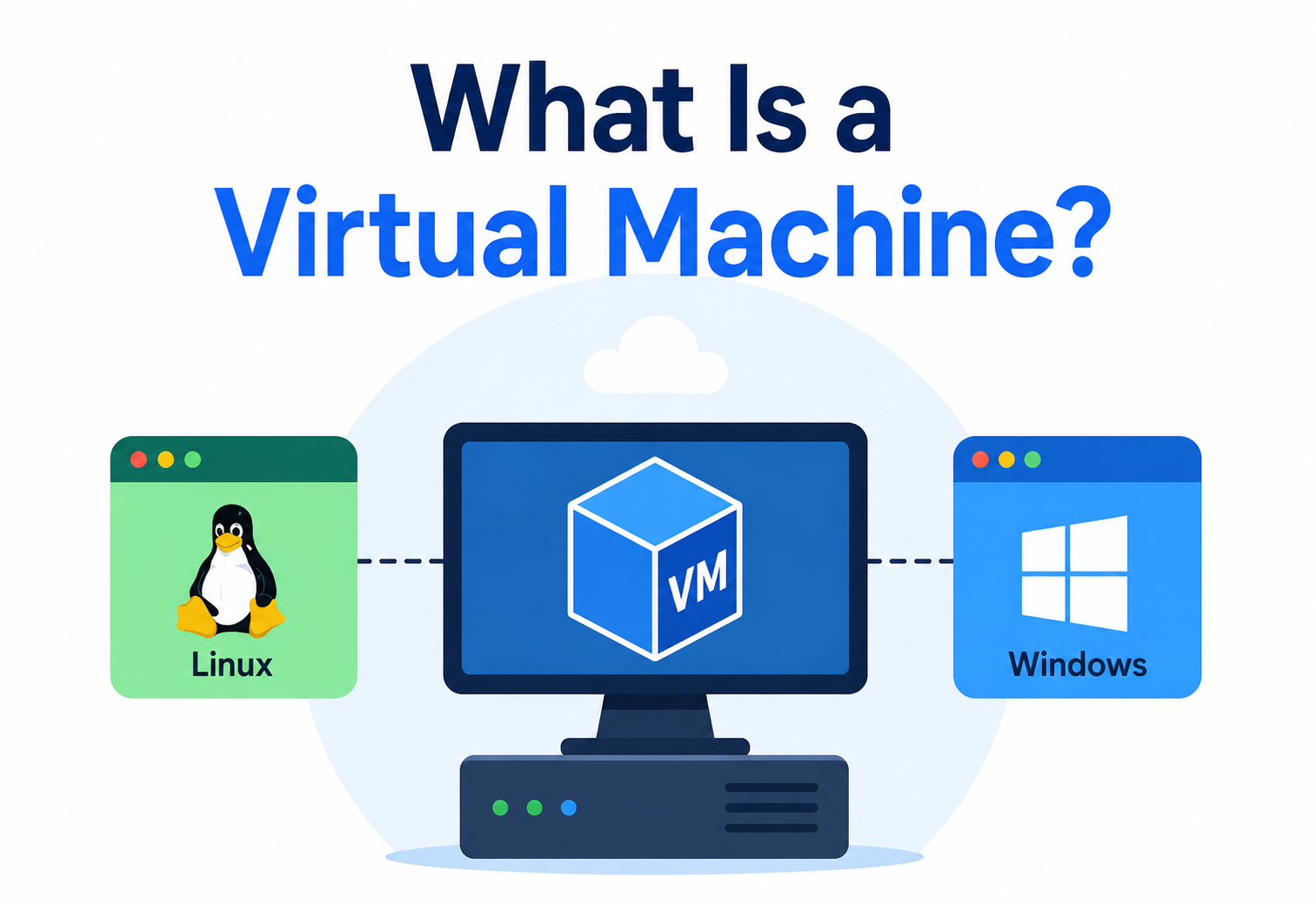
Imagine you own a single large house, but you need to let three different families live in it — each with their own kitchen, their own front door, their own furniture, and no idea the other families even exist. That, in essence, is what a virtual machine (VM) does with a physical computer. It takes one real machine and carves it into several isolated, fully-functional “pretend machines” that each behave as if they own the entire computer.
A virtual machine is a software-based emulation of a physical computer. It has its own virtual CPU, virtual memory, virtual disk, and virtual network interface, and it runs its own operating system (called the guest OS) completely independently of other virtual machines running on the same physical hardware (the host). From inside a VM, an operating system has no way of knowing it isn’t running directly on real hardware — it sees what looks like a normal computer, follows a normal BIOS/UEFI boot sequence, and runs normal instructions.
A brief history
Virtualization is not a new idea — it is one of the oldest tricks in computing, born out of a very practical problem: mainframe computers in the 1960s were extraordinarily expensive, and organisations could not afford to let one be idle while a single program ran on it.
1960s — IBM Mainframes
IBM’s CP-40 and later CP/CMS system on the IBM System/360-67 introduced true virtual machines, allowing multiple users to each get their own simulated mainframe.
1970s — VM/370
IBM formalised virtualization commercially with VM/370, letting many users time-share a single mainframe as if each had a dedicated machine.
1980s–90s — The Decline
As cheap x86 servers proliferated, virtualization faded from mainstream use — hardware was affordable enough that “one app per server” was normal.
1999 — VMware
VMware brought virtualization to commodity x86 hardware with VMware Workstation, then ESX Server, reigniting the entire industry.
2000s — Xen & KVM
Open-source hypervisors like Xen and Linux’s KVM emerged, and Intel / AMD added hardware virtualization extensions (VT-x, AMD-V) to CPUs.
2006 — AWS EC2
Amazon launched EC2, renting out virtual machines by the hour — the birth of modern cloud computing as we know it today.
2013 — Containers Rise
Docker popularised containers as a lighter alternative to VMs, but VMs remained the foundation that clouds and Kubernetes nodes run on.
Today
Nearly every cloud instance, whether it hosts a container, a database, or a Kubernetes node, is itself a virtual machine underneath.
Think of a physical server as a single large apartment building. Before virtualization, you rented the entire building to one tenant, even if they only used one room. Virtualization is like a property manager who legally and physically divides the building into separate, locked apartments — each tenant gets their own kitchen, bathroom, and front door, with zero knowledge that other tenants exist next door.
Why it faded, and why it came back
It’s worth understanding the dip in the timeline above, because it explains a recurring pattern in computing history. Mainframes were virtualized in the 1960s and 70s purely out of necessity — hardware was scarce and phenomenally expensive, so sharing it efficiently among many users was an economic requirement, not a nice-to-have. When x86 servers became cheap and plentiful in the 1980s and 90s, that economic pressure briefly disappeared: it was simpler (and cheap enough) to just buy a new physical box for every new application.
But by the early 2000s, a new pressure emerged: data centres were filling up not because hardware was expensive, but because companies were running hundreds of applications, each on its own mostly-idle physical server, consuming enormous amounts of power, cooling, and floor space for very little actual computational work. VMware’s breakthrough was recognising that the same virtualization idea IBM had pioneered decades earlier on mainframes could solve this new problem on cheap, commodity x86 hardware — and the industry has built on that insight ever since.
The Problem & Motivation
To understand why virtual machines exist, it helps to understand the problem the world had before them.
The “one app, one server” problem
In the early 2000s, the standard practice was: one physical server ran one application. If a company had 20 applications, it bought (or rented) 20 physical servers. This created several serious problems:
| Problem | Real-world impact |
|---|---|
| Underutilisation | Most servers ran at 5–15% CPU utilisation on average, because they were sized for peak load, not average load. |
| Capital cost | Buying physical hardware for every new project was slow and expensive — often weeks of procurement lead time. |
| Data-centre space | Physical racks, power, and cooling all scaled linearly with server count, driving huge operational costs. |
| Isolation via hardware | The only reliable way to isolate one app from another (so a crash or security breach in one didn’t affect another) was to give each app its own physical box. |
| Slow provisioning | Setting up a new physical server could take days to weeks — ordering, racking, cabling, installing an OS. |
How virtualization solved it
Virtualization decoupled the operating system from the physical hardware. A single powerful physical server that used to run one lightly-loaded application could now run 10, 20, or even 100 virtual machines, each isolated from the others, each with guaranteed shares of CPU and memory, and each provisioned in minutes instead of weeks.
A college has one shared computer lab with 30 physical PCs. Every professor wants a machine configured exactly for their course — one wants Windows with MATLAB, another wants Ubuntu with Python, another wants an old version of Java for a legacy assignment. Instead of buying and reconfiguring 30 machines for every semester, the IT team installs a hypervisor on a few powerful servers and spins up isolated VMs — professors get exactly the OS and software they want, without ever touching real hardware.
Netflix runs thousands of virtual-machine instances on AWS EC2 to serve video streams globally. Rather than owning physical data centres sized for peak traffic (which would sit mostly idle outside peak hours), Netflix rents virtual machines that can be scaled up during evening peak viewing hours and scaled down overnight, paying only for the compute capacity actually used.
The testing and development problem
Beyond production infrastructure, virtualization solved a second, equally painful problem: developers and QA engineers needed to test software against many different operating-system versions and configurations, but could not realistically own a separate physical machine for every combination of Windows 7, Windows 10, three different Linux distributions, and various patch levels. Virtual machines let a single laptop or lab server host dozens of these test environments simultaneously, each launched from a saved snapshot in seconds, torn down without any lasting effect on the host once testing was complete.
The isolation problem
Before virtualization, running two applications with conflicting requirements on the same physical server was risky — one application’s crash, memory leak, or resource hog could bring down the other application sharing that machine, since they shared the very same operating-system kernel and file system. Virtual machines solved this by giving each application its own kernel, its own file system, and its own resource allocation, so a fault in one VM simply cannot propagate to another, even though they physically share the same underlying hardware.
Core Concepts
Before going deeper, let’s define the vocabulary you’ll need throughout this guide, explained in plain language.
Host vs. guest
The host is the real, physical machine — the actual server with real CPU cores, real RAM chips, and a real hard disk. The guest is the operating system running inside a virtual machine. A single host can run many guests simultaneously, each unaware of the others.
Hypervisor (Virtual Machine Monitor)
The hypervisor, also called a Virtual Machine Monitor (VMM), is the software layer that creates and manages virtual machines. It sits between the physical hardware and the guest operating systems, intercepting and translating the guest’s requests for CPU time, memory, and I/O into real operations on the physical hardware — while making sure no guest can see or interfere with another.
Type 1 vs Type 2 hypervisors
| Type | Also called | Runs on | Examples | Typical use |
|---|---|---|---|---|
| Type 1 | Bare-metal hypervisor | Directly on physical hardware | VMware ESXi, Microsoft Hyper-V, Xen, KVM | Data centres, cloud providers, production servers |
| Type 2 | Hosted hypervisor | On top of a host operating system | VMware Workstation, VirtualBox, Parallels | Developer laptops, testing, personal use |
Virtual hardware
Each VM believes it has real hardware, but everything it “sees” is virtualized: a virtual CPU (vCPU) that maps to time slices of real CPU cores, virtual memory carved out of real RAM, a virtual disk that is really just a large file (or block device) on the host’s storage, and a virtual network interface card (vNIC) that connects to a virtual switch inside the hypervisor.
Snapshot and clone
A snapshot freezes the exact state of a VM (memory, disk, and CPU registers) at a point in time, so you can roll back to it later. A clone creates an entirely new, independent VM by copying an existing one — commonly used to rapidly stamp out identical servers.
Virtual machine vs. container
This is one of the most important distinctions in modern infrastructure, so it deserves its own comparison.
| Aspect | Virtual Machine | Container |
|---|---|---|
| What’s virtualized | Hardware (via hypervisor) | Operating system (via kernel namespaces / cgroups) |
| Includes own OS kernel? | Yes, full guest OS with its own kernel | No, shares the host’s kernel |
| Boot time | Seconds to minutes | Milliseconds to seconds |
| Typical image size | Gigabytes | Megabytes |
| Isolation strength | Very strong (hardware-level) | Weaker (process-level, shared kernel) |
| Density per host | Tens per server | Hundreds to thousands per server |
A virtual machine is like building a separate house for every family, complete with its own foundation, plumbing, and electrical wiring — total independence, but expensive and slow to build. A container is like giving each family a separate apartment in the same building — they share the building’s foundation and plumbing infrastructure (the kernel), but each has their own locked door and space. Both give privacy; VMs give more of it, at higher cost.
Virtual CPU (vCPU)
A vCPU is not a dedicated physical core reserved permanently for one VM. Instead, it is a scheduling entity: the hypervisor’s scheduler decides, many times per second, which VM’s vCPU gets to run on a real physical core next. A host with 16 physical cores can easily host VMs whose vCPU counts add up to far more than 16, on the assumption that not every VM needs 100% of its allocated CPU at the same instant. This is called CPU overcommitment, and it is one of the main reasons virtualization improves hardware utilisation so dramatically compared to dedicating a whole physical machine to a single workload.
Virtual memory allocation
Similarly, a VM is assigned a fixed amount of RAM it believes it owns exclusively, but the hypervisor is free to use techniques like ballooning (temporarily reclaiming unused memory from a VM’s guest OS) and page sharing (identifying identical memory pages across multiple VMs — for example, the same operating-system kernel code loaded twice — and storing only one physical copy) to fit more VMs into the same physical RAM than a naive one-to-one allocation would allow.
Isolation boundary
The most important property a virtual machine provides is isolation: a crash, memory leak, kernel panic, or even a malicious compromise inside one VM’s guest OS should never be able to read, write, or otherwise affect another VM’s memory, disk, or CPU state. This isolation is enforced by the CPU’s hardware virtualization extensions in cooperation with the hypervisor, and it is fundamentally stronger than the isolation offered by containers, which share a single kernel and therefore share a larger “trust surface.”
Emulation vs. virtualization
These two words are often confused. Emulation means software recreates the behaviour of different hardware entirely in software — for example, emulating an ARM processor’s instructions on an x86 machine, which is slow because every instruction must be translated. Virtualization (specifically hardware-assisted virtualization) means the guest’s instructions run directly on the real, matching physical CPU almost all of the time, with the hypervisor only intervening for privileged operations — which is why virtualization is dramatically faster than full emulation for same-architecture workloads.
Imagine a school library with only 5 physical copies of a popular textbook, but 40 students who each want “their own copy.” The librarian can’t hand out 40 physical books, but she can run a very effective lending schedule: each student gets the book for a short window, returns it, and the next student in line gets it. From each individual student’s point of view, they get “a copy of the book whenever they need it” — this is conceptually similar to how a hypervisor schedules a handful of real CPU cores among many more vCPUs.
Architecture & Components
Let’s look at the pieces that come together to make virtualization work, layer by layer.
1. Physical hardware layer
The actual server: multi-core CPUs (often with hardware virtualization extensions like Intel VT-x or AMD-V), physical RAM, storage (SSD/HDD or network-attached storage), and network interface cards.
2. Hypervisor layer
This is the brain of virtualization. It performs three critical jobs: CPU scheduling (deciding which vCPU gets real CPU time and when), memory management (mapping guest “physical” memory addresses to real host memory addresses), and I/O virtualization (intercepting disk and network requests and routing them safely to real hardware).
3. Virtual hardware layer
Each VM is given a virtual motherboard with virtual devices: a vCPU, virtual RAM, a virtual disk controller, and a vNIC. These are what the guest OS’s device drivers talk to — they don’t know or care whether the “hardware” underneath is real or emulated.
4. Guest OS layer
A complete, standard operating system (Windows, Linux, etc.) installed inside the VM, unaware that it is virtualized. It boots normally, has its own kernel, its own drivers, its own file system, and its own set of running processes.
Key components in practice
Virtual disk file
Formats like VMDK (VMware), VHD / VHDX (Hyper-V), or QCOW2 (KVM / QEMU) represent an entire virtual hard drive as a single file on the host’s real storage.
Virtual switch
A software-based network switch inside the hypervisor that connects VMs to each other and to the physical network interface.
VM configuration file
Describes a VM’s specs — number of vCPUs, RAM allocated, disk paths, network settings — e.g. a VMware .vmx file or a libvirt XML file.
Management console
Tools like vCenter, Hyper-V Manager, or cloud consoles (AWS EC2 console) used to create, start, stop, and monitor VMs.
Internal Working
Now let’s go under the hood and understand exactly how a hypervisor makes a virtual CPU behave like a real one, and how it keeps VMs from stepping on each other.
CPU virtualization
Modern CPUs (Intel and AMD) include hardware support for virtualization — Intel calls this VT-x, AMD calls it AMD-V. These extensions add a new privilege mode (“root mode”) that only the hypervisor can use, while guest operating systems run in a slightly restricted mode (“non-root mode”).
When a guest OS tries to execute a privileged instruction — something that would normally require full hardware access, like modifying page tables or handling an interrupt — the CPU automatically triggers a “VM exit,” pausing the guest and handing control back to the hypervisor. The hypervisor inspects what happened, emulates or handles it safely, and then resumes the guest with a “VM entry.” This trap-and-emulate cycle happens thousands of times per second, invisibly, and is what allows an untrusted guest OS to run “directly” on the CPU most of the time, only stepping out to the hypervisor when truly necessary.
Memory virtualization
A guest OS believes it manages “physical” memory directly, but this is an illusion. The hypervisor maintains an extra layer of address translation:
- Guest Virtual Address → translated by the guest OS’s own page tables to a Guest Physical Address (what the guest thinks is real RAM).
- Guest Physical Address → translated by the hypervisor (using hardware features like Intel EPT or AMD RVI) to the Host Physical Address (the real RAM chip location).
This double translation lets multiple guests believe they each own memory starting at address zero, while the hypervisor safely maps each one to a different, non-overlapping region of real RAM.
I/O and device virtualization
There are three main approaches hypervisors use for handling device I/O:
| Approach | How it works | Performance |
|---|---|---|
| Full emulation | Hypervisor software-emulates a real device (e.g., an old NE2000 network card) that any OS driver understands | Slowest, most compatible |
| Paravirtualization | Guest runs special drivers (e.g., VirtIO) that know they’re virtualized and talk efficiently to the hypervisor | Fast, requires guest driver support |
| Hardware passthrough (SR-IOV) | A physical device is directly assigned to one VM, bypassing the hypervisor almost entirely for that device | Near-native speed, less flexible |
Cloud SDKs let applications programmatically create VMs. Here’s a simplified example using the AWS SDK for Java to launch an EC2 instance (which is really asking the hypervisor layer, indirectly, to spin up a new VM):
import software.amazon.awssdk.services.ec2.Ec2Client;
import software.amazon.awssdk.services.ec2.model.*;

public class VmLauncher {
    public static void main(String[] args) {
        Ec2Client ec2 = Ec2Client.create();

        RunInstancesRequest request = RunInstancesRequest.builder()
                .imageId("ami-0123456789abcdef0")     // Base OS image
                .instanceType(InstanceType.T3_MEDIUM) // vCPU + RAM profile
                .minCount(1)
                .maxCount(1)
                .keyName("prod-keypair")
                .build();

        RunInstancesResponse response = ec2.runInstances(request);
        String instanceId = response.instances().get(0).instanceId();

        System.out.println("Launched VM (EC2 instance): " + instanceId);
        ec2.close();
    }
}
Behind this simple API call, AWS’s hypervisor fleet (built on a customised KVM called the Nitro Hypervisor) allocates a slice of a physical host’s CPU, RAM, and network capacity, boots the chosen guest OS image, and returns control once the VM is running.
The vCPU scheduler in detail
Every hypervisor includes a scheduler that behaves conceptually like an operating system’s process scheduler, but one level up — instead of scheduling processes onto CPU cores, it schedules entire vCPUs (which themselves contain many guest processes) onto real physical cores. Schedulers typically support:
- Shares: a relative weight determining how much CPU time a VM gets when there’s contention (a VM with double the shares of another gets roughly double the CPU time under load).
- Reservations: a guaranteed minimum amount of CPU time a VM is entitled to, regardless of what other VMs are doing.
- Limits: a hard ceiling on how much CPU time a VM may consume, even if the physical host has spare idle capacity.
These three knobs let infrastructure teams express business priorities directly in the scheduler: a production database VM might get high shares and a guaranteed reservation, while a background batch-processing VM gets low shares and no reservation, so it only uses truly spare capacity.
Page tables and the shadow / nested paging evolution
Early hypervisors (before hardware support existed) had to maintain “shadow page tables” entirely in software — intercepting every guest page-table update and rewriting a parallel, hypervisor-controlled table, which was slow and complex. Modern CPUs solved this with hardware-assisted nested paging (Intel EPT, AMD RVI), letting the CPU itself walk both the guest’s page table and the hypervisor’s page table in hardware, removing the need for most software interception and dramatically reducing memory-virtualization overhead.
Interrupt virtualization
Physical hardware devices generate interrupts (signals telling the CPU “I need attention now”). In a virtualized environment, the hypervisor must intercept these interrupts and decide which VM they belong to, then deliver a corresponding virtual interrupt to the correct guest OS. Modern CPUs include features like Intel’s APICv and AMD’s AVIC that let much of this interrupt delivery happen in hardware without a full VM exit, further narrowing the performance gap between virtualized and native execution.
Data Flow & Lifecycle
A virtual machine goes through a predictable lifecycle from creation to termination. Understanding this flow helps when automating infrastructure or debugging issues.
Step-by-step lifecycle
1. Provisioning
The hypervisor allocates virtual resources — reserves a chunk of RAM, creates a virtual disk file, and registers vCPU scheduling entries.
2. Boot
The VM’s virtual BIOS / UEFI runs, loads the guest OS bootloader, and the guest kernel initialises exactly as it would on real hardware.
3. Running
The guest OS schedules its own processes; the hypervisor schedules vCPU time across all running VMs on the host.
4. Snapshot / suspend (optional)
The entire in-memory and disk state can be frozen, useful for backups or “undo” points before risky changes.
5. Migration (optional)
A running VM can be moved to a different physical host with zero or minimal downtime (called “live migration”), useful for hardware maintenance or load balancing.
6. Shutdown
The guest OS shuts down gracefully (or is forcibly powered off), and the hypervisor releases the vCPU scheduling slot while keeping the virtual disk intact.
7. Termination
The VM is deleted; its virtual disk file may be destroyed or archived, and all resource reservations are released back to the host’s free pool.
Request-flow example: a user hitting a web app on a VM
Notice that from the outside, a virtual machine is indistinguishable from a physical server in this flow — it has an IP address, listens on ports, and responds to requests exactly the same way.
Pros, Cons & Trade-offs
| Advantages | Disadvantages |
|---|---|
| Strong isolation between workloads (separate kernels) | Higher resource overhead than containers (each VM needs its own full OS) |
| Can run different operating systems side by side (Windows + Linux on one host) | Slower boot times (seconds to minutes vs milliseconds for containers) |
| Mature tooling for snapshots, backups, and live migration | Larger image sizes mean slower provisioning and more storage cost |
| Enables server consolidation, cutting hardware and power costs dramatically | Licensing costs can multiply (each guest OS often needs its own license) |
| Well-suited to legacy applications that expect a “real” dedicated server | Lower density per host compared to container-based workloads |
The general industry pattern today: use VMs as the strong isolation boundary between different customers or trust domains (e.g., separating Tenant A’s workloads from Tenant B’s on a shared cloud), and use containers inside those VMs for fast, lightweight application-level packaging and deployment. This is exactly how most Kubernetes clusters on AWS / GCP / Azure are built — Kubernetes nodes are VMs, and pods running inside them are containers.
Performance & Scalability
Vertical vs horizontal scaling with VMs
Vertical scaling means increasing a VM’s own resources — more vCPUs, more RAM — which usually requires a reboot or a brief pause. Horizontal scaling means adding more VM instances behind a load balancer, which cloud providers can now do automatically based on demand (auto-scaling groups).
Sources of overhead
- CPU scheduling overhead: every VM exit / entry cycle (described in Section 5) costs CPU cycles — heavy I/O workloads can trigger this frequently.
- Memory overcommitment: hypervisors often allow allocating more virtual RAM across all VMs than physically exists, betting that not all VMs will use their full allocation simultaneously — risky if that bet fails, causing swapping and slowdowns.
- Noisy-neighbour effect: a VM using unusually heavy CPU, disk, or network I/O on a shared host can degrade performance for other VMs on the same physical machine.
Techniques to improve performance
Paravirtualized drivers
Using VirtIO or similar drivers inside the guest OS dramatically reduces I/O overhead versus full emulation.
CPU pinning
Dedicating specific physical CPU cores to specific VMs avoids scheduling contention for latency-sensitive workloads.
NUMA awareness
Aligning a VM’s vCPUs and memory to the same physical NUMA node avoids slow cross-node memory access.
SR-IOV passthrough
Bypassing the virtual switch for network-heavy VMs (e.g., databases) gets near-native network throughput.
Amazon’s Nitro System moves much of the hypervisor’s I/O virtualization work (networking and storage) off the main CPU onto dedicated Nitro cards — specialised hardware — so that nearly 100% of the host’s CPU can be handed to customer VMs instead of being consumed by virtualization overhead.
Capacity planning
Sizing VMs correctly is part science, part discipline. A common approach is to start with observed metrics from a representative workload (average and peak CPU / memory / disk / network usage over at least a week, capturing daily and weekly cycles), add a safety margin for growth, and then choose the smallest instance type that comfortably covers the peak — rather than the largest instance type “just to be safe,” which wastes money on unused capacity. Cloud-provider tools (AWS Compute Optimizer, Azure Advisor, GCP Recommender) automate much of this analysis by continuously comparing allocated versus actually-used resources and suggesting right-sized alternatives.
Benchmarking VM performance
Because a VM’s performance depends on both the guest’s own workload and the “noisy-neighbour” behaviour of other VMs sharing the host, meaningful benchmarking should measure not just raw throughput under isolation, but also tail latency (p95 / p99 response times) under realistic, shared, multi-tenant conditions — a VM that performs beautifully in an isolated benchmark can still degrade in production if colocated with unusually CPU-hungry neighbours.
High Availability & Reliability
Live migration
One of virtualization’s most powerful reliability features is live migration — moving a running VM from one physical host to another with little or no downtime. The hypervisor copies the VM’s memory pages to the destination host while it’s still running, repeatedly copying only the pages that changed (“dirty pages”), until the remaining gap is small enough to pause the VM for a few milliseconds, transfer the final state, and resume it on the new host.
Replication and failover
For disaster recovery, entire VMs can be continuously replicated to a secondary site. If the primary host or data centre fails, the replicated VM is powered on at the secondary location, minimising downtime. Cloud providers offer this as managed services (e.g., AWS uses Multi-AZ deployments; Azure Site Recovery replicates VMs across regions).
Clustering concepts relevant to VMs
Even though VMs are single machines, production systems typically run VMs in clusters governed by concepts covered elsewhere in distributed systems: consensus for leader election among control-plane nodes, replication for data durability, and partitioning for spreading load. A hypervisor cluster itself uses similar ideas — a cluster manager (like VMware vSphere HA) monitors host health and automatically restarts VMs on a healthy host if their original host fails, functioning much like automated failover in a distributed database.
When VMs are replicated across regions for disaster recovery, teams face a CAP-theorem-style trade-off: synchronous replication guarantees consistency between primary and backup VM states but adds latency and can block writes during a network partition; asynchronous replication keeps the primary responsive (available) but risks losing the last few seconds of state if a failure happens before replication catches up.
Defining recovery objectives
Two metrics anchor most VM-based disaster-recovery planning:
| Metric | Meaning | Example target |
|---|---|---|
| RTO (Recovery Time Objective) | How long the system may remain down before service is restored | 15 minutes for a critical payment VM fleet |
| RPO (Recovery Point Objective) | How much data loss (measured in time) is acceptable in a failure | 5 minutes of transaction data for the same fleet |
A low RTO / RPO combination (near-zero downtime, near-zero data loss) demands synchronous replication and automated failover, which costs more in infrastructure and network bandwidth. A more relaxed RTO / RPO can be met with periodic snapshots and manual failover, at much lower cost — the right choice depends entirely on the business cost of downtime for that specific workload.
Health checks and self-healing
Beyond hypervisor-level clustering, most production VM fleets rely on external health checks — a load balancer or orchestration system periodically pings each VM (via a TCP connection, an HTTP endpoint, or an application-level heartbeat). If a VM fails several consecutive checks, it is automatically removed from the traffic pool and, in an auto-scaling group, terminated and replaced with a freshly booted VM from the golden image. This “self-healing” pattern means many production incidents are resolved automatically within minutes, without a human ever being paged.
Security
Isolation as the primary security boundary
Because each VM has its own kernel and memory space, a compromise inside one VM’s guest OS does not automatically grant access to another VM’s memory or disk — the hypervisor enforces a hard boundary. This is why cloud providers can safely run workloads from many different, mutually-distrustful customers on the same physical hardware (called multi-tenancy).
Key threats and mitigations
| Threat | Description | Mitigation |
|---|---|---|
| VM Escape | An attacker breaks out of a guest VM to gain access to the hypervisor or other VMs | Keep hypervisor patched; use hardware-enforced isolation (VT-x / AMD-V); minimise attack surface |
| Side-Channel Attacks | Exploiting shared CPU caches to infer data from a neighbouring VM (e.g., Spectre / Meltdown-class attacks) | CPU microcode patches, cache partitioning, avoiding co-location of highly sensitive workloads |
| Insecure Snapshots | Snapshots can contain sensitive data (memory contents, secrets) at rest | Encrypt snapshot storage; restrict access via IAM policies |
| Hypervisor Vulnerabilities | Bugs in the hypervisor itself are high-value targets since compromise affects every guest | Timely patching; minimal Type-1 hypervisor footprint; vendor security advisories |
| Misconfigured Network Isolation | Improper virtual-switch / firewall rules exposing VMs to unintended traffic | Security groups, network segmentation, least-privilege firewall rules |
Defense in depth
- Encryption at rest: encrypt virtual disks so stolen physical drives reveal nothing.
- Encryption in transit: TLS between VMs and any external clients.
- Least-privilege IAM: cloud accounts should restrict who can create, stop, or snapshot VMs.
- Regular patching: both the guest OS and the hypervisor need continuous patching against known vulnerabilities.
- Confidential Computing: newer technologies like AMD SEV and Intel TDX encrypt VM memory so even the hypervisor / cloud provider cannot read it — used for the most sensitive workloads.
Compliance and multi-tenancy
Regulated industries — banking, healthcare, government — often require proof that workloads belonging to different customers, or subject to different regulatory regimes, are properly isolated. Cloud providers undergo third-party audits (SOC 2, ISO 27001, PCI-DSS, and others) specifically to demonstrate that their hypervisor-level isolation is sound and that no customer’s VM can access another customer’s data, memory, or network traffic. This is why virtualization’s isolation guarantee is not just a performance or convenience feature — it is often a hard legal and contractual requirement.
A hospital system running patient records on a shared public cloud relies entirely on hypervisor-enforced VM isolation to meet regulations like HIPAA (in the US) or India’s DPDP Act. Even though their VM physically shares a host with unrelated customers’ workloads, the hypervisor guarantees no cross-VM memory or disk access is possible, which is the technical foundation that makes multi-tenant cloud hosting acceptable for such sensitive data.
The shared responsibility model
In cloud environments, security responsibility is split: the cloud provider secures the hypervisor, the physical hardware, and the data centre itself; the customer is responsible for securing everything inside their VM — the guest OS, applications, patches, firewall rules, and credentials. Misunderstanding this boundary is one of the most common causes of real-world cloud security incidents, since customers sometimes assume the provider is handling guest-level patching when in fact that responsibility sits entirely with them.
Monitoring, Logging & Metrics
Operating VMs in production requires visibility into both the guest OS and the hypervisor layer.
Key metrics to track
CPU Ready Time
Time a vCPU spends waiting for a real physical core to become available — high values indicate CPU contention on the host.
Memory Ballooning
Tracks how much memory the hypervisor is reclaiming from a VM under memory pressure — sustained ballooning signals overcommitment.
Disk Latency (I/O Wait)
Time spent waiting for storage operations to complete — critical for database-heavy VMs.
Network Throughput & Drops
Bytes in / out plus dropped packets at the vNIC, indicating saturation of virtual or physical network paths.
Tooling
At the hypervisor level, tools like vCenter, Hyper-V’s Performance Monitor, or cloud-native services like Amazon CloudWatch expose host-level metrics. Inside the guest, standard OS-level tools (Linux’s top, vmstat, iostat) and application-performance monitoring agents (Datadog, New Relic, Prometheus node exporters) provide guest-level visibility.
A developer notices their application “randomly” slows down for a few seconds every so often. Checking hypervisor-level CPU Ready Time reveals the real cause: the physical host is oversubscribed with too many VMs competing for the same CPU cores, so this VM is occasionally forced to wait in line even though its own application isn’t doing anything unusual.
Deployment & Cloud
Infrastructure as code
Modern teams rarely click through a console to create VMs one at a time. Instead, they define VM configurations declaratively using tools like Terraform, and version-control that configuration alongside application code.
resource "aws_instance" "web_server" {
  ami           = "ami-0123456789abcdef0"
  instance_type = "t3.medium"
  key_name      = "prod-keypair"

  tags = {
    Name = "gauravsinghtech-web-vm-01"
    Env  = "production"
  }
}
VM images and golden images
Rather than manually configuring each VM after boot, teams build a pre-configured golden image (an AMI on AWS, a managed image on Azure, or a custom image on GCP) that already has the OS, security patches, and application dependencies baked in. Tools like Packer automate golden-image creation, ensuring every new VM starts from an identical, tested baseline.
Cloud-provider VM offerings
| Provider | VM Service | Notes |
|---|---|---|
| AWS | EC2 (Elastic Compute Cloud) | Runs on the custom Nitro Hypervisor (KVM-based); wide range of instance families |
| Azure | Azure Virtual Machines | Runs on Microsoft’s Hyper-V hypervisor |
| Google Cloud | Compute Engine | Runs on Google’s KVM-based hypervisor |
VMs and Kubernetes
It’s a common misconception that Kubernetes replaces virtual machines. In reality, Kubernetes nodes are almost always themselves virtual machines — a managed Kubernetes cluster (like EKS, AKS, or GKE) provisions a pool of VMs, installs the container runtime and kubelet on each, and then schedules pods (containers) onto them. VMs provide the strong isolation and elastic provisioning layer; Kubernetes provides the container orchestration layer on top.
Provisioning workflow end to end
A typical modern VM provisioning pipeline looks like this: a developer commits infrastructure code (like the Terraform snippet above) to a Git repository; a CI/CD pipeline (Jenkins, GitHub Actions, GitLab CI) runs terraform plan to preview changes and terraform apply to execute them; the cloud provider’s API creates the VM from the specified golden image; a configuration-management tool or startup script (cloud-init on Linux) performs any last-mile setup such as pulling secrets from a vault or registering with service discovery; and finally the new VM is added to the load balancer’s target pool once it passes its first health check. This entire flow, from code commit to a traffic-serving VM, often completes in under five minutes and requires no manual intervention.
Hybrid and on-premises virtualization
Not every organisation runs entirely in the public cloud. Many enterprises run VMware vSphere or Microsoft Hyper-V clusters in their own data centres for workloads with strict data-residency requirements, while bursting additional capacity into public-cloud VMs during peak demand — an approach known as hybrid cloud. Tools like VMware Cloud on AWS and Azure Stack exist specifically to let the same virtualization management tooling span both on-premises and cloud hosts.
Storage, Caching & Load Balancing with VMs
Storage options for VMs
- Local / ephemeral disk: storage physically attached to the host — fast, but lost when the VM is terminated or moved to another host.
- Network-attached block storage: virtual disks backed by a storage-area network (e.g., AWS EBS, Azure Managed Disks) — persists independently of the VM’s lifecycle and can be detached / reattached.
- Object storage: for large, infrequently-modified files (e.g., AWS S3), typically accessed by applications running inside a VM rather than mounted as a disk.
Caching around VMs
Applications running inside VMs commonly use in-memory caches (like Redis, itself often deployed on a dedicated VM or managed service) to avoid repeated expensive database queries. Caching reduces the load on backend VMs and lowers latency for end users — the same caching principles (cache-aside, write-through, TTL expiration) apply whether the app runs on a VM, a container, or bare metal.
Load-balancing VM fleets
A load balancer sits in front of a pool of VMs, distributing incoming requests so no single VM becomes overwhelmed and so failed VMs are automatically removed from rotation via health checks.
Cloud auto-scaling groups combine load balancing with elasticity: as traffic increases, new VMs are automatically launched from the golden image and registered with the load balancer; as traffic drops, excess VMs are terminated to save cost.
APIs & Microservices Context
Virtual machines are the deployment substrate that many API-driven and microservices architectures run on. A microservice — a small, independently deployable service exposing a REST API — is commonly packaged as a container, but that container still ultimately runs inside a VM (a Kubernetes node, or directly on an EC2 instance).
A simple Spring Boot service deployed on a VM
@RestController
@RequestMapping("/api/orders")
public class OrderController {

    private final OrderService orderService;

    public OrderController(OrderService orderService) {
        this.orderService = orderService;
    }

    @GetMapping("/{id}")
    public ResponseEntity<Order> getOrder(@PathVariable Long id) {
        Order order = orderService.findById(id);
        return ResponseEntity.ok(order);
    }

    @PostMapping
    public ResponseEntity<Order> createOrder(@RequestBody Order order) {
        Order saved = orderService.save(order);
        return ResponseEntity.status(HttpStatus.CREATED).body(saved);
    }
}
This Spring Boot application is compiled into a JAR, deployed onto a VM (either directly with a systemd service, or wrapped in a container that runs inside a VM-based Kubernetes node), and exposed to the world through a load balancer, exactly as described in the storage and deployment sections above.
Why this matters for microservices
Each microservice can be deployed on its own pool of VMs (or containers within VMs), scaled independently based on its own load, and isolated from failures in other services — a direct application of the isolation and elasticity properties virtualization provides.
Design Patterns & Anti-patterns
Useful patterns
Immutable infrastructure
Never patch a running VM in place; instead, build a new golden image with the fix and replace old VMs entirely — eliminates configuration drift.
Blue-green deployment
Run two identical VM fleets (blue = current, green = new version); switch traffic to green once verified, keeping blue as instant rollback.
Auto-scaling groups
Automatically add / remove VMs based on real-time load metrics, balancing cost and performance.
Bastion host
A single hardened VM acts as the only entry point for administrative SSH access into a private network of other VMs.
Anti-patterns to avoid
Pet servers
Manually configuring and lovingly maintaining individual VMs by hand (“pets” instead of “cattle”) makes environments fragile and hard to reproduce.
Overcommitment without monitoring
Packing too many VMs onto a host based on allocated (not actual) resource usage, without monitoring, leads to unpredictable noisy-neighbour slowdowns.
Oversized VMs “just in case”
Provisioning far more vCPU / RAM than needed wastes money — right-sizing based on real metrics is far more cost-effective.
Ignoring patch management
Letting guest-OS or hypervisor patches lag behind creates serious, avoidable security exposure.
The “pets vs. cattle” philosophy in practice
This metaphor, popularised by cloud engineers, captures a real mindset shift. A “pet” server is one you know by name, SSH into to fix problems by hand, and would be devastated to lose — if it dies, you scramble to restore it exactly as it was. “Cattle,” by contrast, are numbered, identical, and disposable — if one gets sick, you don’t nurse it back to health, you replace it with an identical one from the herd. Treating VMs as cattle (built from golden images, torn down and recreated rather than patched in place) is what makes auto-scaling, blue-green deployments, and rapid disaster recovery possible in the first place. Teams that still treat production VMs as pets typically struggle the most when trying to adopt modern deployment automation.
Sidecar and bastion patterns in a VM world
Even in VM-centric architectures, patterns from container and microservice design still apply. A monitoring agent or log shipper installed alongside the main application on a VM plays the same conceptual role as a sidecar container — a helper process running alongside the primary workload, handling a cross-cutting concern like metrics collection without being part of the application’s own code.
Best Practices & Common Mistakes
Best practices
- Use golden images and infrastructure-as-code so every VM is reproducible and auditable.
- Right-size VMs based on actual observed CPU / memory usage, not guesswork.
- Automate patching for both guest OS and hypervisor layers on a regular cadence.
- Encrypt virtual disks and snapshots, especially for regulated data.
- Use auto-scaling groups with health checks rather than manually managing fleet size.
- Tag and label VMs clearly (environment, owner, cost center) for governance and cost tracking.
- Treat VMs as disposable (“cattle, not pets”) — replace rather than hand-patch.
Common mistakes
- Forgetting to detach and reuse persistent storage volumes before terminating a VM, causing accidental data loss.
- Leaving default security-group rules open (e.g., SSH open to the entire internet).
- Not testing snapshot restore procedures until a real disaster occurs.
- Running stateful databases directly on ephemeral, non-persistent VM storage without replication.
- Ignoring the “noisy-neighbour” effect when troubleshooting inconsistent performance.
Real-World Industry Examples
FAQ, Summary & Key Takeaways
Is a virtual machine the same as a container?
No. A VM virtualizes hardware and includes a full guest OS with its own kernel, giving strong isolation but higher overhead. A container virtualizes the operating system and shares the host’s kernel, giving lighter weight but weaker isolation.
Can a VM run a different operating system than the host?
Yes, in most cases. A Linux host can run Windows guest VMs and vice versa, as long as the hypervisor supports the guest architecture — this is one of virtualization’s biggest advantages.
What is the difference between Type 1 and Type 2 hypervisors?
Type 1 hypervisors run directly on physical hardware (used in data centres and clouds). Type 2 hypervisors run as an application on top of a host operating system (common on developer laptops, like VirtualBox or VMware Workstation).
Why do cloud providers charge by VM size?
Because a VM’s vCPU and RAM allocation directly represents a reserved share of the physical host’s real capacity — larger VMs consume more of the shared physical hardware, so pricing scales accordingly.
Are virtual machines still relevant now that containers and serverless exist?
Yes — VMs remain the foundational isolation layer underneath most containers, Kubernetes nodes, and even many serverless platforms. They are not being replaced; they are being built upon.
How does live migration move a running VM without downtime?
The hypervisor copies the VM’s memory to the destination host while the VM keeps running on the source, repeating the copy for any memory pages that changed during the transfer. Once the remaining “dirty” data is small enough, it briefly pauses the VM for a few milliseconds, copies the last bit of state, and resumes execution on the new host — fast enough that most applications and users never notice.
What happens to data on a VM’s disk if the VM is deleted?
It depends on the storage type. Data on ephemeral / local storage is permanently lost when the VM terminates. Data on persistent, network-attached block storage (like an AWS EBS volume) survives independently and can be reattached to a new VM, which is why production systems generally separate their durable data onto persistent volumes rather than a VM’s local disk.
Summary
A virtual machine is a software-emulated computer that runs its own complete operating system on top of a hypervisor, which shares real physical hardware safely and efficiently among many isolated guests. Virtualization solved the historical problem of underutilised, hard-to-provision physical servers, and it remains the bedrock of modern cloud computing — every EC2 instance, every Kubernetes node, and countless enterprise applications ultimately run inside a virtual machine. From the mainframes of the 1960s to the hyperscale data centres of today, the underlying motivation has stayed remarkably consistent: make expensive, shared physical hardware behave, safely and efficiently, as if each user had it entirely to themselves.
Key Takeaways
- VMs virtualize hardware; containers virtualize the OS — they solve related but different problems and are often used together.
- The hypervisor is the critical software layer enabling CPU, memory, and I/O virtualization through trap-and-emulate and hardware-assisted virtualization extensions.
- Live migration, snapshots, and replication give VMs strong reliability and disaster-recovery capabilities.
- Security relies on the hypervisor’s isolation boundary, hardened by patching, encryption, and modern confidential-computing techniques.
- Cloud providers (AWS, Azure, GCP) are, at their core, massive fleets of virtual machines managed through custom hypervisors and automation.
- Best practice today: treat VMs as disposable, reproducible infrastructure built from golden images, not hand-maintained “pet” servers.
Where to go next
Understanding virtual machines is foundational to nearly every other topic in modern software architecture. From here, it’s natural to explore containers and container orchestration in depth (since containers run inside VMs in most real deployments), core distributed-systems concepts like replication and consensus (since VM clusters rely on the same underlying ideas), and cloud-specific services built on top of VMs, such as managed Kubernetes offerings, auto-scaling groups, and infrastructure-as-code tooling. Each of these builds directly on the concepts covered in this guide: isolation, scheduling, resource virtualization, and the trade-off between strong isolation and operational efficiency that runs through the entire history of virtualization.