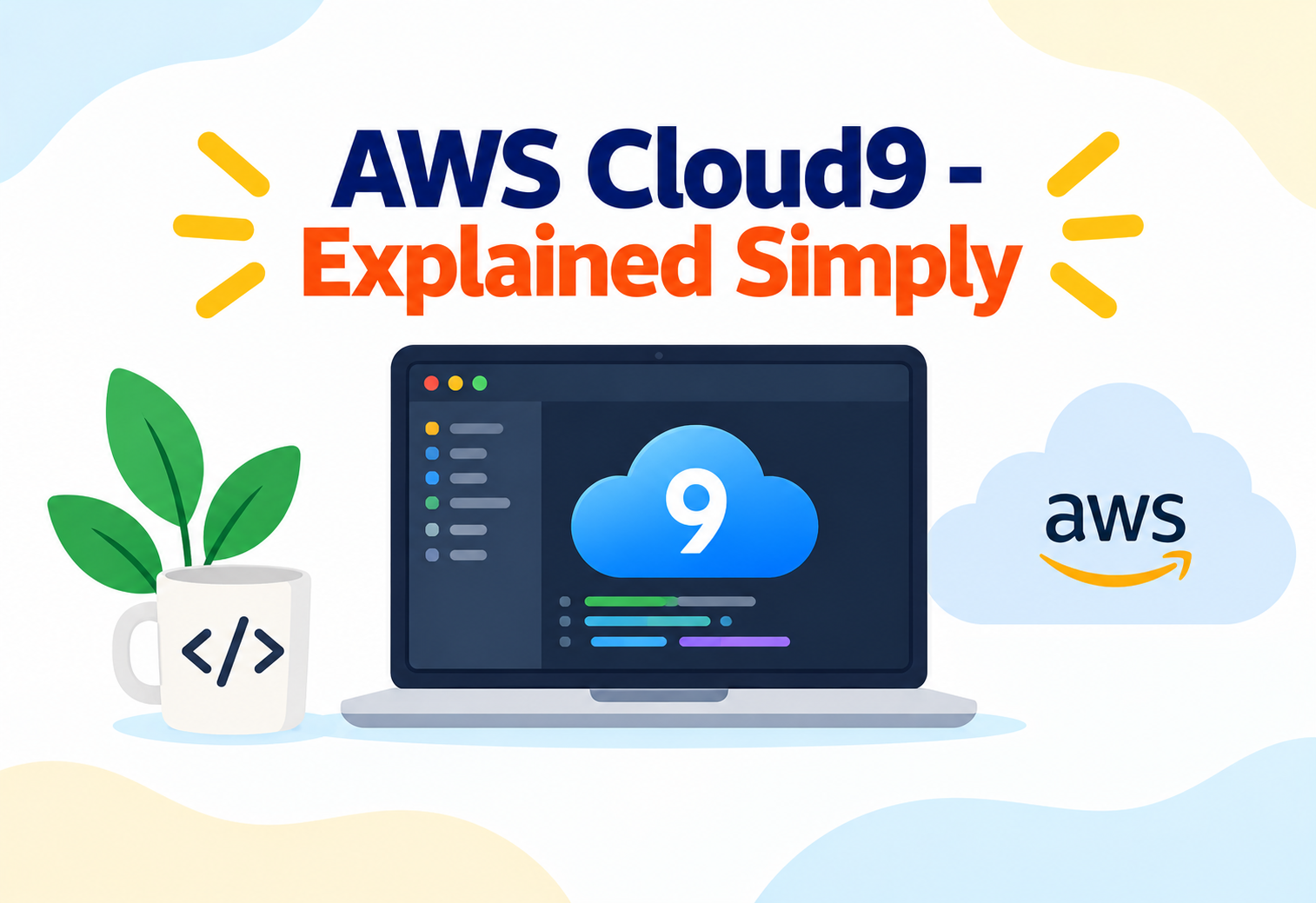
AWS Cloud9, Explained Simply
A complete, zero-jargon walkthrough of the cloud-based code editor that lets you write, run, and debug software from nothing more than a web browser.
Imagine you are a writer, but instead of carrying your notebook, pens, dictionary, and desk everywhere you go, all of that lived on the internet — reachable from any computer, any library, any coffee shop, instantly, exactly as you left it. You would never again lose your notebook, never fight with a broken pen, and never need to reinstall your favorite dictionary on a new laptop. AWS Cloud9 does exactly this, but for programmers instead of writers. It is a complete coding workspace — editor, terminal, and debugger — that lives entirely in the cloud and opens inside a web browser, so a developer can write and run real code from a phone, a borrowed laptop, or a brand-new machine, with nothing to install and nothing left behind. This guide explains what Cloud9 is, how it works internally, and how real teams use it, in a way that assumes no prior cloud knowledge at all.
1Core Concepts
Before diving into architecture, let’s build a clear picture of what Cloud9 actually is and the problem it solves.
What Is AWS Cloud9?
AWS Cloud9 is a cloud-based Integrated Development Environment (IDE) — a single application that bundles a code editor, a file browser, a terminal, and a debugger into one browser tab. “Cloud-based” means the actual computer doing the work is not your laptop; it is a small virtual server running inside AWS, and your browser is simply a window looking into that remote machine. You type in the browser, but the code actually runs, compiles, and is stored on that remote server.
Think of online banking. You do not keep a physical ledger of your money at home anymore — you log into a website from any device, and the bank’s own servers hold your real balance and process your real transactions. Cloud9 works the same way for a developer’s entire workspace: the “real” coding environment lives on an AWS server, and your browser is just the window you use to reach it from anywhere.
Why Does It Exist?
Setting up a new developer’s laptop used to take hours or even days — installing the right programming language version, the right libraries, the right editor plugins, and making sure it all matched what the rest of the team was using. This process, sometimes called “works on my machine” syndrome, caused endless bugs where code behaved differently on different laptops. Cloud9 exists to remove this entirely: every teammate opens the exact same pre-configured environment, in a browser, in seconds, whether they are using a Mac, a Windows PC, or a Chromebook.
Key Terms You’ll See Everywhere
Environment
Your personal Cloud9 workspace — the editor, terminal, and file tree tied to one project.
EC2 Environment
A Cloud9 environment backed by its own small virtual server (an Amazon EC2 instance) that runs your code.
SSH Environment
A Cloud9 environment that connects to a server you already own, instead of AWS creating a new one for you.
Bootstrapping
The automatic process of installing common tools (Git, Node.js, Python, AWS CLI) the moment a new environment starts.
2Architecture & Components
Cloud9 is not one mysterious black box — it is a browser front-end talking to a small, real virtual server behind the scenes.
Every Cloud9 environment is powered by a compute resource that actually executes your code: most commonly a small Amazon EC2 virtual machine, though it can also be an existing server reached over SSH. The browser-based editor communicates with this compute resource over a secure connection, sending your keystrokes and terminal commands, and streaming back the results in real time.
flowchart LR
    A["Developer's Browser
(Cloud9 Editor UI)"] -->|"Secure WebSocket"| B["Cloud9 Environment
(Amazon EC2 Instance)"]
    B --> C["File System
(/environment directory)"]
    B --> D["Terminal Shell
(bash)"]
    B --> E["Preinstalled Runtimes
(Node.js, Python, Java, AWS CLI)"]
    B -->|"IAM Role"| F["Other AWS Services
(S3, Lambda, DynamoDB, etc.)"]
    G["AWS Identity & Access
Management (IAM)"] -.->|"Grants permissions"| B
    H["Amazon VPC
(Private Network)"] -.->|"Hosts instance"| B
FIG 1 — A Cloud9 EC2 environment: browser talks to a real virtual server, which has its own file system, shell, and AWS permissions.
The Core Building Blocks
The Editor Frontend
The browser interface itself — syntax highlighting, file tree, tabs, and settings, rendered entirely in JavaScript inside your browser.
The Underlying EC2 Instance
A real, small virtual machine running Amazon Linux, where your files actually live and your code actually executes.
Amazon VPC (Virtual Private Cloud)
The private network segment the EC2 instance lives inside, controlling what it can and cannot talk to on the internet.
IAM Role Attached to the Instance
Defines exactly which other AWS services (like S3 buckets or Lambda functions) your code inside Cloud9 is allowed to touch.
Because an EC2 environment is a real, billable virtual server, Cloud9 automatically shuts it down after a period of inactivity (which you can configure), so you are not paying for an idle machine overnight.
3Internal Working
What actually happens the moment you open a Cloud9 environment and start typing?
When you open a Cloud9 environment, AWS either boots a fresh EC2 instance for you (if it was stopped or this is the first time) or reconnects you to an already-running one. The browser then opens a persistent connection to that instance. Every keystroke you type is sent over this connection and written to a real file on that instance’s disk — meaning your code is not a local file living only in your browser’s memory, but a genuine file on a genuine server the moment you type it.
It is similar to remotely controlling a friend’s desktop computer using screen-sharing software. Your mouse clicks and keystrokes travel over the internet to their machine, and it is their machine’s screen — not yours — that actually changes. Cloud9’s editor works the same way: you interact through your browser, but the “computer” doing the actual work is the EC2 instance sitting inside AWS.
The Built-in Terminal
Cloud9 gives you a genuine Linux terminal running directly on that EC2 instance, with common developer tools already installed. Running a command like starting a web server, installing a package, or running a test suite happens exactly as it would on any Linux machine — because it is one.
4Data Flow & Lifecycle
Following a single coding session from opening a browser tab to running the code.
sequenceDiagram
    participant Dev as Developer
    participant Browser as Web Browser
    participant Cloud9 as Cloud9 Service
    participant EC2 as EC2 Instance
    participant AWS as Other AWS Services

    Dev->>Browser: Opens Cloud9 environment URL
    Browser->>Cloud9: Requests environment session
    Cloud9->>EC2: Starts (or wakes) instance if needed
    EC2-->>Cloud9: Instance ready
    Cloud9-->>Browser: Loads editor, file tree, terminal
    Dev->>Browser: Types code / runs terminal command
    Browser->>EC2: Streams keystrokes and commands
    EC2->>EC2: Writes files, executes commands
    EC2->>AWS: Calls S3/Lambda/DynamoDB using attached IAM role
    EC2-->>Browser: Streams terminal output back
FIG 2 — Lifecycle of a Cloud9 session, from opening the browser tab to executing commands on the underlying instance.
Because files are saved directly onto the EC2 instance’s disk in real time, closing the browser tab does not lose any work — reopening the environment later reconnects to the same instance and the same files, exactly where you left them, much like resuming a video call exactly where it dropped.
5Advantages, Disadvantages & Trade-offs
Cloud9 is a strong fit for some teams and workflows, and a weaker fit for others.
Advantages
- Zero local setup — a working coding environment in seconds from any browser
- Identical environment for every teammate, eliminating “works on my machine” bugs
- Direct, pre-authenticated access to other AWS services for testing cloud applications
- Automatically pauses idle instances to reduce unnecessary cost
- Works well for quick fixes from a tablet or a borrowed computer while traveling
Disadvantages
- Requires a stable internet connection — offline coding is not possible
- Editor experience, while capable, is generally less feature-rich than a modern desktop IDE for very large codebases
- Running an EC2-backed environment incurs ongoing compute cost while active
- Less suited to resource-heavy tasks like compiling enormous applications compared to a beefy local workstation
Cloud9 trades some of the raw power and offline flexibility of a local machine for enormous consistency, accessibility, and zero setup time. It shines for teaching, quick fixes, and cloud-native development, and is less ideal as the sole daily driver for teams building extremely large, resource-intensive applications.
6Performance, Scalability & High Availability
How Cloud9 behaves for a single developer versus an entire organization.
Performance
Because Cloud9 EC2 environments let you choose the instance size, performance is directly tunable: a small instance is enough for lightweight scripting, while a larger instance handles heavier compiling or data processing tasks. Typing latency depends on your internet connection, since every keystroke travels to the remote instance and back, though on a normal broadband connection this delay is imperceptible.
Scalability
Cloud9 scales naturally at the organizational level — a company can spin up dozens or hundreds of independent environments for different developers or students without those environments competing for the same local machine’s resources, since each one runs on its own separate instance.
High Availability
An individual Cloud9 EC2 environment runs in a single Availability Zone, similar to any single EC2 instance, so it is not inherently multi-zone redundant on its own. For classroom or workshop scenarios, this is rarely a concern; for critical, always-on developer infrastructure, teams typically treat Cloud9 as a personal workspace tool rather than a production system, keeping the actual application’s production infrastructure separately architected for high availability.
7Security & Monitoring
A tool that can reach your AWS account’s other services needs careful boundaries.
Security
Access to a Cloud9 environment is controlled through AWS Identity and Access Management (IAM), determining exactly who is allowed to open, edit, or delete a given environment. The underlying EC2 instance also has its own IAM role, which decides what other AWS resources code running inside Cloud9 is permitted to touch — following the same least-privilege principle used everywhere else in AWS.
Think of a shared university library. Your student ID card decides which rooms you can enter (IAM permissions to open the environment), while separately, the librarian’s desk terminal has its own restricted access to certain records (the instance’s own IAM role) — one card does not automatically unlock everything in the building.
Monitoring, Logging & Metrics
Because a Cloud9 environment runs on a standard EC2 instance, it can be monitored the same way any EC2 instance is: Amazon CloudWatch tracks metrics like CPU usage and network activity, and AWS CloudTrail records who created, opened, or deleted which environment and when, providing an audit trail for security reviews.
Review who has access to shared Cloud9 environments periodically, especially in classroom or workshop settings where many temporary participants may have been added and then forgotten.
8Design Patterns & Anti-patterns
Habits that make Cloud9 pleasant to use, and habits that create unnecessary risk or cost.
Good Pattern: One Environment Per Purpose
Creating a dedicated environment per project or per workshop keeps dependencies and settings from bleeding between unrelated pieces of work, mirroring how you would not mix two different projects’ files on the same physical desk.
Good Pattern: Configure Auto-Stop for Idle Time
Setting a short auto-stop timeout ensures a forgotten, still-running environment does not quietly rack up compute charges over a weekend.
Pattern
Attaching an overly broad IAM role to a Cloud9 instance “just to avoid permission errors while experimenting.”
Why It Fails
Because Cloud9 gives you a real terminal with real AWS credentials, an overly permissive role turns a simple coding mistake or leaked credential into an account-wide risk.
Better Approach
Grant only the specific permissions needed for the current project, and tighten or remove access once the environment is no longer needed.
Pattern
Treating a Cloud9 environment as permanent production infrastructure instead of a personal development workspace.
Why It Fails
Cloud9 environments are designed around developer convenience — auto-pausing, single-zone hosting — not around the redundancy and uptime guarantees a real production workload needs.
Better Approach
Use Cloud9 purely for writing and testing code, and deploy the finished application to dedicated, properly architected production infrastructure.
9Best Practices & Common Mistakes
Habits that keep a Cloud9 workflow smooth, secure, and inexpensive.
| Best Practice | Why It Matters |
|---|---|
| Push code to a real Git repository regularly | Protects work in case an environment is ever deleted or recreated |
| Choose the smallest instance size that meets your needs | Keeps compute costs low without sacrificing usable performance |
| Set a short auto-stop timeout for idle environments | Avoids paying for a forgotten, unused running instance |
| Scope IAM roles tightly per environment | Limits the blast radius if credentials are ever misused |
| Document required setup steps outside the environment too | Prevents total dependence on one specific environment surviving forever |
Common Mistakes Beginners Make
- Leaving large, unused environments running for weeks, quietly accumulating cost
- Storing sensitive credentials directly inside project files instead of using a secrets manager
- Assuming a Cloud9 environment is automatically backed up, when regular commits to source control remain the real safety net
- Sharing one environment among many people without separate access controls, making it unclear who changed what
10Real-World Usage Patterns
How organizations actually use browser-based development environments like Cloud9 day to day.
Coding Bootcamps & Universities
Instructors give every student an identical, ready-to-go environment in seconds, avoiding a room full of students stuck on installation problems instead of learning to code.
Fast-Growing Startups
New engineers become productive on day one by opening a preconfigured environment instead of spending their first day fighting local software installs.
Conference & Hackathon Workshops
Organizers hand out temporary, pre-built environments to hundreds of attendees at once, so everyone starts the exercise from the exact same clean slate.
Distributed Engineering Teams
Developers spread across time zones and devices reach the same consistent workspace from anywhere, reducing “it worked on my machine” confusion during code reviews.
11Frequently Asked Questions
12Summary and Key Takeaways
Key Takeaways
- AWS Cloud9 is a full IDE running in a browser, backed by a real virtual server rather than your local machine.
- Environments can be EC2-based or SSH-based, letting you either spin up a fresh AWS-managed server or connect to one you already own.
- Every keystroke and file write happens on the remote instance, so closing your browser never loses your work.
- Security follows IAM roles both for who can open an environment and for what that environment’s underlying instance is allowed to access.
- Auto-stop for idle environments is essential to avoid quietly paying for unused compute time.
- Cloud9 is best treated as a personal or team development workspace, not as production infrastructure, since it runs on a single-zone instance by default.
- Schools, startups, and distributed teams all lean on the same core benefit: identical, zero-setup coding environments reachable from anywhere with a browser.