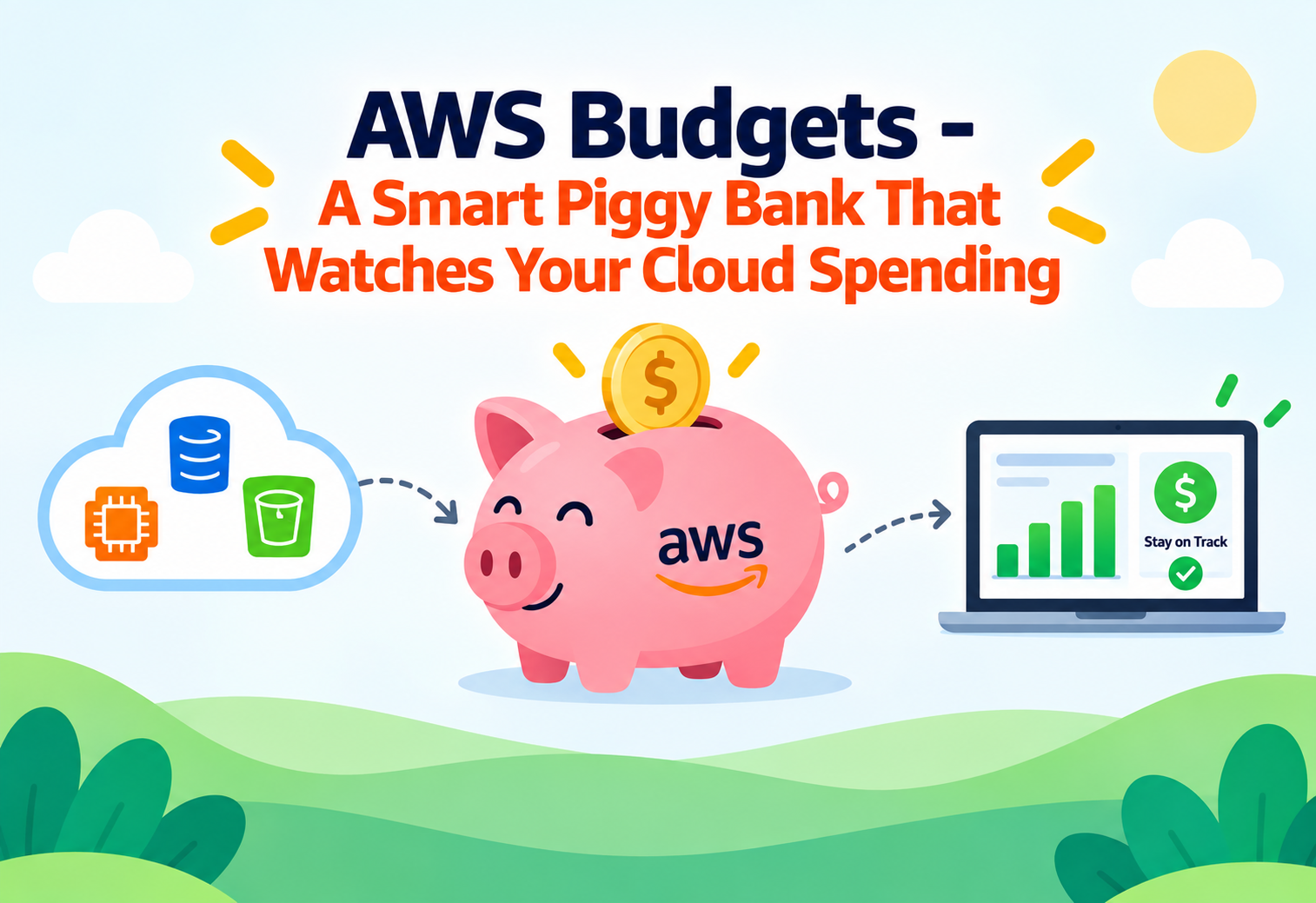
AWS Budgets – A Smart Piggy Bank That Watches Your Cloud Spending
AWS Budgets lets you set spending and usage limits for your AWS account, then automatically alerts you — or even takes action — the moment your costs start heading in the wrong direction.
Imagine giving a child a weekly allowance, but instead of just handing over the cash and hoping for the best, you give them a special piggy bank that beeps loudly whenever they are about to spend more than planned, and warns them a day in advance if it looks like they are on track to run out of money too soon. That is exactly the kind of help AWS Budgets provides for cloud spending. Instead of waiting for a surprising, oversized bill at the end of the month, AWS Budgets watches your spending continuously and speaks up the moment something looks off.
1What Is AWS Budgets?
A tool for setting spending limits on your cloud account, and getting warned before things go too far.
AWS Budgets is a cost management service that lets you set custom spending and usage limits, called “budgets,” for your AWS account. Once a budget is set, AWS Budgets continuously tracks your actual and forecasted costs or usage against that limit, and can alert you through email or other notification methods whenever you are approaching, or have exceeded, your defined threshold.
Think of AWS Budgets like the fuel gauge and warning light in a car. You do not want to wait until the car sputters to a stop on the highway to realize you are out of gas. The warning light appears well before that point, giving you time to react. AWS Budgets plays the same role for your cloud spending, warning you well before costs spiral out of control.
This service exists because cloud computing costs can be surprisingly easy to lose track of. Unlike buying a physical piece of equipment with a fixed price tag, cloud resources are billed based on ongoing usage, which can quietly grow over time as more services are used, more data is stored, or more computing power is consumed. AWS Budgets gives businesses and individuals a proactive way to stay ahead of that growth, rather than being surprised by it after the fact.
Cost Budget
A budget type that tracks the total dollar amount spent within a specific period, such as a month.
Usage Budget
A budget type that tracks a specific quantity of usage, such as data transfer or number of API calls, rather than dollar cost.
Forecasted Spend
An estimate of what your total costs are likely to be by the end of a period, based on your spending pattern so far.
Reserved Instances (RIs)
A pricing option where you commit to using a certain amount of AWS compute capacity in advance, usually at a discounted rate.
2Why Does Cloud Spending Need Its Own Watchdog?
Cloud costs can grow quietly, in ways that are easy to miss until the bill arrives.
In a traditional business, buying a new computer or server involves a single, visible purchase decision, with a clear price attached. In the cloud, costs accumulate gradually and automatically, based on how much storage is used, how many virtual servers are running, and how much data moves in and out of the system. A small, well-intentioned change, like leaving a large virtual server running overnight by mistake, can add unexpected costs that nobody notices until the monthly invoice arrives.
Without an active monitoring tool, the first sign of a spending problem is often the invoice itself, by which point the unwanted costs have already been incurred and cannot be undone.
AWS Budgets addresses this by shifting cost awareness from something reviewed after the fact to something monitored continuously, in real time. This proactive approach gives individuals and organizations the chance to catch problems early, whether that means an unexpected spike in usage, a forgotten resource still running, or spending simply approaching a planned limit.
3How AWS Budgets Works Internally
From setting a limit to receiving a timely warning before costs get out of hand.
flowchart TD
    A[You create a budget with a defined limit] --> B[AWS continuously tracks actual cost and usage]
    B --> C[AWS calculates a forecasted total based on current trends]
    C --> D{Does actual or forecasted spend cross a threshold?}
    D -->|Yes| E[AWS sends an alert through email or other channels]
    D -->|No| F[Monitoring continues silently in the background]
    E --> G[Optional automated actions can be triggered]
The Budget Creation Step
You start by creating a budget in the AWS Management Console, choosing whether to track total cost, usage of a specific service, or coverage and utilization of Reserved Instances or Savings Plans, and defining the specific limit you want to monitor.
The Tracking Step
Once created, AWS Budgets continuously monitors your actual spending or usage data, comparing it against the limit you defined, and also calculates a forecasted total to estimate where your spending is headed by the end of the tracking period.
The Alerting Step
When either your actual or forecasted spending crosses a threshold you configured, such as 80 percent of your monthly budget, AWS Budgets sends a notification, typically through email, so you can investigate and respond before costs grow further.
The Automated Action Step
For more advanced setups, AWS Budgets can trigger automated actions when a threshold is crossed, such as applying a more restrictive permissions policy to limit further spending, adding an extra layer of protection beyond a simple notification.
4Types of Budgets You Can Create
Different budget types answer different kinds of “am I on track” questions.
Cost Budgets
Track total dollar spending over a chosen time period, useful for keeping overall cloud costs within a planned amount.
Usage Budgets
Track a specific quantity of usage, such as gigabytes of data transferred, rather than a dollar amount.
Reservation Budgets
Track utilization and coverage of Reserved Instances, helping ensure you are getting good value from any capacity you have already committed to.
Savings Plans Budgets
Track how effectively you are using a Savings Plans commitment, helping identify underused or well-utilized discount agreements.
You are not limited to just one budget. Many organizations create several budgets at once, each focused on a different team, project, or service, to get a clearer, more granular picture of where spending is happening.
5Setting Up Your First Budget
A typical path from a fresh AWS account to an actively monitored spending limit.
Open the Budgets Dashboard
Navigate to the AWS Budgets section within the AWS Cost Management console, where all budgets are created and managed.
Choose a Budget Type
Decide whether you want to track overall cost, a specific usage metric, or Reserved Instance and Savings Plans coverage.
Set Your Limit and Time Period
Define the specific amount or quantity you want to track, along with whether it applies monthly, quarterly, or annually.
Configure Alert Thresholds
Choose at what percentage of your budget, such as 50 percent, 80 percent, or 100 percent, you want to be notified.
Add Notification Recipients
Specify who should receive alerts, such as your own email address or a team distribution list.
Review and Confirm
Double-check your settings and activate the budget, after which AWS Budgets begins monitoring automatically.
6Alerts and Automated Actions
Being warned is helpful, but sometimes taking action automatically is even more valuable.
Simple Email Alerts
The most common setup, where you receive an email notification whenever actual or forecasted spending crosses a defined threshold.
Notifications Through Other Channels
Alerts can also be routed through other notification methods, integrating with broader team communication and monitoring tools.
Automated Cost-Control Actions
For stricter control, AWS Budgets can trigger automated actions, such as applying a more restrictive access policy, when spending crosses a critical threshold, helping prevent runaway costs without requiring someone to react manually in time.
Automated actions are powerful, but should be configured carefully, since overly aggressive restrictions could unintentionally disrupt legitimate, important workloads if triggered unexpectedly.
7Advantages, Disadvantages & Trade-offs
AWS Budgets is a simple idea with real impact, though it works best as part of a broader cost management habit.
Advantages
- Provides early warning before spending grows out of control.
- Supports multiple budget types, covering cost, usage, and reservation coverage.
- Can trigger automated actions, not just passive notifications.
- Helps different teams or projects track their own spending independently.
- Easy to set up, even for individuals with a small personal AWS account.
Disadvantages / Trade-offs
- Alerts only help if someone actually reviews and acts on them promptly.
- Forecasts are estimates and may not perfectly predict sudden, unusual usage spikes.
- Automated actions require careful configuration to avoid unintended disruptions.
- Does not automatically reduce costs on its own — it informs and enables action, but a person or automated action must actually respond.
8Performance & Scalability
From a single personal account to an organization managing costs across many teams.
Because AWS Budgets is a fully managed service, it scales naturally from a single individual monitoring their own small account, to a large enterprise managing dozens or hundreds of separate budgets across different departments, projects, and cost centers. There is no need to build or maintain your own custom cost-tracking system — the same underlying service supports both simple, single-budget setups and much larger, more complex organizational cost management strategies.
9Real-World & Industry Examples
AWS Budgets plays a quiet but important role in how organizations of all sizes manage cloud spending.
Startups Managing Limited Runway
Early-stage companies with tight budgets use AWS Budgets to make sure cloud spending stays within what their limited funding can support.
Large Enterprises with Multiple Teams
Big organizations set up separate budgets for different departments or projects, giving each team visibility and accountability over their own portion of cloud spending.
Educational and Personal AWS Accounts
Students and hobbyists learning AWS often set small budgets to avoid accidentally running up unexpected charges while experimenting with cloud services.
Finance Teams Tracking Reserved Capacity
Finance and operations teams use reservation and Savings Plans budgets to ensure previously purchased discounted capacity is actually being used effectively.
10Best Practices & Common Mistakes
A few thoughtful habits make budgets far more useful than simply setting a number and forgetting about it.
Set multiple alert thresholds, such as 50 percent, 80 percent, and 100 percent, rather than a single all-or-nothing alert, giving yourself earlier warning as spending approaches the limit.
Setting a budget and then ignoring the alerts it sends, which defeats the purpose of having early warning in the first place.
Create separate budgets for different projects or teams rather than one single account-wide budget, making it easier to pinpoint exactly where unexpected spending is coming from.
Relying only on actual spend alerts and ignoring forecasted spend alerts, which can catch a problem earlier, before costs have actually accumulated.
11Design Patterns & Anti-patterns
How experienced teams structure their cost monitoring approach using AWS Budgets.
Problem
A team creates a single, very high overall account budget, assuming it will catch any unexpected cost problem, no matter where it happens.
Why It’s Harmful
A single broad budget can mask smaller but still meaningful spending issues within specific services or teams, since overall costs might still look fine even while one particular area is overspending.
Correct Approach
Create multiple, more granular budgets scoped to specific services, teams, or projects, in addition to any overall account-level budget, for clearer visibility.
Problem
An organization wants strong protection against runaway cloud costs, without relying solely on someone noticing and reacting to an email alert in time.
Why It Works
Combining early alert thresholds with automated cost-control actions provides a safety net that still functions even if a notification is missed or delayed.
Correct Approach
Configure early alert thresholds for awareness, and reserve automated actions for a higher, more critical threshold, ensuring action is taken even without immediate human response.
12Frequently Asked Questions
Not by default. AWS Budgets primarily sends alerts, though it can be configured to trigger automated actions, such as applying restrictive policies, if you set that up specifically.
Yes. AWS Budgets also supports usage budgets for specific metrics, as well as reservation and Savings Plans budgets for tracking discounted capacity utilization.
It calculates a forecasted spend estimate based on your current spending trend, giving you an early signal even before you actually reach your defined limit.
Yes. You can configure a budget to notify multiple recipients, such as an entire team’s email distribution list, rather than just one individual.
No. Individuals with personal AWS accounts, students learning cloud computing, and small businesses can all benefit from setting even simple budgets to avoid unexpected charges.
Yes. Many organizations create multiple budgets simultaneously, each scoped to a different team, project, or service, for more precise cost visibility.
13Summary and Key Takeaways
AWS Budgets turns cloud cost management from a reactive, end-of-month surprise into a proactive, continuously monitored process. By letting you define custom cost, usage, and reservation-based limits, and alerting you — or even taking automated action — the moment spending trends in the wrong direction, AWS Budgets gives individuals and organizations a genuine chance to catch and address cost problems before they grow. Used thoughtfully, with well-scoped budgets and sensible alert thresholds, it becomes a simple but powerful habit for staying in control of cloud spending.
Key Takeaways
- AWS Budgets tracks spending proactively — alerting you before costs become a surprise on your bill.
- It supports multiple budget types — cost, usage, reservation, and Savings Plans budgets each serve a different purpose.
- Forecasted spend alerts can warn you even before your actual spending reaches a defined limit.
- Automated actions add an extra safety net beyond simple email notifications.
- Granular, scoped budgets reveal spending issues that a single broad account-wide budget might hide.
- It scales from individuals to enterprises, supporting anywhere from one simple budget to many across an organization.
- Alerts only help if acted on — the tool informs and enables action, but a response still needs to happen.