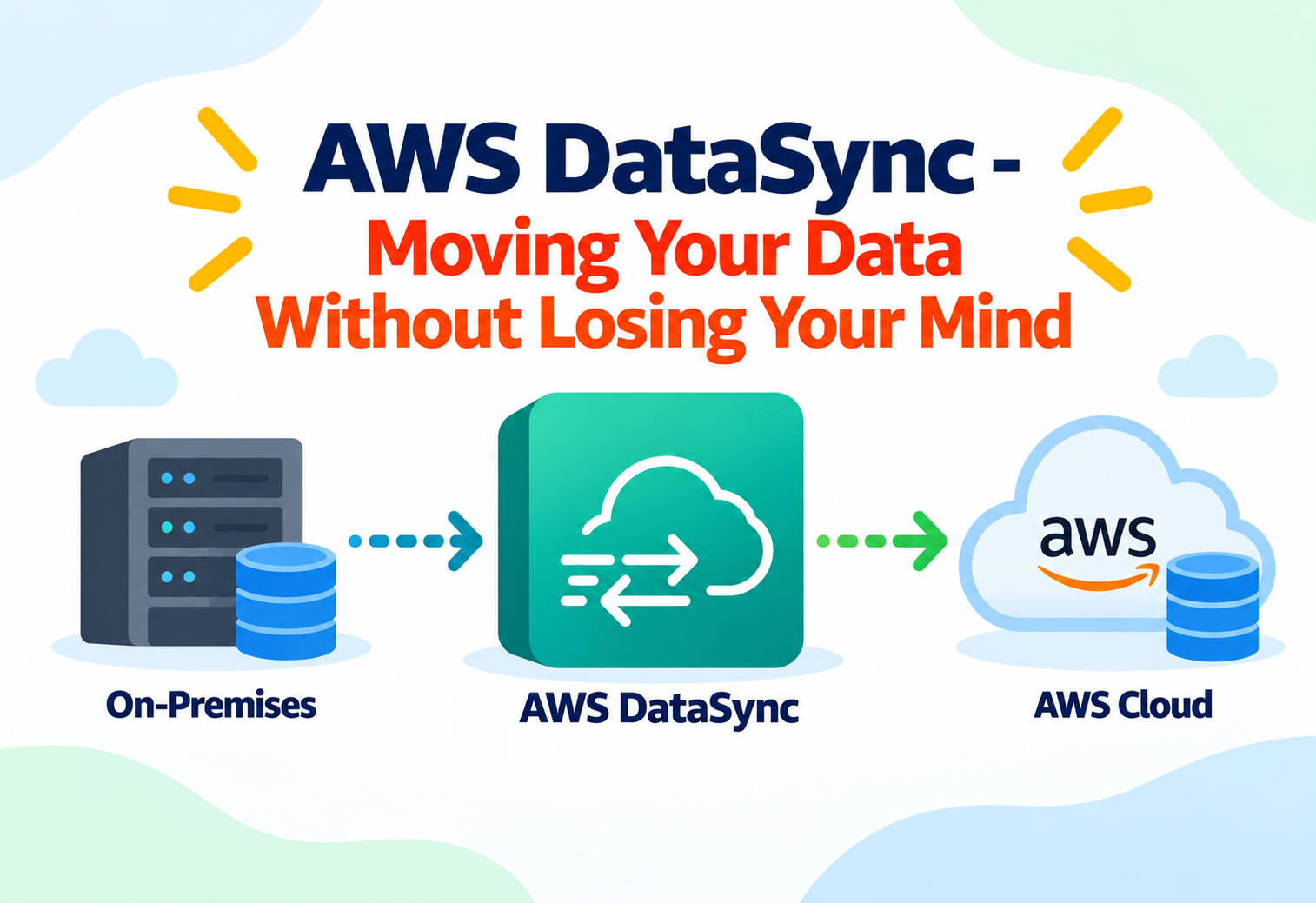
AWS DataSync – Moving Your Data Without Losing Your Mind
A complete, beginner-friendly guide to AWS DataSync — what it is, how it works, and why it makes moving huge amounts of data between places feel almost boring (in a good way).
Imagine you are moving houses. You do not carry every plate, book, and chair in your own two hands, one trip at a time. You hire a moving company. They bring the right-sized truck, wrap your furniture so nothing breaks, take the fastest route, and even give you a receipt confirming everything arrived. AWS DataSync is that moving company, except instead of moving furniture, it moves your files, folders, and data from one storage system to another — safely, quickly, and mostly without you needing to watch every step.
1What Is AWS DataSync?
Before we go anywhere else, let’s understand exactly what this service is and why Amazon built it.
The Simple Definition
AWS DataSync is a fully managed data transfer service from Amazon Web Services. Its only job is to move large amounts of data quickly and safely between two storage locations. One end of the move might be a storage system sitting inside your office or data center. The other end might be a storage service inside AWS, like Amazon S3. Or both ends might already be inside AWS — DataSync can move data between two different AWS storage services too.
The word “fully managed” is important. It means you do not have to install complicated software, write custom scripts, or babysit the transfer. AWS runs the actual transfer engine for you. You just tell DataSync what to move, where it should go, and when to do it.
Think of DataSync as a smart courier service for digital files. You do not need to know which highway is fastest or how to pack the truck efficiently — the courier company handles all of that. You just hand over the package (your data) and tell them the destination (your storage target).
Why It Exists
Before services like DataSync existed, moving large amounts of data between an office server and the cloud usually meant writing custom scripts using tools like rsync, or manually copying files over a network connection. These approaches worked for small amounts of data, but they struggled badly once the data grew into terabytes or petabytes. Scripts would fail halfway through, network hiccups would corrupt files, and nobody had an easy way to confirm that everything copied correctly.
Companies use DataSync when migrating on-premises file servers to the cloud, backing up data to AWS for disaster recovery, moving data between AWS storage services for processing, or keeping two storage systems in sync on an ongoing schedule.
A Practical Example
Suppose a hospital has ten years of patient scan images sitting on old file servers in a back room. The IT team wants to move all of it — around 200 terabytes — into Amazon S3 so doctors can access it securely from anywhere and old hardware can finally be retired. Doing this by hand, one folder at a time, could take months and would be extremely risky. With DataSync, the IT team sets up the transfer once, and the service handles the heavy lifting, checking every file to make sure nothing gets lost or corrupted along the way.
2The Problem Before DataSync
To appreciate any tool, it helps to understand the pain it removes.
Moving data sounds simple until you actually try to move a lot of it. Here are the real problems engineers faced before managed transfer services existed:
Slow Transfers
Generic copy tools do not use the network efficiently, so large transfers crawl along instead of using the full available bandwidth.
No Automatic Retry
If a network blip happened mid-transfer, the whole job often had to be restarted from scratch.
No Data Validation
There was no built-in way to confirm that the copied file was byte-for-byte identical to the original.
Manual Scheduling
Keeping two locations in sync meant writing and maintaining custom cron jobs or scripts forever.
AWS built DataSync specifically to remove all four of these pain points. It uses an optimized, purpose-built network protocol instead of generic copy commands, it automatically retries failed pieces of a transfer instead of failing the whole job, it validates data both during and after transfer, and it supports repeatable scheduled tasks out of the box.
3Core Concepts and Terminology
Every new topic comes with its own vocabulary. Let’s define the key DataSync terms one by one before going further.
Location
A Location is simply an address that tells DataSync where data lives. It could be an on-premises file share, an S3 bucket, an EFS file system, or several other supported storage types. Every task needs a source Location and a destination Location.
Task
A Task is the actual transfer job you configure. It links one source Location to one destination Location, along with settings like what to include, what to exclude, and how often it should run.
Agent
An Agent is a small piece of software you run near your on-premises data. It acts as the local messenger that talks to AWS on your data’s behalf. If both ends of your transfer are already inside AWS, you often do not need an Agent at all.
Task Execution
Every time a Task actually runs, that single run is called a Task Execution. You can look back at past executions to see exactly what happened, how much data moved, and whether anything failed.
Filter
A Filter lets you include or exclude specific files or folders from a transfer, so you can move only what you actually need instead of everything in a location.
Schedule
A Schedule tells a Task to run automatically at set times — for example, every night at 2 AM — instead of you having to start it manually every time.
Think of the Agent as your local delivery driver, the Location as an address on a map, the Task as the delivery order connecting two addresses, and the Schedule as a standing instruction that says “repeat this delivery every night.”
4Architecture and Components
Now that we know the vocabulary, let’s see how the pieces physically connect to one another.
At a high level, a typical on-premises-to-cloud DataSync setup has four moving parts: your source storage system, a DataSync Agent, the AWS DataSync service itself, and your destination storage in AWS. The Agent is the only piece you install yourself; everything else is managed by AWS.
flowchart LR
    A[On-Premises File Server] --> B[DataSync Agent]
    B --> C[AWS DataSync Service]
    C --> D[(Amazon S3 / EFS / FSx)]
    C --> E[CloudWatch Logs & Metrics]
The Agent runs as a virtual machine inside your own environment, using a virtualization platform such as VMware, KVM, or Hyper-V, or it can run directly on an EC2 instance if your source is inside a different AWS account or region. Its job is narrow on purpose: read data from the source, package it efficiently, and hand it off to the AWS DataSync service over an encrypted connection. The heavy coordination — scheduling, retries, validation, monitoring — all happens inside the managed AWS service, not on your Agent.
Cloud-to-Cloud Setups Need No Agent
If you are moving data between two AWS storage services, such as from Amazon S3 to Amazon EFS, DataSync can often talk directly to both sides without any Agent at all, since both storage systems are already reachable natively by AWS.
Hybrid and Multi-Cloud Setups
DataSync also supports transferring data to and from certain other cloud object storage systems and self-managed NFS or SMB shares, using the same Agent-based pattern as an on-premises transfer.
5How Data Actually Moves: Internal Working
Let’s open the hood and look at what really happens during a Task Execution, step by step.
When you start a Task, DataSync does not simply start blindly copying files. It follows a careful, four-phase process designed to be both fast and safe.
Discovery Phase
DataSync scans both the source and destination locations to build a list of files, their sizes, and their last modified timestamps.
Comparison Phase
It compares the two lists to figure out exactly which files are new, which have changed, and which are already identical — so it never wastes time re-copying something that has not changed.
Transfer Phase
Only the files that actually need to move are sent, in parallel streams, using an optimized network protocol that squeezes much more out of your available bandwidth than a typical single-threaded copy tool.
Verification Phase
After the data lands at the destination, DataSync checks it against the source to confirm nothing was corrupted or dropped during transit, then reports the results of the entire Task Execution.
sequenceDiagram
    participant Src as Source Location
    participant Agent as DataSync Agent
    participant Svc as AWS DataSync Service
    participant Dst as Destination Location
    Src->>Agent: Read file metadata
    Agent->>Svc: Send file list
    Svc->>Svc: Compare source vs destination
    Svc->>Agent: Request only changed files
    Agent->>Svc: Stream file data (encrypted)
    Svc->>Dst: Write data to destination
    Svc->>Svc: Verify checksum match
    Svc-->>Agent: Report execution summary
DataSync does not just blindly copy every file every single time it runs. On repeat executions, it only moves what has changed, which is why nightly sync schedules stay fast even for very large data sets.
6Getting Started: Setting Up a Transfer
Here is the conceptual sequence you would follow to set up your very first DataSync transfer, described in plain steps rather than exact commands.
Deploy the Agent (If Needed)
If your source data lives outside AWS, download the DataSync Agent virtual machine image and run it inside your own environment, on the network segment that can reach your storage.
Activate the Agent
Connect the running Agent back to your AWS account so DataSync recognizes it as a trusted local worker.
Create the Source Location
Tell DataSync exactly which file share, folder, or storage system on your side should act as the starting point.
Create the Destination Location
Point DataSync at the AWS storage service where the data should end up, such as an S3 bucket or an EFS file system.
Create the Task
Link the source and destination Locations together into a single Task, and choose any filters or options you need, such as which files to skip.
Run or Schedule the Task
Start the Task manually for a one-time migration, or attach a Schedule so it repeats automatically, keeping both sides in sync going forward.
Review the Execution Report
After the Task runs, check the summary to see how many files transferred, how much data moved, and whether anything needs attention.
7Where Can Data Move? Locations and Use Cases
DataSync supports many combinations of source and destination. Here are the most common ones you will encounter.
On-Premises File Share to Amazon S3
The most common use case: moving files from an NFS or SMB share in your data center into Amazon S3, often as the first step of a full cloud migration.
Amazon S3 to Amazon EFS
Useful when applications running on EC2 instances need file-system access to data that currently only exists as objects in S3.
Amazon EFS to Amazon FSx
Helpful when moving workloads that need a Windows-compatible or high-performance file system instead of a Linux-style one.
Cross-Region or Cross-Account S3 Replication
Keeping a second copy of important data in a different AWS region or a different AWS account, for disaster recovery or compliance reasons.
Scheduled Backup Sync
Running a nightly Task that copies only new or changed files from an on-premises backup server into S3, so the cloud copy is never more than a day out of date.
| Source | Destination | Typical Reason |
|---|---|---|
| On-premises NFS/SMB | Amazon S3 | Cloud migration, archival |
| Amazon S3 | Amazon EFS | Enable file-based access for apps |
| Amazon EFS | Amazon FSx | Switch file system type |
| Amazon S3 (Region A) | Amazon S3 (Region B) | Disaster recovery |
| On-premises backup server | Amazon S3 | Ongoing scheduled backup |
8Advantages, Disadvantages and Trade-offs
No tool is perfect for every situation. Here is an honest look at both sides.
Advantages
- No custom scripts to write or maintain
- Automatic retries make large transfers far more reliable
- Built-in data validation gives confidence that nothing was corrupted
- Handles incremental syncs efficiently, only moving what changed
- Scales smoothly from a few gigabytes to many petabytes
- Integrates natively with AWS monitoring tools
Disadvantages / Trade-offs
- Requires deploying and maintaining an Agent for non-AWS sources
- You pay per gigabyte transferred, which can add up for very frequent syncs
- Not designed for tiny, extremely frequent single-file updates
- Initial setup still requires understanding networking basics like firewall ports
9Performance and Scalability
One of the biggest reasons companies choose DataSync over manual scripts is raw transfer speed at scale.
DataSync achieves high performance by transferring many files in parallel instead of one at a time, and by using a transfer protocol built specifically to make efficient use of available network bandwidth. This matters enormously once you are dealing with millions of small files or terabytes of large ones, where a single-threaded copy tool would take an unreasonably long time.
A single-threaded copy tool is like one person carrying boxes up a staircase one at a time. DataSync is like a team of movers working in parallel, each carrying a different box up a different staircase at the same time.
For very large migrations, you can also deploy multiple Agents and split the workload across several Tasks running at once, further increasing overall throughput. AWS also lets you control how much bandwidth a Task is allowed to use, which is helpful if you need the transfer to avoid competing with regular business network traffic during working hours.
For extremely large one-time migrations, it often makes sense to split the data into several Tasks running in parallel across multiple Agents rather than relying on a single Task to move everything.
10Security in AWS DataSync
Moving sensitive company data means security cannot be an afterthought.
Encryption In Transit
All data moving between the Agent and the AWS DataSync service, and onward to the destination, is encrypted using TLS.
Encryption At Rest
Data written to destinations like S3 can be encrypted at rest using standard AWS encryption options for that storage service.
IAM-Based Permissions
Access to create, run, or modify DataSync Tasks and Locations is controlled through AWS Identity and Access Management policies, so only authorized users or systems can trigger a transfer.
Private Network Paths
DataSync can be configured to move data over a private network connection instead of the public internet, keeping traffic inside your own virtual network.
Giving a DataSync Task overly broad IAM permissions “just to make it work” is a common shortcut that creates unnecessary risk. Always grant only the specific permissions the Task actually needs.
11Monitoring, Logging and Metrics
You cannot trust a system you cannot observe, so DataSync ships with visibility built in.
Every Task Execution produces a detailed summary showing how many files were examined, how many were actually transferred, how much data moved, and how long the whole operation took. This information is also sent to Amazon CloudWatch, where it can be turned into dashboards, graphs, and automated alerts.
Files Transferred
The count of files actually copied during a given execution.
Bytes Transferred
The total amount of data moved, useful for tracking cost and confirming the scale of a migration.
Files Verified
How many files were checked for integrity against the source after landing at the destination.
Execution Duration
How long the Task took to run from start to finish, helpful for spotting slowdowns over time.
Setting up a CloudWatch alarm on failed Task Executions means your team finds out about a broken sync immediately, rather than discovering it weeks later when someone notices missing data.
12Best Practices and Common Mistakes
Learning from other people’s mistakes is much cheaper than making your own.
Problem
Running one giant Task to transfer an entire multi-petabyte data set with a single Agent and no bandwidth limits during business hours.
Why It’s Harmful
This can saturate the office network, slow down every other application, and take far longer than necessary because it has no parallelism across multiple Agents.
Correct Approach
Split the data into multiple Tasks, deploy several Agents where possible, schedule large transfers outside business hours, and set a bandwidth limit so day-to-day operations are not affected.
Problem
Never checking Task Execution reports after setup, assuming a scheduled sync “just works” forever.
Why It’s Harmful
Silent failures, such as a full destination bucket or a revoked permission, can go unnoticed for weeks while the business believes its backups are current.
Correct Approach
Attach CloudWatch alarms to failed executions and periodically review the summary reports, even for Tasks that have been running smoothly for a long time.
Beyond avoiding these two anti-patterns, a few smaller habits go a long way: use Filters to avoid transferring temporary or unnecessary files, tag your Locations and Tasks clearly so large teams do not lose track of what each one does, and always test a new Task on a small subset of data before pointing it at your full production data set.
13Real-World and Industry Examples
Seeing where a tool actually gets used makes the concept stick.
Media and Entertainment
Companies with large video and image archives commonly use DataSync to move raw footage from on-premises storage into S3, where it can then feed into cloud-based editing and transcoding pipelines.
Healthcare
Hospitals and clinics use DataSync to migrate medical imaging archives to the cloud, improving accessibility for doctors while retiring aging on-premises hardware.
Financial Services
Banks and insurance companies rely on scheduled DataSync Tasks to keep an off-site cloud backup of critical records continuously up to date for compliance and disaster recovery.
Software and Technology Companies
Engineering teams use DataSync during data center exits, moving build artifacts, logs, and internal file shares into AWS storage as part of a broader cloud migration project.
14Frequently Asked Questions
Quick answers to the questions beginners ask most often.
No. An Agent is only needed when one end of the transfer is outside AWS, such as an on-premises file share. Transfers entirely between AWS storage services often need no Agent.
No. After the first run, DataSync compares source and destination and only transfers files that are new or have changed, which keeps repeat syncs fast.
No. It can move data between two AWS storage services, or even out of AWS to certain other supported storage systems, not just into AWS.
Yes. You can set a bandwidth limit on a Task so it does not overwhelm your network during business hours.
It performs a verification step after transfer, comparing the data at the destination against the source to confirm it matches.
Yes. You can attach a Schedule to a Task so it runs automatically at set intervals, such as nightly, without manual intervention.
Not really. DataSync is optimized for moving large volumes of data efficiently, not for extremely frequent, tiny, real-time updates.
15Summary and Key Takeaways
AWS DataSync exists to solve a very ordinary but very painful problem: moving large amounts of data between two places, reliably and quickly, without writing and babysitting custom scripts. By combining an optional lightweight Agent, a managed transfer engine, automatic retries, built-in verification, and native monitoring through CloudWatch, DataSync turns what used to be a risky, manual chore into a repeatable, observable, and largely automatic process. Whether you are migrating an entire data center to the cloud, keeping a disaster recovery copy in sync, or simply moving data between two AWS storage services for a new workload, the same core building blocks apply: define your Locations, wrap them in a Task, and let DataSync handle the transfer itself.
Key Takeaways
- DataSync is a managed transfer service — it moves data between storage systems without requiring custom scripts.
- Agents are only needed for non-AWS sources — pure AWS-to-AWS transfers often skip the Agent entirely.
- Only changed data moves on repeat runs — making scheduled syncs efficient even at large scale.
- Security is built in — encryption in transit, encryption at rest options, and IAM-based access control protect your data.
- Performance comes from parallelism — multiple files transfer at once, and multiple Agents can run side by side for very large jobs.
- Monitoring is native — every Task Execution reports detailed metrics through CloudWatch, so failures are visible immediately.
- It is not built for tiny, real-time updates — it shines with large, scheduled, or one-time bulk transfers instead.