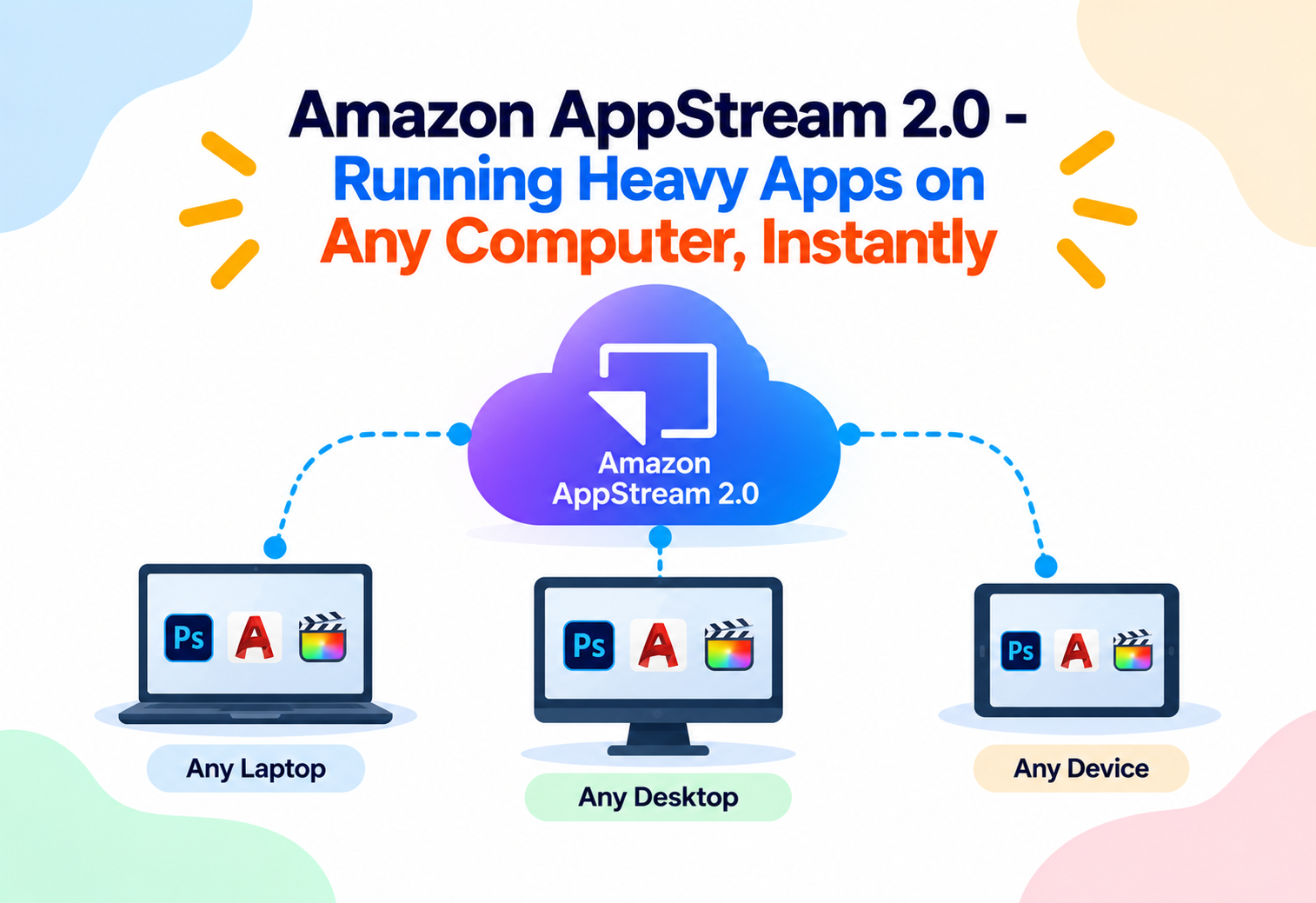
Amazon AppStream 2.0 – Running Heavy Apps on Any Computer, Instantly
A complete, beginner-friendly guide to Amazon AppStream 2.0 — what it is, how it streams full desktop applications from the cloud, and why it lets any device become a powerful workstation.
Think about watching a movie on a streaming service. The actual film is not stored on your device at all — it lives on a powerful server far away, and your screen simply displays the video and sound being sent to it in real time. Amazon AppStream 2.0 applies this exact same idea to software applications. Instead of streaming a movie, it streams an actual running application, letting even an underpowered laptop use software that would normally require an expensive, high-end computer.
1What Is Amazon AppStream 2.0?
Let’s start with the plain, simple explanation of what this service actually does.
The Simple Definition
Amazon AppStream 2.0 is a fully managed application streaming service. It runs desktop applications on powerful computers inside AWS, and streams the visual output of those applications to a user’s own device over the internet. The user sees and interacts with the application almost as if it were installed locally, even though none of the actual software or data ever lives on their own computer.
This means a user on a modest laptop, a basic desktop, or even certain tablets can use resource-intensive software, such as advanced design or engineering tools, because all of the heavy computing work happens on the cloud server, not on their own hardware.
Think of AppStream 2.0 like watching a live orchestra performance through a video call. The musicians and their instruments are physically in a concert hall far away, but you experience the performance in real time on your own screen, without needing to own a single instrument yourself.
Why It Exists
Certain applications, especially in fields like engineering, architecture, video editing, and data science, require powerful hardware to run smoothly. Traditionally, this meant every user needing that software had to be given an expensive, high-performance computer, and IT teams had to manually install, update, and maintain that software on every single device. This became costly and hard to manage, especially for organizations with many users or with people working from many different locations and devices.
AppStream 2.0 is used to deliver specialized or resource-intensive desktop applications to remote employees, contractors, students, or customers, without requiring them to own powerful hardware or have the software installed locally.
A Practical Example
Imagine an engineering firm where design software normally requires an expensive workstation to run smoothly. Instead of purchasing that hardware for every engineer, including those working remotely, the company streams the design application through AppStream 2.0. Each engineer opens a web browser, logs in, and gets a fully responsive session running on powerful cloud hardware, whether they are using a company laptop or a personal home computer.
2The Problem Before Application Streaming
Understanding the old approach makes the benefit of streaming applications much clearer.
Expensive Hardware Requirements
Every user needing a demanding application had to be equipped with a powerful, and often costly, physical computer.
Difficult Software Management
Installing, updating, and licensing software individually on every single device was time-consuming for IT teams to manage.
Data Security Risks
Sensitive files often had to be downloaded and stored locally on each user’s device just to work with them, increasing the risk of data being lost or exposed.
Limited Flexibility for Remote Work
Employees or contractors working away from the office often could not access specialized software unless they physically carried the right hardware with them.
AppStream 2.0 solves all four of these problems by keeping both the application and its data on managed cloud hardware. Users only need a device capable of displaying a video stream and sending back keyboard and mouse input, software is installed and updated centrally, and sensitive data never has to leave the cloud environment at all.
3Core Concepts and Terminology
Let’s clearly define the key terms that make up the AppStream 2.0 vocabulary.
Image
An Image is a saved template containing an operating system along with specific applications already installed and configured, ready to be launched for users.
Fleet
A Fleet is a group of cloud computers, all built from the same Image, that run user sessions and can automatically scale up or down based on demand.
Stack
A Stack connects a Fleet to end-user access settings, such as which storage options and user policies apply when someone starts a streaming session.
Streaming Session
A Streaming Session is the active period during which a specific user is connected to and interacting with a running application on a Fleet instance.
User Pool
A User Pool is the set of managed user identities that are allowed to log in and start Streaming Sessions.
Persistent Storage
Persistent Storage lets users save files that remain available across different Streaming Sessions, rather than disappearing when a session ends.
The Image is the fully furnished concert hall stage, set up exactly the same way every time. The Fleet is having several identical stages ready so more than one performance can happen at once. The Stack is the ticketing system deciding who can enter and what they can bring with them. The Streaming Session is one specific person actually watching the show live.
4Architecture and Components
Let’s see how these pieces connect together to deliver a smooth streaming experience.
A user opens a web browser or a dedicated client application and authenticates through the configured User Pool. AppStream 2.0 then assigns them an available instance from the appropriate Fleet, launches the application from the underlying Image, and begins streaming its visual output back to the user’s device, while continuously receiving their keyboard and mouse input in return.
flowchart LR
    A[User Device] --> B[Web Browser / Client]
    B --> C[Authentication]
    C --> D[Stack]
    D --> E[Fleet]
    E --> F[(Streaming Instance from Image)]
    F --> B
Always-On Fleets
Always-On Fleets keep a certain number of instances running continuously, ready to serve users instantly, which suits situations where fast connection times matter most.
On-Demand Fleets
On-Demand Fleets start instances only when a user actually connects, which can reduce cost for applications that are used less frequently or unpredictably.
5Internal Working: How a Streaming Session Actually Works
Let’s trace exactly what happens between a user clicking “launch” and actually seeing their application appear.
User Authenticates
The user logs in through their organization’s identity system or a managed User Pool.
Instance Assigned
AppStream 2.0 selects an available streaming instance from the appropriate Fleet, starting a new one automatically if needed.
Application Launched
The requested application starts running on that instance, exactly as it would on a normal desktop computer.
Video and Input Streamed
The application’s visual output is continuously streamed to the user’s device, while their keyboard and mouse actions are sent back to control the application in real time.
Session Ends
When the user disconnects or their session times out, the instance is cleaned up and returned to the Fleet, ready for the next user.
sequenceDiagram
    participant User as User Device
    participant Auth as Authentication
    participant Fleet as Fleet Instance
    participant App as Application
    User->>Auth: Log in
    Auth->>Fleet: Assign available instance
    Fleet->>App: Launch application
    App-->>User: Stream video output
    User-->>App: Send keyboard and mouse input
    User->>Fleet: Disconnect / session ends
The application is not downloaded to the user’s device at any point. Only a continuous video stream and input signals travel back and forth, meaning the user’s own device never actually runs the heavy application itself.
6Getting Started: Setting Up AppStream 2.0
Here is the conceptual sequence for setting up your first application streaming environment.
Build an Image
Install and configure the desired applications on a base image, preparing it exactly as users should experience it.
Create a Fleet
Choose the instance type, scaling behavior, and capacity settings for the group of streaming instances based on your Image.
Create a Stack
Connect the Fleet to end-user access settings, such as storage options and permitted actions during a session.
Configure User Access
Decide how users will authenticate, either through a managed User Pool or your organization’s existing identity system.
Test a Streaming Session
Log in as a test user to confirm the application launches correctly and performs well over the stream.
Roll Out to Users
Share access details with your intended users and monitor early sessions for any issues.
7Fleet Types and Common Use Cases
Choosing the right Fleet type and understanding common use cases helps design an efficient streaming setup.
| Fleet Type | Best Suited For |
|---|---|
| Always-On | Frequent users who need instant access with no wait time |
| On-Demand | Occasional users where cost efficiency matters more than instant startup |
| Elastic | Highly variable or unpredictable demand across many users |
Specialized Design and Engineering Software
Organizations stream graphics-intensive design and engineering applications to employees who do not need a dedicated high-end workstation of their own.
Remote and Contractor Access
Companies grant temporary contractors access to internal applications through streaming, without shipping physical hardware or installing software on personal devices.
Training and Education
Educational institutions stream specialized lab or coursework software to students, so everyone has an identical, working environment regardless of their personal device.
Secure Access to Sensitive Data
Organizations with strict data protection requirements stream applications so sensitive files remain entirely inside the cloud environment rather than being downloaded locally.
8Advantages, Disadvantages and Trade-offs
A balanced look at where application streaming helps most and where it requires care.
Advantages
- Users can access powerful applications from modest, everyday devices
- Software is installed and updated centrally instead of on every individual device
- Sensitive data can remain entirely within the cloud environment
- Fleets can scale automatically to match actual demand
- Enables secure, flexible remote access to specialized software
- Removes the need to physically distribute high-end hardware
Disadvantages / Trade-offs
- Requires a stable, reasonably fast internet connection for a smooth experience
- Very latency-sensitive tasks may feel slightly different compared to running locally
- Ongoing streaming costs replace the one-time cost of dedicated hardware
- Building and maintaining a well-configured Image takes some initial effort
9Performance and Scalability
Since real people are interacting with these sessions live, responsiveness matters enormously.
AppStream 2.0 Fleets can automatically scale the number of running instances up or down based on how many users are actively connecting, ensuring capacity is available during busy periods without over-provisioning during quiet ones. Instance types can also be chosen to match the specific performance needs of the applications being streamed, whether that means extra graphics processing power or additional memory.
A well-run theater does not keep every seat staffed and ready at 3 a.m. when no one is watching, but it fully staffs up for a sold-out evening show. AppStream 2.0 Fleets behave the same way, scaling capacity to match actual audience demand.
10Security in Amazon AppStream 2.0
Because AppStream 2.0 often protects valuable or sensitive applications and data, several layers of security are built in.
Data Stays in the Cloud
Since applications and their data run entirely on managed cloud instances, sensitive files never have to be downloaded to a user’s personal device.
Encrypted Streaming Connections
The video and input traffic between the user’s device and the streaming instance is transmitted over encrypted connections.
Configurable Session Permissions
Administrators can control what a user is allowed to do during a session, such as restricting file transfers, clipboard access, or printing.
IAM and Identity Integration
Access can be controlled through AWS Identity and Access Management along with integration into an organization’s existing identity systems.
Leaving file transfer or clipboard permissions wide open by default can accidentally allow sensitive data to leave a controlled streaming environment, undermining the security benefits of using AppStream 2.0 in the first place.
11Monitoring, Logging and Metrics
Understanding how streaming sessions are actually performing helps keep users happy and costs under control.
AppStream 2.0 reports usage and performance metrics to Amazon CloudWatch, covering how many sessions are active, how Fleet capacity is being used, and how individual instances are performing. This visibility helps administrators fine-tune Fleet sizing and catch performance issues before they affect many users.
Active Sessions
How many users are currently connected and actively streaming an application.
Available Capacity
How many instances in a Fleet are ready to accept new sessions at any given time.
Instance Utilization
How intensively the underlying hardware resources are being used during active sessions.
Session Duration
How long users typically stay connected, useful for understanding usage patterns and cost.
Reviewing session duration and active session metrics over time helps right-size Fleet capacity, avoiding both frustrating waits during peak hours and unnecessary cost during quiet periods.
12Best Practices and Common Mistakes
A few habits separate a smooth streaming rollout from a frustrating one.
Problem
Sizing a Fleet based only on the total number of licensed users, rather than how many are likely to be actively connected at the same time.
Why It’s Harmful
This can lead to either significant wasted cost from over-provisioning, or frustrating wait times from under-provisioning during genuinely busy periods.
Correct Approach
Size Fleets based on expected concurrent usage patterns, and take advantage of automatic scaling to handle natural fluctuations in demand.
Problem
Building an Image once and never updating it as application versions or security patches become available.
Why It’s Harmful
Users end up working with outdated or unpatched software indefinitely, creating both a poor experience and potential security exposure.
Correct Approach
Establish a regular process for updating Images with the latest application versions and security patches, and roll updated Images out to Fleets deliberately.
It also helps to test streaming performance from the actual network conditions your users will experience, configure session permissions deliberately rather than leaving defaults in place, and gather user feedback early to catch usability issues before a wider rollout.
13Real-World and Industry Examples
Seeing AppStream 2.0 applied in familiar contexts helps the concept feel concrete.
Architecture and Engineering Firms
Firms stream demanding design software to staff working from various offices and home locations, avoiding the need to equip everyone with high-end workstations.
Financial Services
Financial organizations stream internal trading or analysis applications, keeping sensitive data securely inside the cloud environment rather than on individual laptops.
Educational Institutions
Universities stream specialized coursework software to students, ensuring a consistent environment regardless of what personal computer a student owns.
Software Demonstrations and Trials
Software vendors let prospective customers try a full application instantly through a streamed session, without requiring any local installation at all.
14Frequently Asked Questions
Quick, clear answers to the most common beginner questions.
No. The application runs entirely on a cloud instance, and only the video display and your input signals travel between your device and that instance.
Generally, any device with a modern web browser and a reasonably stable internet connection can be used, since the heavy processing happens in the cloud.
Files can be kept using configured Persistent Storage options, so they remain available the next time you start a new session, depending on how the environment is set up.
Yes. Fleets can be configured to automatically add or remove instances based on how many users are actively connecting.
Since the application and its data remain on the cloud instance rather than the local device, sensitive information does not have to be downloaded, which reduces risk even on personal devices.
Yes. Administrators can configure permissions such as file transfer, clipboard access, and printing to match their organization’s security requirements.
15Summary and Key Takeaways
Amazon AppStream 2.0 removes the traditional link between a person’s device and the software they can actually use, by running applications on powerful cloud instances and simply streaming the experience back to any screen with a browser. Through Images, Fleets, and Stacks, organizations can deliver consistent, centrally managed applications to employees, contractors, students, or customers, without distributing expensive hardware or worrying about sensitive data leaving a controlled environment. With automatic scaling matching capacity to real demand, configurable session permissions protecting data, and detailed CloudWatch monitoring revealing exactly how sessions are performing, AppStream 2.0 turns application delivery from a hardware and installation problem into a flexible, secure, cloud-managed service.
Key Takeaways
- AppStream 2.0 streams full applications from the cloud — the software and data never live on the user’s own device.
- Images, Fleets, and Stacks are the core building blocks — together they define what runs and who can access it.
- Any device with a browser can become a capable workstation — the heavy processing happens on cloud instances instead.
- Fleets can scale automatically — matching available capacity to actual concurrent demand.
- Sensitive data can stay entirely in the cloud — reducing risk compared to distributing files to individual devices.
- Session permissions should be configured deliberately — controlling file transfer, clipboard, and printing based on real security needs.
- Monitoring reveals real usage patterns — helping right-size Fleets and catch performance issues early.