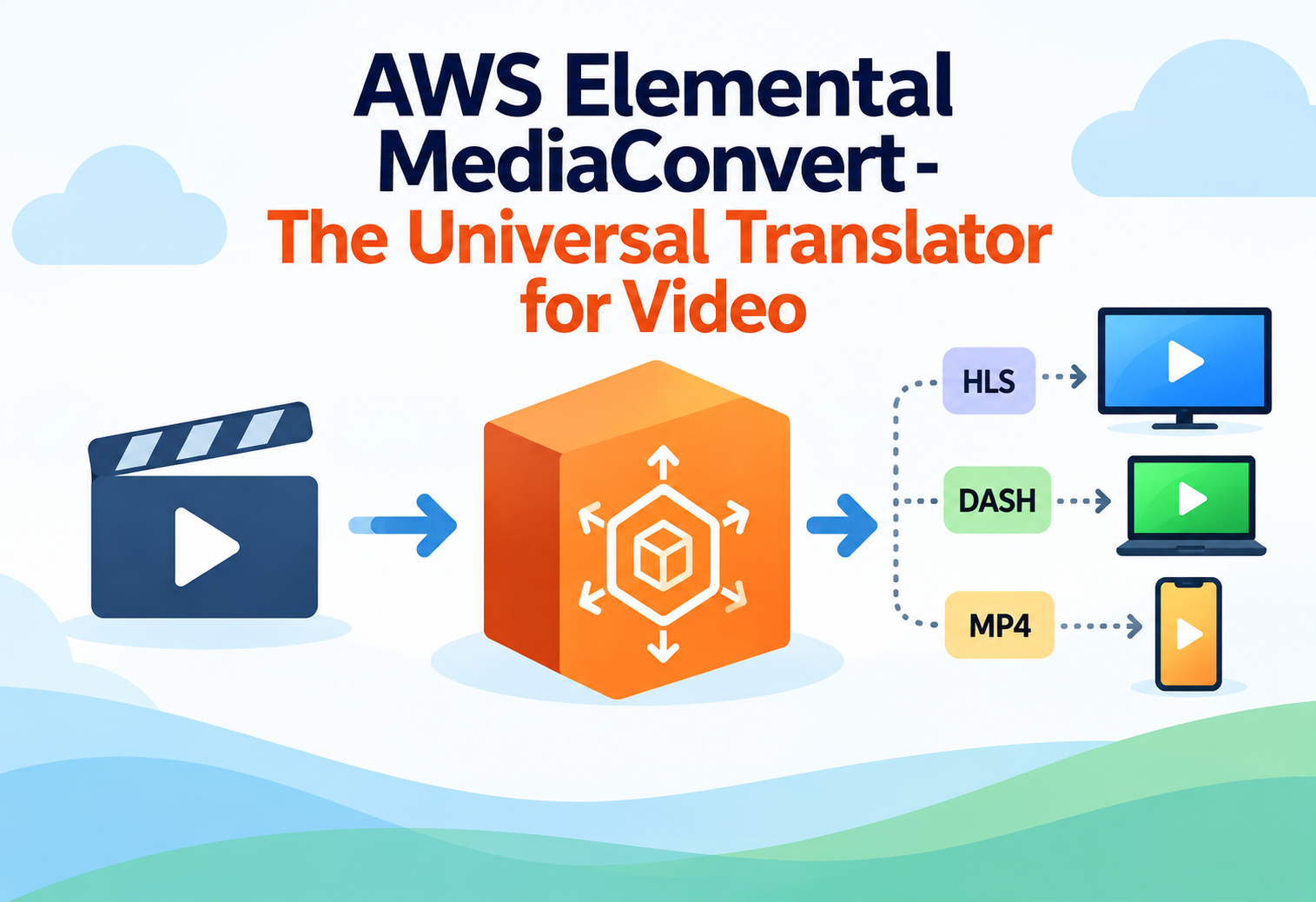
AWS Elemental MediaConvert – The Universal Translator for Video
AWS Elemental MediaConvert is a cloud service that automatically converts video and audio files into whatever formats your viewers' devices need, without you owning a single video server.
Imagine you write a beautiful letter, but your friends around the world speak different languages — some read English, some Spanish, some Japanese. To reach everyone, you would need to translate that same letter into many versions before mailing it out. Video works exactly the same way. A single video file recorded on a professional camera cannot simply be sent to every phone, smart TV, laptop, and tablet in the world — each device expects the video in a slightly different “language” (format, resolution, and quality level). AWS Elemental MediaConvert is the translator that takes one video and produces all the versions needed, automatically, at massive scale.
1What Is AWS Elemental MediaConvert?
A cloud factory that turns one video file into many, ready for any screen.
AWS Elemental MediaConvert is a fully managed video and audio processing service. You give it a source file — say, a high-quality recording of a movie or a product demo — and tell it what output formats you need. MediaConvert then converts that file into those formats automatically, without you needing to install or manage any video-processing software or servers yourself.
Think of MediaConvert like a professional print shop. You bring in one master photograph, and the shop can print it as a giant poster, a small wallet-sized photo, a postcard, or a digital thumbnail — all from that same original image, sized perfectly for each use, without you needing your own printing press at home.
This process of changing a video’s format, resolution, or compression is called “transcoding.” It exists because not every device, app, or network connection can handle the same video file. A phone on a weak mobile connection needs a small, low-quality version, while a large 4K smart TV on fast home internet wants the highest quality version available. MediaConvert automatically produces the right versions for all these situations from a single original file.
Transcoding
The process of converting a video file from one format, resolution, or quality level into another.
Codec
A method used to compress and decompress video or audio, such as H.264 or H.265, so files are smaller and easier to send.
Adaptive Bitrate Streaming
A technique where a video player automatically switches between different quality versions based on the viewer’s internet speed.
Container Format
The “box” that holds video, audio, and subtitle data together, such as MP4 or MOV.
2Why Does Video Conversion Need to Exist?
Not every screen, app, or network connection speaks the same video language.
A single raw video file straight from a professional camera can be enormous — sometimes many gigabytes for just a few minutes of footage — and stored in a format meant for editing, not for everyday viewing. If a streaming app tried to send that raw file directly to your phone, it would take far too long to load and would likely not even play correctly, since phones expect specific, compressed, standardized formats.
On top of device differences, internet speeds vary wildly from person to person, and even change moment to moment for the same person, such as walking from a strong Wi-Fi signal into a weak cellular area. To handle this smoothly, video services typically prepare several quality versions of the same content in advance, allowing the video player to instantly switch between them without the viewer even noticing. Preparing all of these versions manually, for every single video uploaded, would be an enormous and repetitive task — exactly the kind of work MediaConvert automates.
This same underlying idea, called adaptive bitrate streaming, is why a video on a big streaming platform never seems to “buffer forever” — the player quietly switches to a lower-quality version and back again as your connection changes.
3How AWS Elemental MediaConvert Works Internally
From uploading a raw file to delivering ready-to-stream video versions.
flowchart TD
    A[You upload a source video to Amazon S3] --> B[You create a MediaConvert job describing desired outputs]
    B --> C[MediaConvert reads the source file]
    C --> D[Video and audio are decoded from their original format]
    D --> E[New versions are encoded at different resolutions and bitrates]
    E --> F[Outputs are packaged into chosen container and streaming formats]
    F --> G[Finished files are written back to Amazon S3]
    G --> H[Files are delivered to viewers, often through a CDN like Amazon CloudFront]
The Input Step
You start by placing your source video file into Amazon S3, AWS’s cloud storage service. MediaConvert reads directly from there, so there is no need to manually transfer files into any special upload tool.
The Job Definition Step
You create a “job,” which is simply a description of what you want done — for example, “produce a 1080p version, a 720p version, and a 480p version, all in a streaming-friendly format.” You can save these settings as reusable templates, so you do not need to redefine them for every new video.
The Decoding and Encoding Step
MediaConvert first decodes (unpacks) the original video into raw picture and sound data, then re-encodes (compresses) it into each requested output format. This is the computationally heavy part of the process, and AWS runs it on powerful cloud hardware so it happens quickly, without you needing your own expensive video processing equipment.
The Packaging and Delivery Step
Finished files are packaged into the container and streaming format you selected, then written back into Amazon S3. From there, they are typically distributed to viewers through a content delivery network (CDN), such as Amazon CloudFront, which stores copies of your video closer to viewers around the world for faster playback.
4Formats and Outputs MediaConvert Can Produce
One source file, many destinations — MediaConvert speaks nearly every video “dialect.”
HLS (HTTP Live Streaming)
A widely used streaming format, originally created by Apple, that breaks video into small chunks for smooth adaptive playback.
DASH
An open streaming standard similar to HLS, supported broadly across many device types and platforms.
MP4
One of the most common video container formats, widely supported for simple downloadable or file-based playback.
MXF
A professional broadcast-industry format often used when delivering finished content to television networks.
Beginners sometimes assume “converting a video” only means changing its file extension. In reality, MediaConvert can change resolution, compression quality, frame rate, audio tracks, subtitles, and packaging format, all at once.
5The Video Processing Lifecycle
A closer look at the stages a video passes through on its way to becoming stream-ready.
Upload the Source File
The original, high-quality video is placed into Amazon S3, ready for processing.
Choose or Create a Job Template
You define which output resolutions, formats, and quality levels are needed, or reuse a saved template from a previous project.
Submit the Job
MediaConvert queues the job and begins processing it using scalable cloud computing resources.
Transcode Video and Audio
The service decodes the original file and re-encodes it into each requested output version.
Package the Outputs
Finished versions are organized into the chosen streaming or container format, ready for playback.
Deliver to Viewers
Completed files are distributed, often through a content delivery network, so viewers everywhere get fast, smooth playback.
6Extra Features Beyond Basic Conversion
MediaConvert does far more than simply shrink a video file.
Subtitles and Captions
MediaConvert can add, convert, or “burn in” subtitles and closed captions, helping content reach viewers who are deaf or hard of hearing, or who simply prefer watching without sound.
Watermarking and Graphics Overlay
Logos, watermarks, or other graphic overlays can be automatically added onto video during the conversion process, useful for branding or copyright protection.
Audio Normalization
MediaConvert can automatically adjust audio volume levels to a consistent standard, so viewers do not need to constantly adjust volume between different videos.
Digital Rights Management (DRM)
For protected content like movies or paid courses, MediaConvert can prepare video in a way that works with DRM systems, helping prevent unauthorized copying.
7Advantages, Disadvantages & Trade-offs
MediaConvert removes heavy technical burden, but it is built for a specific kind of workload.
Advantages
- No need to own or maintain physical video processing hardware.
- Automatically scales to process many videos at once, including sudden spikes in demand.
- Supports a wide range of professional formats, codecs, and streaming standards.
- Includes advanced features like captions, watermarking, and DRM preparation.
- You pay only for the video processing time you actually use.
Disadvantages / Trade-offs
- Designed for file-based (already recorded) video, not for processing a live broadcast in real time.
- Complex job settings can be confusing for someone completely new to video technology.
- Processing costs can add up quickly with very large volumes of long-form video.
- Still requires separate services, like Amazon CloudFront, to actually deliver video to viewers efficiently.
For truly live video, such as a live sports broadcast, AWS offers a related but separate service called AWS Elemental MediaLive, which works alongside MediaConvert for file-based processing needs.
8Performance & Scalability
From a single home video to thousands of hours of studio footage, the service scales automatically.
| Scenario | Typical Volume | How MediaConvert Handles It |
|---|---|---|
| Individual creator | A few videos per week | Simple on-demand jobs using saved templates |
| Growing streaming platform | Hundreds of uploads per day | Automatic queuing and parallel job processing |
| Large media company | Entire studio archives | Bulk job submission with reserved processing capacity |
Because MediaConvert is a fully managed cloud service, you never need to predict exactly how much processing power you will need in advance. If a sudden surge of new videos arrives — for example, right after a major live event ends and everyone wants an on-demand replay — MediaConvert automatically allocates more processing capacity behind the scenes, and jobs are simply queued and processed without you needing to manage any servers yourself.
9Real-World & Industry Examples
MediaConvert quietly powers video experiences that millions of people use every day.
Video-On-Demand Streaming Platforms
Streaming services use MediaConvert to prepare every uploaded show or movie into multiple resolutions and formats, ready for adaptive streaming to any device.
Online Learning Platforms
Educational platforms convert instructor-recorded lessons into consistent, properly captioned formats that play smoothly across laptops, tablets, and phones.
News and Media Archives
News organizations use MediaConvert to modernize decades of archived footage into current streaming-friendly formats for online viewing.
User-Generated Content Platforms
Apps that let ordinary users upload videos rely on MediaConvert-style processing to make sure every upload, regardless of the original device or format, plays correctly for viewers.
10Best Practices & Common Mistakes
A few smart habits prevent wasted processing time and inconsistent video quality.
Create reusable job templates for common output settings, so every video is processed consistently without manually re-entering the same settings each time.
Generating far more output resolutions than your actual audience needs, which wastes processing time and storage without meaningfully improving the viewing experience.
Always test a new job template on a short sample clip before running it against your entire video library, to catch settings mistakes early.
Forgetting to add captions or subtitles during conversion, which can be far more difficult and costly to add correctly after a video is already published.
11Design Patterns & Anti-patterns
How experienced teams structure a reliable, automated video processing pipeline.
Problem
A team manually starts a MediaConvert job every single time a new video is uploaded, requiring someone to remember to do it correctly each time.
Why It’s Harmful
Manual steps introduce delays and human error, and videos can easily be forgotten or processed with the wrong settings.
Correct Approach
Automatically trigger a MediaConvert job whenever a new file is uploaded to a designated Amazon S3 folder, removing the need for manual action entirely.
Problem
A growing platform needs consistent video quality across thousands of uploads from many different content creators.
Why It Works
Standardized job templates ensure every video, regardless of who uploaded it, is processed with the same resolutions, captions, and quality settings.
Correct Approach
Define a small set of approved job templates covering common scenarios, and route all incoming videos through the template that matches their content type.
12Frequently Asked Questions
No, MediaConvert is designed for file-based video that has already been recorded. Live broadcasting is handled by a related AWS service called AWS Elemental MediaLive.
Not necessarily. AWS provides ready-made job templates for common scenarios, so beginners can start with sensible defaults before exploring more advanced settings.
Yes. A single MediaConvert job can generate several output resolutions and bitrates simultaneously, which is exactly how adaptive streaming becomes possible.
Both the source file and the finished output files typically live in Amazon S3, AWS’s cloud storage service.
MediaConvert can incorporate existing caption files into your output, or work alongside other AWS services that generate captions automatically from spoken audio.
No. Individual creators, educational platforms, and small businesses also use MediaConvert whenever they need reliable, properly formatted video without managing their own processing infrastructure.
13Summary and Key Takeaways
AWS Elemental MediaConvert solves a problem that grows more important every year: the same video content must reach an ever-expanding variety of screens, apps, and network conditions. By automatically transcoding a single source file into many optimized versions, adding features like captions, watermarks, and DRM support along the way, MediaConvert removes the need for businesses to build and maintain their own complex video processing infrastructure. Whether producing a handful of videos a week or processing an entire studio’s archive, the same fully managed, automatically scaling service handles the work behind the scenes.
Key Takeaways
- MediaConvert transcodes video — turning one source file into many formats, resolutions, and quality levels.
- It exists because devices and networks differ — a single format cannot serve every screen and connection speed well.
- It works with files stored in Amazon S3, reading source video and writing finished outputs there.
- It supports major streaming formats like HLS and DASH, alongside traditional formats like MP4 and MXF.
- Extra features go beyond basic conversion — captions, watermarking, audio normalization, and DRM preparation are all supported.
- It is built for file-based video, not live broadcasts, which use the related MediaLive service instead.
- Automation and templates keep large-scale video processing consistent and free from manual, error-prone steps.