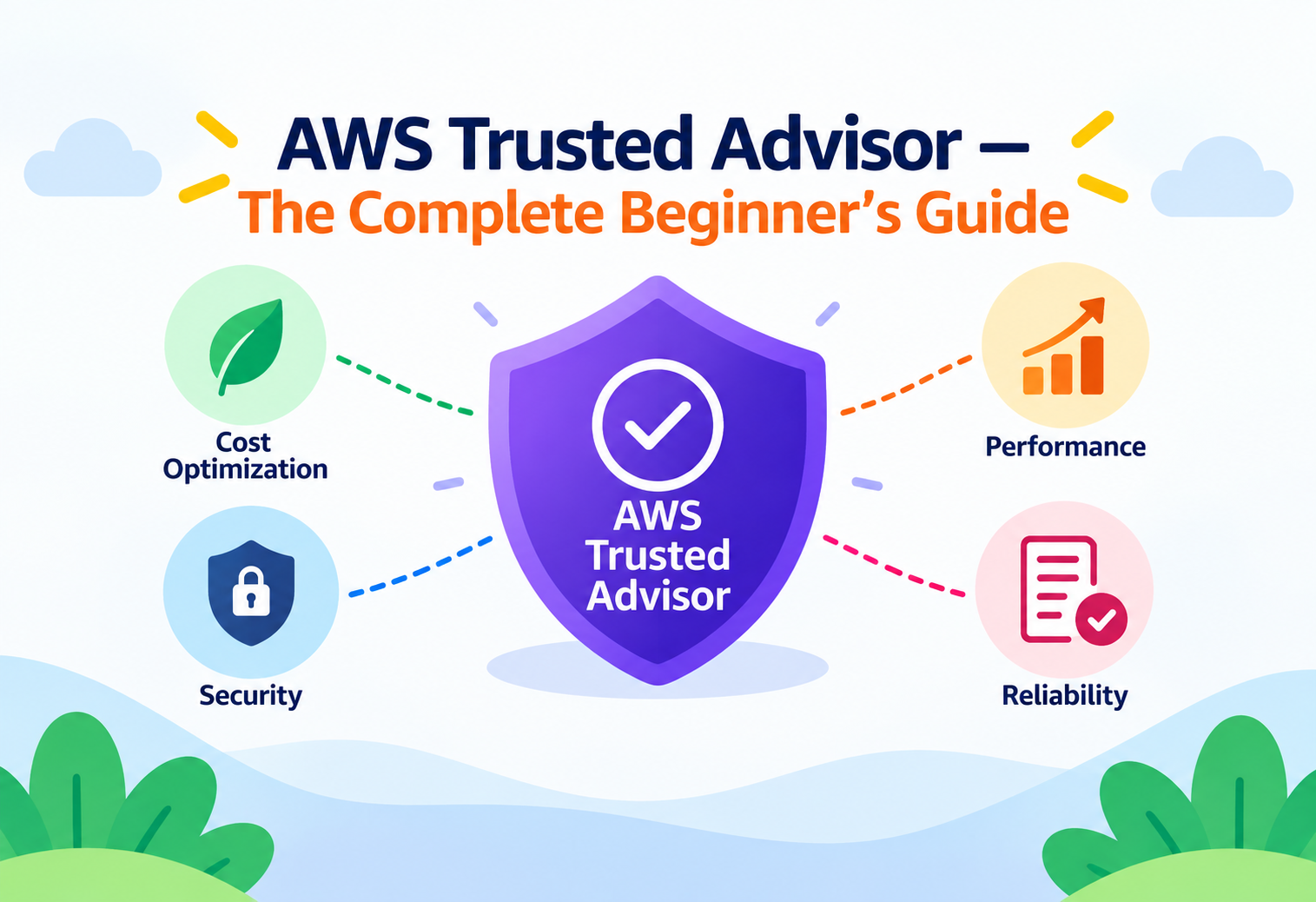
AWS Trusted Advisor — The Complete Beginner's Guide
An automated advisor that scans your AWS account and tells you where you're overspending, exposed to risk, or approaching a limit — before it becomes a real problem.
Imagine hiring a home inspector before buying a house. They don’t fix anything themselves, but they walk through every room and hand you a clear report: this outlet isn’t grounded, this window is a fire-code risk, you’re paying for a water heater twice the size you need, and this attic has almost no room left for storage. You decide what to act on, but you’re no longer guessing. AWS Trusted Advisor is that inspector for your AWS account. It continuously reviews your resources and configuration, then hands you a categorized report covering cost, performance, security, resilience, service limits, and operational best practices — all without you asking it to look for anything specific.
1Core Concepts
What is a best practice check?
A best practice check is an automated comparison between how your resources are actually configured and how AWS recommends they be configured, based on lessons learned across millions of customer accounts. For example: “Is multi-factor authentication enabled on your root account?” is a best practice check — either it is, or it isn’t, and AWS knows which answer is safer.
Why can’t you just remember to check everything yourself?
A single AWS account can have hundreds of resources: EC2 instances, S3 buckets, IAM users, security groups, load balancers, and more. No person can manually re-check all of them for cost waste, misconfiguration, or risk every week. Automated, continuous checking is the only realistic way to keep an account healthy as it grows.
What is AWS Trusted Advisor, specifically?
AWS Trusted Advisor is a service that automatically inspects your AWS account against a large set of predefined best practice checks, then reports the results in six categories: Cost Optimization, Performance, Security, Fault Tolerance, Service Limits, and Operational Excellence. Each check comes back with a simple status — usually shown as green (no problem), yellow (investigate), or red (action recommended) — along with specific, actionable guidance.
Think of Trusted Advisor as the dashboard warning lights in a car. You don’t need to be a mechanic to understand that a red engine light means “stop and look at this now” while a yellow light means “keep an eye on this.” Trusted Advisor gives your AWS account the same kind of simple, color-coded early-warning system, without requiring you to be a cloud security or cost expert to understand what it’s telling you.
Every AWS account, even on the free Basic Support plan, gets access to a core set of checks (including several security checks) at no extra charge. The full library of checks across all six categories requires a Business, Enterprise On-Ramp, or Enterprise Support plan.
2Architecture & Components
Cost Optimization
Flags idle or underutilized resources, like an EC2 instance sitting nearly unused for weeks, that are quietly costing money.
Performance
Identifies configurations that could be slowing your application down, such as an overloaded EBS volume or a poorly configured CloudFront distribution.
Security
Checks for common risks: overly permissive security group rules, missing MFA on the root account, or public S3 buckets that shouldn’t be public.
Fault Tolerance
Looks for single points of failure, such as resources that aren’t spread across multiple Availability Zones or backups that aren’t configured.
Service Limits
Warns when you’re approaching an AWS account service quota (like the maximum number of VPCs per Region), before it silently blocks something important.
Operational Excellence
Surfaces gaps in monitoring, logging, and operational readiness, such as missing CloudTrail configuration.
flowchart TB
    Account["Your AWS Account
(resources, config, usage)"] --> TA["AWS Trusted Advisor
Automated Check Engine"]
    TA --> Cost["Cost Optimization"]
    TA --> Perf["Performance"]
    TA --> Sec["Security"]
    TA --> Fault["Fault Tolerance"]
    TA --> Limits["Service Limits"]
    TA --> Ops["Operational Excellence"]
    TA --> Dashboard["Trusted Advisor Dashboard
(green / yellow / red status)"]
    Dashboard --> Notify["AWS Health / Email Notifications"]
    Dashboard --> API["Trusted Advisor API
(programmatic access)"]
    Org["AWS Organizations"] -.->|"aggregated view"| Dashboard
Trusted Advisor does not require you to install anything or point it at specific resources — it already has visibility into your account’s configuration through the same underlying AWS control plane every other service uses, and simply applies its checks continuously.
3Internal Working
A check definition exists
AWS maintains a library of check definitions, each describing a specific best practice and the exact condition that would violate it.
Trusted Advisor examines your account’s configuration
It reads relevant configuration and usage data about your resources — for example, security group rules, billing and usage data, or service quota consumption.
The condition is evaluated
Each resource is compared against the check’s defined threshold or rule — such as “is this security group open to 0.0.0.0/0 on a sensitive port?”
A status is assigned
Based on the result, the check is marked green (no issue found), yellow (investigation recommended), or red (action recommended), often alongside an estimated cost impact for cost checks.
Results refresh periodically
Checks are re-evaluated on a regular cadence (and can often be manually refreshed), so your dashboard reflects your account’s current state, not a stale snapshot.
Trusted Advisor is read-only by design — it observes and reports, but it never changes a resource’s configuration on its own. Acting on a recommendation is always a deliberate step you (or an automation you build) take separately.
4Data Flow & Lifecycle
Step 1 — A resource drifts out of best practice. An EC2 instance’s security group is accidentally configured to allow SSH access from any IP address on the internet.
Step 2 — Trusted Advisor’s security check catches it. On its next evaluation cycle, the “Security Groups – Specific Ports Unrestricted” check flags this configuration as red.
Step 3 — The finding appears on the dashboard. Alongside a plain description of the risk and which specific security group and rule caused it.
Step 4 — A notification goes out. If configured, an AWS Health notification or scheduled email digest alerts the account owner or security team, rather than requiring someone to manually check the dashboard.
Step 5 — A person investigates and acts. They review whether the open access is intentional; if not, they tighten the security group rule to restrict access to specific, known IP ranges.
Step 6 — The check re-evaluates and turns green. On its next refresh, Trusted Advisor confirms the issue is resolved, closing the loop.
Organizational Aggregation
Businesses running many AWS accounts under AWS Organizations can view Trusted Advisor findings aggregated across every member account from a single, centralized place, rather than logging into each account individually.
5Advantages, Disadvantages & Trade-offs
Advantages
- Automatically surfaces cost, security, and performance issues without requiring deep expertise to know what to look for.
- Core security checks are available for free on every AWS account, regardless of support plan.
- Covers six distinct, well-organized categories in one consistent dashboard.
- Aggregated views across AWS Organizations simplify governance for multi-account environments.
- Read-only by design, so there is no risk of it accidentally changing your infrastructure.
Disadvantages
- The full set of checks across all six categories requires a paid Business, Enterprise On-Ramp, or Enterprise Support plan.
- It surfaces recommendations, but performs no automatic remediation — someone still has to act on every finding.
- Checks reflect general AWS best practices and may occasionally flag a configuration that is intentional and appropriate for your specific use case.
- Refresh cycles mean there can be a delay between a change happening and Trusted Advisor reflecting the updated status.
6Performance & Scalability
Trusted Advisor is built to evaluate accounts of any size, from a handful of resources to thousands, without you managing any capacity or infrastructure for it yourself. As your account grows, the checks simply run against a larger inventory of resources on the same automated schedule.
“Scalability” here is really about organizational reach rather than raw computational throughput: the same set of checks applies whether you have one AWS account or hundreds, and AWS Organizations integration is what lets that visibility scale to large enterprises without manual, account-by-account review.
7High Availability & Reliability
Trusted Advisor is a fully managed AWS service, meaning its own availability is handled by AWS rather than something you need to design around. Its real contribution to your reliability, however, is indirect but significant: the Fault Tolerance category specifically looks for single points of failure in your own architecture, such as resources not spread across multiple Availability Zones or databases without backups configured.
Think of Trusted Advisor’s Fault Tolerance checks like a fire marshal inspecting a building not for whether a fire has started, but for whether there are enough exits, whether the sprinklers work, and whether the fire extinguishers haven’t expired — all before disaster ever strikes.
By continuously highlighting these architectural weak points, Trusted Advisor helps you catch reliability gaps proactively, rather than discovering them for the first time during an actual outage.
8Security
IAM Permissions for Trusted Advisor
Viewing and refreshing Trusted Advisor checks requires specific IAM permissions, so organizations can control who is allowed to see potentially sensitive findings.
No Write Access to Your Resources
Trusted Advisor only reads configuration and usage data to evaluate checks — it never has permission to modify the resources it reports on.
Security Category Visibility
Because security findings can reveal exploitable weaknesses (like an open port), access to Trusted Advisor results should itself be treated as sensitive and limited to those who need it.
AWS CloudTrail
API calls to view or refresh Trusted Advisor checks are logged like any other AWS API activity, supporting a full audit trail of who accessed which findings.
Anti-Pattern
Granting every user in an account broad IAM permission to view Trusted Advisor’s Security category findings “for transparency.”
Why It’s A Problem
Trusted Advisor’s security checks can effectively describe exactly where an account’s weaknesses are — a helpful map for a defender, but an equally helpful map for an attacker with access to that same view.
Better Approach
Scope IAM permissions for Trusted Advisor, especially the Security category, to security and operations teams who need it, following the same least-privilege principle applied elsewhere in AWS.
9Monitoring, Logging & Metrics
| Tool | What It Tells You |
|---|---|
| Trusted Advisor Console Dashboard | A categorized, color-coded overview of every check’s current status across your account. |
| AWS Health Dashboard Notifications | Alerts when a Trusted Advisor check’s status changes, without needing to log in and check manually. |
| Weekly Email Digest | A scheduled summary of your account’s Trusted Advisor status sent to configured recipients. |
| Trusted Advisor API / AWS Support API | Programmatic access to check results, useful for feeding findings into your own dashboards or automation. |
| AWS CloudTrail | An audit log of who accessed or refreshed Trusted Advisor data and when. |
Set up the weekly email digest for at least one responsible person or team on every account — it turns Trusted Advisor from something you have to remember to check into something that proactively reaches you.
10Deployment & Cloud Integration
Findings from Trusted Advisor’s Security category often complement Amazon GuardDuty (threat detection) and AWS Security Hub (centralized security posture management), together forming a layered view of an account’s risk. Cost Optimization findings frequently feed into AWS Cost Explorer and broader FinOps reporting. For organizations managing infrastructure through CloudFormation or Terraform, Trusted Advisor’s Service Limits category is a critical early warning before an automated deployment fails simply because an account quota was reached.
Automated Remediation Pipelines
Some teams use the Trusted Advisor API together with AWS Lambda and Amazon EventBridge to automatically trigger a remediation workflow — for example, notifying a Slack channel or even auto-tagging an idle EC2 instance for review — the moment a specific check turns red.
11Design Patterns & Anti-patterns
Scheduled Review Cadence
A recurring weekly or monthly meeting where a team reviews new and unresolved Trusted Advisor findings as part of routine operations.
Organization-Wide Baseline
Using AWS Organizations aggregation to ensure every account, including newly created ones, is held to the same Trusted Advisor-monitored standards.
Dashboard Fatigue
Accumulating dozens of yellow and red findings without triage or prioritization until the dashboard becomes noise nobody actually reads.
Treating Every Finding as Equally Urgent
Reacting to a minor cost-optimization suggestion with the same urgency as an open security group exposes teams to alert fatigue and misplaced priorities.
12Best Practices & Common Mistakes
Review the Security category first
Security findings, like open ports or missing MFA, generally carry the highest and most time-sensitive risk.
Enable notifications
Don’t rely on remembering to check the dashboard — configure AWS Health notifications or the weekly digest.
Investigate before dismissing a finding
A flagged configuration might be intentional, but confirm that deliberately rather than assuming it’s a false positive.
Use Organizations aggregation for multi-account setups
Avoid blind spots by ensuring every account, not just the ones people remember to check, is covered.
Pair it with, not instead of, dedicated security tools
Trusted Advisor is a valuable layer, not a replacement for services like GuardDuty or Security Hub in a mature security program.
Assuming a green status across the board means an account is fully secure or optimized. Trusted Advisor checks a specific, predefined set of best practices — it cannot catch every possible misconfiguration or business-specific risk, so it should complement, not replace, your own architectural review.
13Real-World & Industry Examples
Enterprise FinOps Teams
Large organizations managing significant AWS spend rely on Trusted Advisor’s Cost Optimization category as one of several inputs for identifying idle resources and reserved-capacity opportunities across hundreds of accounts.
Startups Preparing for a Security Audit
Growing companies preparing for their first SOC 2 or similar audit often run through every Trusted Advisor Security finding as an early, low-effort pass before engaging a dedicated security review.
Managed Service Providers
Consultancies managing AWS environments for multiple clients use Trusted Advisor, aggregated through Organizations, to maintain a consistent minimum operational and security bar across every client account they support.
Enterprises Nearing Service Limits
Companies running large-scale infrastructure use the Service Limits category to request quota increases proactively, avoiding a failed deployment or scaling event caused by hitting an account limit unexpectedly.
14Frequently Asked Questions
15Summary and Key Takeaways
Key Takeaways
- AWS Trusted Advisor automatically reviews your account against best practices across six categories: Cost Optimization, Performance, Security, Fault Tolerance, Service Limits, and Operational Excellence.
- Findings are shown with a simple green, yellow, or red status, making issues easy to prioritize even without deep AWS expertise.
- A core set of checks, including key security checks, is free for every account; the full check library requires a paid Business or Enterprise Support plan.
- Trusted Advisor is strictly read-only — it never modifies your resources, leaving all remediation decisions to you.
- AWS Organizations integration aggregates findings across many accounts, which is essential for consistent governance at enterprise scale.
- It complements, rather than replaces, dedicated tools like GuardDuty and Security Hub for a mature, layered security posture.
- A green dashboard is reassuring but not a guarantee — Trusted Advisor checks known best practices, not every possible business-specific risk.